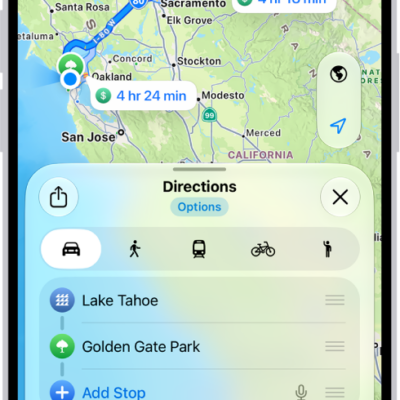
You can review and change your settings for the Maps app, including travel mode and units. Maps defaults to your preferred travel mode when providing directions, whether that’s driving, walking, transit, or cycling, and you can change the units used for the scale on a 2D map.
Choose a default travel mode and preferences
When Maps provides directions, it defaults to your preferred travel mode.
You can choose cycling, transit, walking, or driving.
- Start the Maps app on your iPhone.
-
Tap your picture or initials next to the search field, tap Preferences, and then tap options.
(If neither your picture nor initials appear next to the search field, tap Cancel next to the field, or tap the search field, then tap Cancel.)
- To find more options, tap Maps Settings at the bottom of the screen.
Other route options may be available depending on the mode of travel, like choosing an arrival time when driving, choosing which transit method you prefer, or avoiding heavy traffic or hills when cycling or walking.
Change the units used in Maps
As you zoom out on a 2D map, a scale appears at the top.
You can switch the units used for the scale, too.
- Start the Settings app on your iPhone.
- Tap General and tap Language & Region.
- Tap Measurement System and select an option.