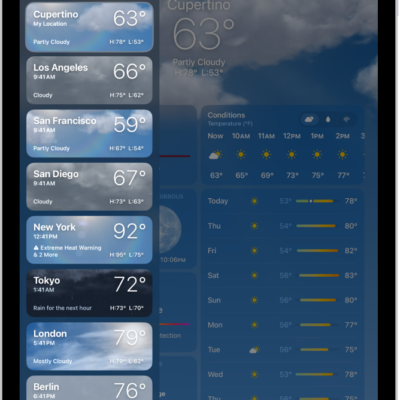
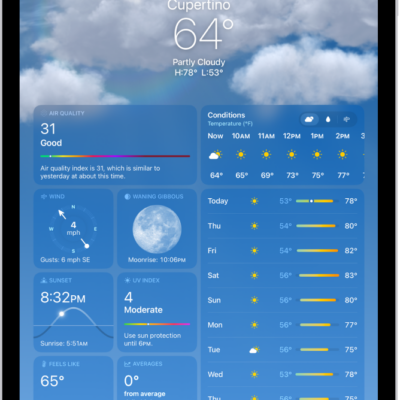
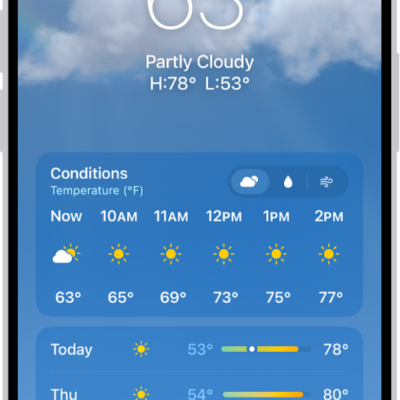
Use the Weather app to track current and upcoming weather conditions, locally or in locations around the globe. You can easily check on current weather details such as clear or cloudy skies, temperature, precipitation, wind, ultraviolet (UV) conditions, visibility, humidity, and air quality.
You can also see severe weather alerts, view the weather in other locations, and get rain alerts for remote locations. Your Apple Watch keeps its list of locations synced with the list on your iPhone.
Check the weather
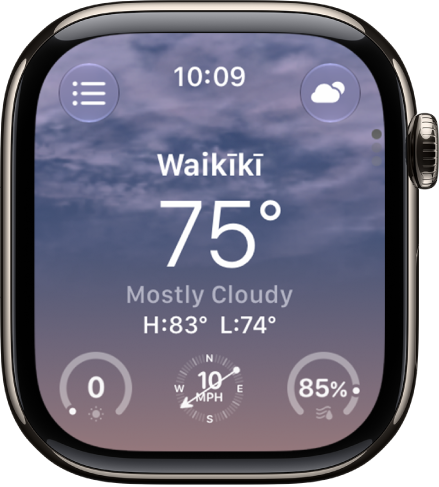
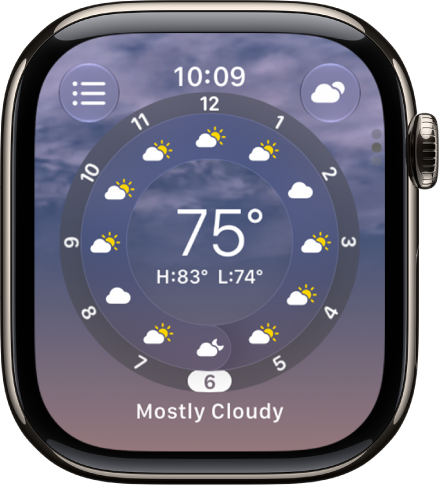
You can see current conditions and hourly views for humidity, visibility, UV index, wind speed, precipitation, temperature, and air quality, though air quality isn’t available for all locations.
- Start the Weather app on your Apple Watch.
-
View the current conditions.
If the local weather doesn’t appear on your Apple Watch when you open the Weather app, make sure that Location Services is turned on.
-
Tap the display to cycle through the views.
See severe weather alerts
When a significant weather event is predicted, an alert may appear at the top of the Weather app. Tap the alert for more information.
Note: Severe weather alerts aren’t available in all locations.
View the weather in other locations
Your Apple Watch keeps its list of locations in sync with the list on your iPhone.
- Start the Weather app on your Apple Watch.
- Do any of the following:
- Add a location: Tap the Add button, then enter a city.
- Remove a location: Swipe left on the location you want to remove and tap the Delete button.
Get rain alerts for remote locations
Apple Watch can notify you about rain at the locations of appointments within 150 miles, so you can plan accordingly.
- Go to the Calendar app on your Apple Watch.
-
Add an appointment and include the location address.
If precipitation is forecast at this location as the appointment time nears, the Precipitation widget appears in the Smart Stack.
- Tap the Precipitation widget to see detailed weather information, including hourly forecasts.
See the weather forecast for a trip
If you add trips to Calendar with location details, the Smart Stack shows a 5-day weather forecast for your destination automatically.
- Start the Calendar app on your Apple Watch.
-
Add an event and include the destination location.
As your trip approaches, the Trip widget appears in the Smart Stack.
- Open the Smart Stack and scroll to the 5-day weather forecast for your destination.
- Tap the Trip widget to see detailed weather information, including hourly forecasts.
See also
- See timely widgets in the Smart Stack on Apple Watch
- Add complications to the watch face on your Apple Watch
- Ask Siri to get information