Your heart rate is an important way to monitor how your body is doing. You can check your heart rate during a workout; see your resting, walking, workout, and post-workout heart rates, and your heart rate during a Breathe session; or take a new reading at any time.
Heart rate data is on by default, and it feeds the Heart Rate app, workouts, and Breathe and Reflect sessions. You can see graphs of your data, too.
Here’s how to check your heart rate on Apple Watch.
Note: Make sure that your wrist and your Apple Watch are clean and dry. Water and sweat can cause a poor recording.
Turn on heart rate data
Your Apple Watch monitors your heart rate by default for workouts, the Heart Rate app, and Breathe and Reflect sessions. Turning heart rate data back on is always an option if you’ve switched it off.
- Open the Settings app on your Apple Watch.
- Tap Privacy & Security and tap Health.
- Tap Heart Rate, then turn on Heart Rate.
You can also open the Apple Watch app on your iPhone, tap My Watch, tap Privacy, then turn on Heart Rate.
See your heart rate
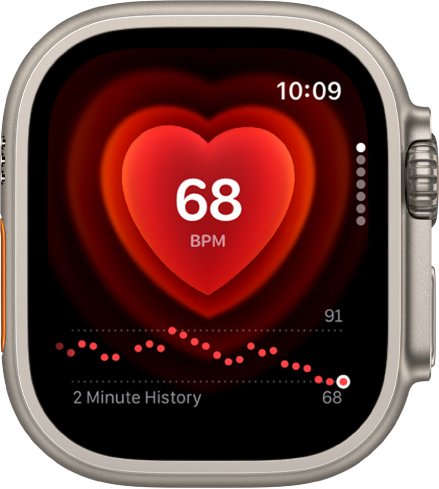
Go to the Heart Rate app on your Apple Watch to view your current heart rate.
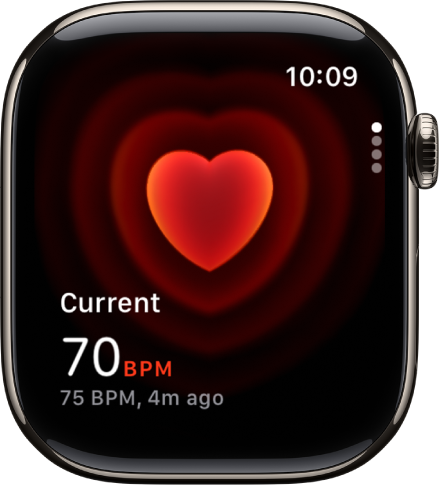
As long as you’re wearing it, your Apple Watch keeps measuring your heart rate.
On Apple Watch Series 12 and Apple Watch Ultra 4, you can view a chart of your heart rate measurements as it updates in real time. To turn off these measurements, go to the Apple Watch app on your iPhone, tap Apps, tap Heart, then turn off Continuous Measurements.
See a graph of your heart rate data
- Open the Heart Rate app on your Apple Watch.
- Turn the Digital Crown to Range, Resting Rate, or Walking Average to show your heart rate throughout the day.
- To learn more about your heart rate data, tap the Info button.
To see your heart rate data over a longer period of time, go to the Health app on your iPhone, tap Browse, tap Heart, then tap an entry. You can show heart data for the last hour, day, week, month, or year.
View your recovery heart rate variability
Apple Watch Series 12 and Apple Watch Ultra 4 can show your recovery heart rate variability, or HRV, which measures the overall variation in time between heart beats.
- Open the Heart Rate app on your Apple Watch.
- Turn the Digital Crown to Heart Rate Variability to view your data.
- To learn more, tap the Info button.
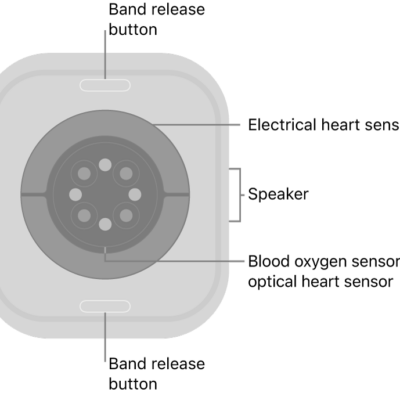
Note: The back of your Apple Watch needs skin contact for features like wrist detection, haptic notifications, blood oxygen level measurements, and the heart rate sensor. Wearing your Apple Watch with the right fit—not too tight, not too loose, and with room for your skin to breathe—keeps you comfortable and lets the sensors do their job.
See also
- Record an electrocardiogram with the ECG app on Apple Watch
- Monitor your heart health on Apple Watch