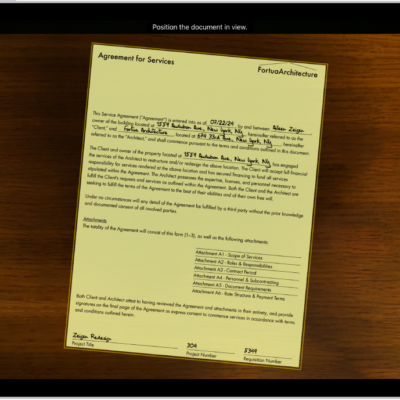
Use the Notes app to jot down quick thoughts or organize detailed information with checklists, images, web links, scanned documents, handwritten notes, and sketches. You can even organize your note with sections and headings.
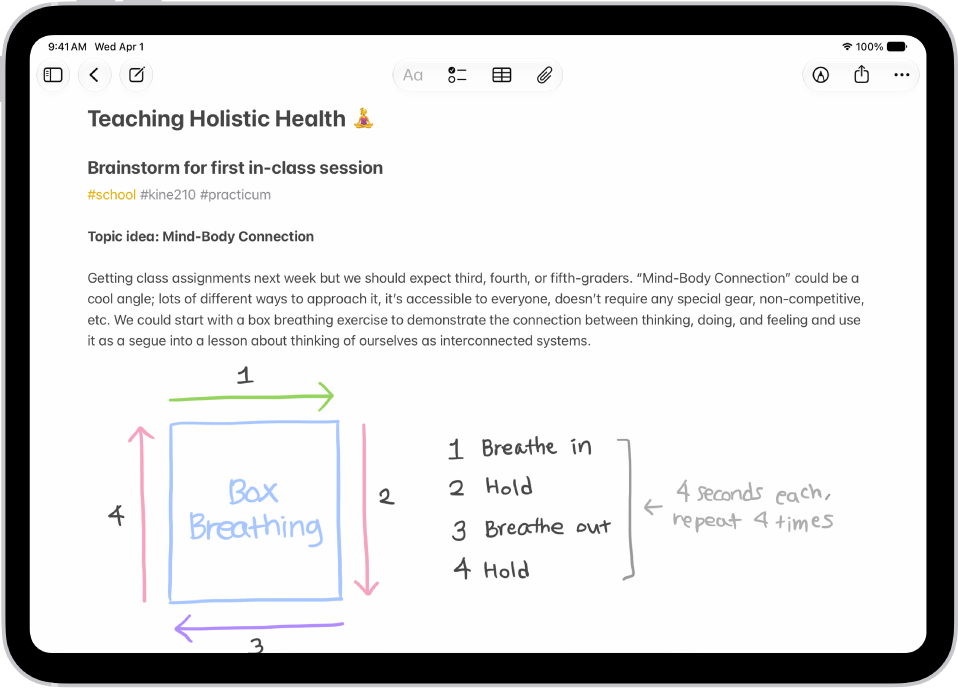
The first line of a note becomes its title, and you can add formatting, checklists, tables, and divider lines. Sections can collapse and expand, so it’s easy to manage and outline long notes.
Here’s how to create and format notes on iPad.
Create a new note
- Open the Notes app on your iPad.
-
Tap the New Note button, then enter your text.
The first line of the note becomes the note’s title.
Add formatting, checklists, tables, and divider lines
- Open the Notes app on your iPad.
- When writing a note, do any of the following:
- Format text: Tap the Format button and choose a style such as Heading, bold or italic font, highlight, and more.
- Make a checklist: Tap the Checklist button.
- Add a table: Tap the Add Table button.
- Add a divider line: Tap to place the insertion point and tap the Expand button. Then choose Insert Divider Line.
Organize a note with sections and headings
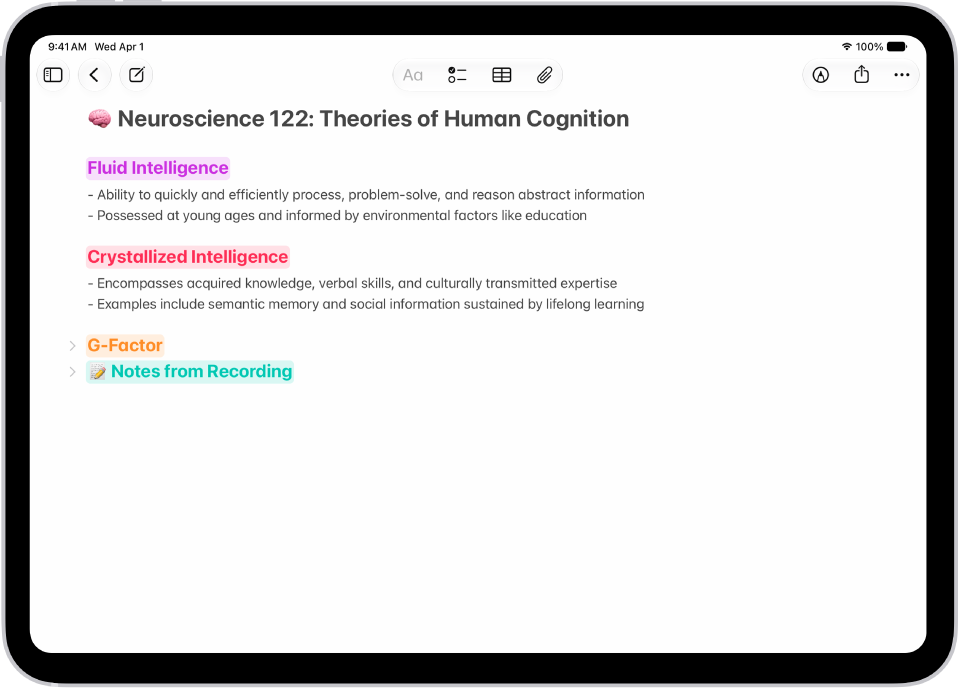
Collapsing and expanding sections keeps long notes easy to manage and outline.
- Open the Notes app on your iPad.
- In a note, select the text for the heading.
- Tap the Format button and then tap Heading or Subheading.
- Add content to the section and then do any of the following:
- Collapse a section: Tap the Collapse button.
- Expand a section: Tap the Expand button.
Use Writing Tools in Notes
With Apple Intelligence, you can use Writing Tools to summarize selected text with a tap, proofread your work, and create different versions of the same text to help you find the right wording and tone. See Use Writing Tools to write, improve, and summarize content.
Note: Apple Intelligence on iPadOS 27 or later is available on an Apple Intelligence-enabled iPad mini (A17 Pro) and iPad models with M1 or later. Apple Intelligence is not available in all languages or regions. Usage limits may apply.*
*Apple Intelligence is available with Siri and device language set to Chinese (Simplified), Chinese (Traditional), Danish, Dutch, English, French, German, Italian, Japanese, Korean, Norwegian, Portuguese, Spanish, Swedish, Turkish, or Vietnamese. Some features may not be available in all regions or languages. Some devices may not be available in all regions. Siri AI is available in beta in iOS 27, iPadOS 27, macOS 27, watchOS 27, and visionOS 27 and requires an Apple Intelligence–enabled device set to a supported language. Available in English to start. Siri AI will not be initially available in the EU on iOS, iPadOS, and watchOS. Certain Apple Intelligence features that rely on server-side models are subject to daily usage limits, including but not limited to Siri AI, Intelligent Photo Editing Tools, Image Playground, and AFM 3 Cloud models in Shortcuts. Daily limits may vary by feature, request complexity, system demand, system policies, and other factors. Expanded access to such features will be available for a fee in the future. Use of these features is subject to the Apple Intelligence Terms and Conditions.
See also
- Add photos, video, and more to notes on iPad
- Use Quick Notes on iPad
- Use keyboard shortcuts in Notes on iPad