You can remove Freeform boards and folders you no longer need. You can also recover deleted items within 30 days if you change your mind.
If you delete a board that was shared with you directly, though, you lose access, while the owner and other participants still see it. A deleted board you own moves to Recently Deleted for everyone you share it with, where it stays for 30 days. You can also permanently remove an item.
Here’s how to delete and recover your Freeform boards and folders on iPad.
Delete a board
- Go to the Freeform app on your iPad.
-
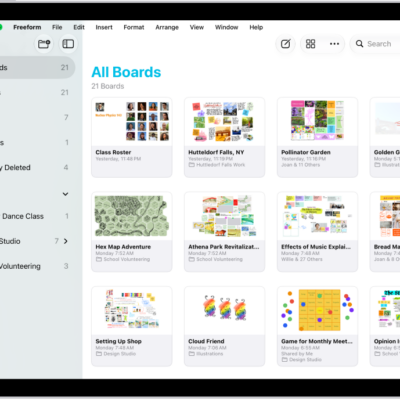
While browsing All Boards, tap the More button at the top, tap Select, and tap the boards you want to delete.
(If you’re in a board, tap the Back button to browse All Boards.)
- Tap Delete at the bottom-right corner of the screen.
You can also touch and hold the thumbnail or name of the board, then tap Delete.
If you delete a board that was shared with you directly, you lose access. The owner and other participants still see the board.
When you delete a board that’s yours, or one in a folder someone shared with you, it goes into Recently Deleted for you and anyone you share it with, where it stays for 30 days.
Delete a folder
Important: To remove a folder but keep the boards inside it, move the boards before you delete the folder.
- Start the Freeform app on your iPad.
-
While browsing boards, swipe left on the folder in the sidebar. Then tap the Delete Folder button. (If you don’t see the sidebar, tap the Show Sidebar button.)
When you delete a folder that contains boards, the boards are deleted too. If the folder is shared, what other participants see depends on whether you own the folder or were invited to it.
- If you delete a folder you own: The folder moves to Recently Deleted, where you can recover it or permanently delete it within 30 days. Participants can’t recover a folder you shared with them, but they can recover subfolders you shared with them that weren’t the top-level shared folder. To make sure the folder is gone and no longer shared with anyone, permanently delete it from Recently Deleted.
- If you delete a folder someone else shared with you: You no longer see the folder, and the folder is removed from your devices. Others keep the folder, but no longer see your name listed as a participant. The owner still sees your name, marked as Invited, and you can rejoin later with the link you originally received.
- If you delete a subfolder within a folder shared with you: The subfolder moves to Recently Deleted for you and everyone it’s shared with.
Recover a recently deleted board or folder
If you change your mind about deleting a board or folder, you can recover it.
- Start the Freeform app on your iPad.
-
While browsing All Boards, tap Recently Deleted in the sidebar.
Or while working in a window that isn’t full-screen, tap the Back button, then tap Recently Deleted.
-
Do one of the following:
-
Recover a board or folder: Touch and hold the thumbnail or name of the recently deleted item and then tap Recover.
Note: You can’t open a board from Recently Deleted, but you can review a deleted folder before you recover it—just tap it to see what’s inside.
- Recover several boards or folders: Tap the More button at the top, tap Select, and then tap the boards or folders you want to recover. Tap Recover at the bottom of the screen.
-
Recover a board or folder: Touch and hold the thumbnail or name of the recently deleted item and then tap Recover.
Deleted boards and folders remain in Recently Deleted for 30 days.
- If you were the owner of a shared board or folder that you deleted: Recovering a board or folder from Recently Deleted restores everyone’s access. If you want to make sure a shared folder is permanently deleted, delete it from Recently Deleted.
- If you delete a board or subfolder you don’t own: You can recover the board or folder from Recently Deleted.
- If the owner deleted the top-level folder that was shared with you: The folder appears in your Recently Deleted. You can’t recover it, but you can make a copy.
Permanently remove a deleted board or folder
Once a board or folder is deleted, you can remove it permanently. Owners can do that with any shared board or folder they own. Participants can only permanently remove a shared subfolder or board, not a top-level folder someone shared with them.
- Start the Freeform app on your iPad.
- While browsing Recently Deleted, touch and hold the board or folder, tap Delete, and then tap Delete.
Boards inside a shared folder are permanently removed, too, when you permanently remove the folder. And if you own the shared folder, everyone you’ve shared it with loses access.
See also