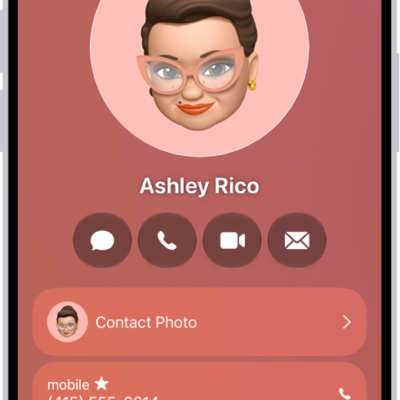
Assign a photo to a contact, add a pronunciation and pronouns, change a label, add a birthday, and more. On models with Dual SIM, iPhone uses the same line you used for your previous conversation when you call or text a contact. But you can choose a preferred line instead.
- Open the Contacts app on your iPhone.
- Tap a contact, then tap Edit.
- Enter or update the contact’s information.
- When you’re finished, tap the Done button.
On models with Dual SIM, when you call or text a contact, iPhone uses the same line you used for your previous communication with this contact by default. To choose a preferred line for phone calls and SMS/MMS message conversations, select the contact, tap default (below the contact’s name), then choose a line.
To change how your contacts are sorted and displayed, go to Settings > Apps > Contacts.
Tag: Contacts