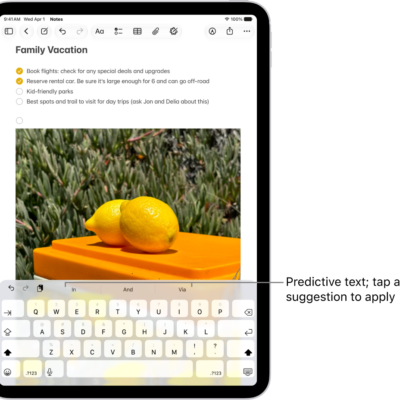
If the Apple external keyboard you use with iPad doesn’t include accents and other diacritical marks for the language you’re typing, you can use an Option key modifier or the onscreen keyboard to enter those marks.
You can add a keyboard for a language that supports diacritical marks, or choose an alternative keyboard layout that does. You can also switch to a language keyboard with the Switch Keyboard key on Magic Keyboard.
Here’s how to enter characters with diacritical marks on iPad.
Use the Option key to enter a diacritical mark for a character
To enter a character with a diacritical mark, you can press the Option key to select a mark.
-
Do one of the following:
-
Add a keyboard for a language that supports diacritical marks, then in an app, switch to that language keyboard.
For example, add the Spanish (Mexico) keyboard, then in an app, use the Switch Keyboard key on Magic Keyboard for iPad to select Español (México).
-
Go to Settings > General > Keyboard > Hardware Keyboard, then choose an alternative keyboard layout that supports diacritical marks.
For example, if you have the English (US) language keyboard, tap English (US), then choose U.S. International – PC or ABC Extended.
-
Add a keyboard for a language that supports diacritical marks, then in an app, switch to that language keyboard.
-
In an app, press and hold the Option key and then press a key that enters a diacritical mark.
For example, the Spanish (Mexico) keyboard and the U.S. International – PC alternative layout support these diacritical marks:
- Acute accent (for example, é): Option-E.
- Grave accent (for example, è): Option-`.
- Tilde (for example, ñ): Option-N.
- Diaeresis or umlaut (for example, ü): Option-U.
- Circumflex (for example, ê): Option-I.
-
Press the letter.
For example, to enter ñ using the Spanish (Mexico) keyboard or the U.S. International – PC alternative layout, press Option-N, then type an n.
Note: With the ABC – Extended alternative layout, you can also enter tone marks for typing Mandarin Chinese in Pinyin orthography. To type ǚ in lǚxíng (“travel”), for example, press Option-V, then type a v. The ABC – Extended layout also lets you type diacritical marks and letters from several European languages, like Czech, French, German, Hungarian, and Polish.
Use the onscreen keyboard to enter a diacritical mark
- Switch to the onscreen keyboard.
-
On the onscreen keyboard, touch and hold the letter, number, or symbol on the keyboard that’s related to the character you want.
For example, to enter é, touch and hold the e key.
- Slide your finger to choose a variant.
- To hide the onscreen keyboard when you’re finished, tap the Hide Keyboard button.