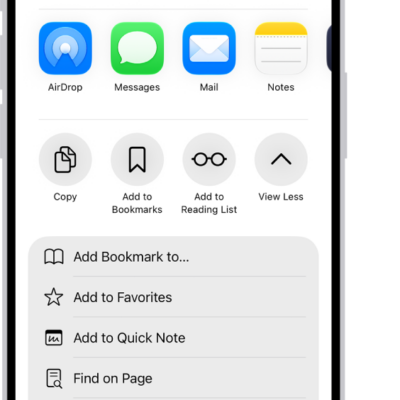
Install extensions to customize the way your browser works, and they can find coupons when you’re shopping, block content on websites, and more.
With Apple Intelligence, Safari can even build an extension you describe, to customize or add to any webpage. You can also change Safari extension settings, and extensions that are available on other platforms show up on your other devices, too.
Here’s how to get extensions to customize Safari on iPhone.
Add Safari extensions
- Open the Safari app on your iPhone.
- Tap the Page Menu button and then tap Manage Extensions.
- Search for extensions, scan Recommendations, or tap Browse Extensions to look in the App Store.
- When you find one you want, tap the price, or if the app is free, tap Get, and follow the onscreen instructions.
Note: To make them easier to find and download, extensions you install for Safari on iPhone also show up in Safari settings on every iPhone, iPad, or Mac signed in to the same Apple Account, as long as they’re available on those platforms.
Create your own extension
With Apple Intelligence, Safari lets you describe and create an extension to customize or add to any webpage you visit. Note: Apple Intelligence on iOS 27 or later is available on an Apple Intelligence-enabled iPhone 15 Pro, iPhone 15 Pro Max, or iPhone 16 model or later. Apple Intelligence is not available in all languages or regions. Usage limits may apply.*
- Open the Safari app on your iPhone.
- Go to the webpage you want to create an extension for.
- Tap the Page Menu button, then tap Describe Extension.
-
Enter a description of what you want to create, or select one of the suggested categories. Safari checks the App Store to see if a matching extension already exists.
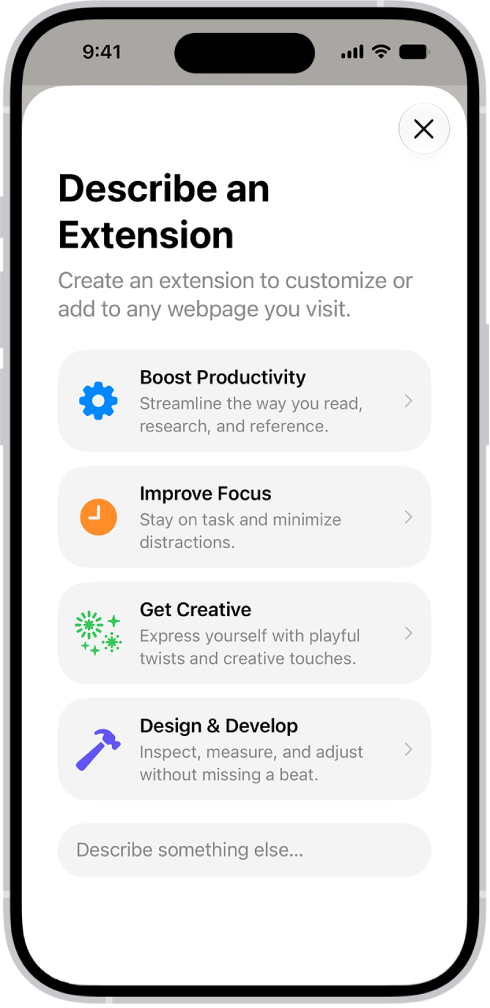
- Choose an item from the list of matching App Store extensions; if there are no results, tap Create.
- Tap the resulting extension to make changes to it, or tap Try to try it out.
- While you’re trying out the extension, tap Edit to make additional changes, or tap the checkmark button to save it.
To delete a custom extension, tap the Page Menu button, tap Manage Extensions, select the extension, then tap Delete Extension.
Change Safari extension settings
An extension can customize the way your browser works. At any time, you can turn Safari extensions on or off.
- Open the Settings app on your iPhone.
- Tap Apps, then tap Safari.
- Tap Extensions and tap an extension.
- Turn on Allow Extension.
With Safari profiles set up, you’ll need to turn on the extension in each profile you want to use it with. Important: Check your installed extensions and make sure you’re familiar with what they do.
Change Safari extension settings for an individual website
Without changing your overall Safari settings, you can turn an extension on or off for a single website.
- Open the Safari app on your iPhone.
- Tap the Page Menu button on the left side of the search field and then tap Manage Extensions.
- Turn each extension on or off.
Remove an installed Safari extension
- Swipe down on the Home Screen and then search for the extension you want to remove.
- Touch and hold the extension icon, tap Delete app and then follow the onscreen instructions.
*Apple Intelligence is available with Siri and device language set to Chinese (Simplified), Chinese (Traditional), Danish, Dutch, English, French, German, Italian, Japanese, Korean, Norwegian, Portuguese, Spanish, Swedish, Turkish, or Vietnamese. Some features may not be available in all regions or languages. Some devices may not be available in all regions. Siri AI is available in beta in iOS 27, iPadOS 27, macOS 27, watchOS 27, and visionOS 27 and requires an Apple Intelligence–enabled device set to a supported language. Available in English to start. Siri AI will not be initially available in the EU on iOS, iPadOS, and watchOS. Certain Apple Intelligence features that rely on server-side models are subject to daily usage limits, including but not limited to Siri AI, Intelligent Photo Editing Tools, Image Playground, and AFM 3 Cloud models in Shortcuts. Daily limits may vary by feature, request complexity, system demand, system policies, and other factors. Expanded access to such features will be available for a fee in the future. Use of these features is subject to the Apple Intelligence Terms and Conditions.