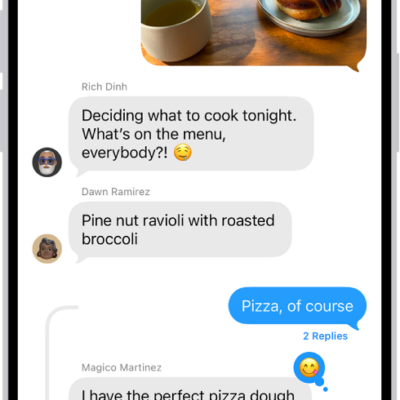
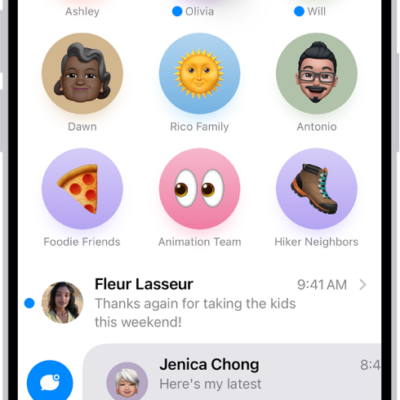
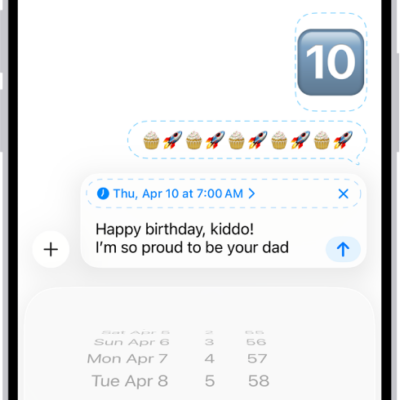
You can send a group text message, name it, and assign it an icon to find it more easily. In a group conversation, you can call people’s attention to specific messages and even collaborate on projects.
When you mention someone by name in a group conversation, they’ll get a notification. To start one, you send a message to multiple people, entering each recipient’s phone number, contact name, or Apple Account.
Here’s how to have a group conversation in Messages on iPhone.
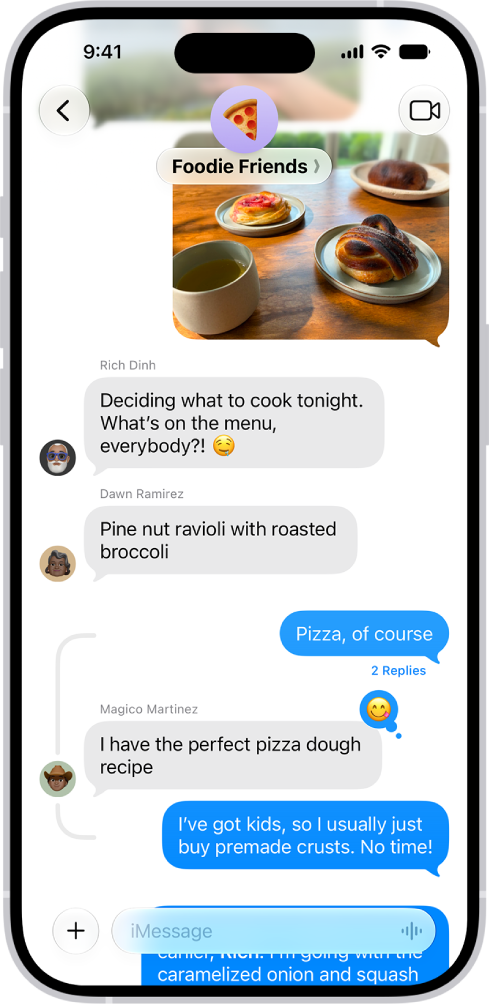
Start a group conversation
To start a group conversation, send a message to multiple people.
- Open the Messages app on your iPhone.
- In the conversation list, tap the Compose button at the bottom of the screen.
-
Tap the To field. Enter the phone number, contact name, or Apple Account of each recipient.
To choose group members from your contacts, tap the Add Contact button in the To field.
Note: If one or more of your recipients isn’t using iMessage, messages appear in green bubbles instead of blue ones.
- Tap the text field, enter a message or tap the Add button (to the left of the text field) to send a photo, video, poll, or another item with iMessage apps.
- Tap the Send button.
Add someone to an existing group conversation
Once a group conversation has at least two other people in it, you can add additional contacts.
- Open the Messages app on your iPhone.
- Tap the group conversation you want to add someone to.
-
Tap the group icon at the top of the conversation. Then tap Add.
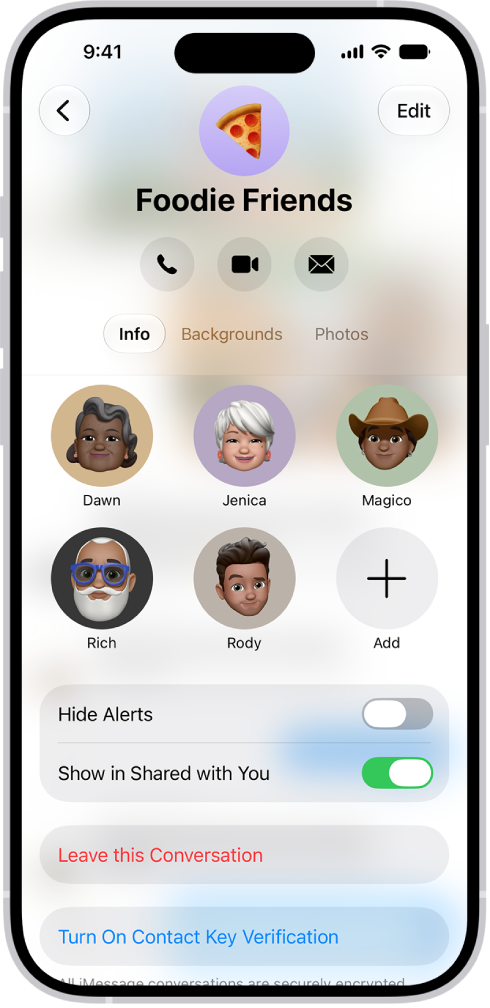
-
Enter the phone number, contact name, or Apple Account of each recipient.
To add group members from your contacts, tap the Add Contact button in the To field.
- Tap the Done button to save your changes.
Note: If someone in the group hasn’t turned on iMessage, you’ll need to follow the onscreen instructions to start a new group.
With only one other person in the conversation, you’ll need to start a new group conversation to add someone else.
To remove someone from a group conversation in iMessage, touch and hold their icon, then tap Remove from Group.
Leave a group conversation
You can’t leave a group chat unless there are at least three other participants in the conversation.
- Open the Messages app on your iPhone.
- Tap the group conversation you want to leave.
- Tap the contact or group icon at the top of the conversation.
- Scroll down and tap Leave This Conversation or Delete and Block This Conversation. Blocked conversations are moved to the Recently Deleted folder, where you can recover them.
To stay in a group chat without receiving its notifications, you can mute the conversation instead.
Mention people in a group conversation
To call someone’s attention to a specific message in a group conversation, mention them by name. They’ll get a notification. Depending on their settings, they may be notified even if they’ve muted the conversation.
- Open the Messages app on your iPhone.
- In a conversation, begin typing a contact’s name in the text field.
- Tap the contact’s name when it appears.
You can also mention a contact in Messages by typing @ followed by the contact’s name. To change whether you get notifications when your name is mentioned in Messages, go to Settings > Apps > Messages, then turn on or off Notify Me.
Name a group conversation
You can name a group chat and choose an icon* to represent the conversation. Everyone who has turned on iMessage sees the new name and icon.
- Open the Messages app on your iPhone.
- Tap the group icon at the top of the conversation.
- Tap Edit, tap Edit Name & Photo, and then choose an option.
*Availability varies by region.