If you subscribe to Apple News+, you can listen to audio versions of select News+ stories. You can also listen to select Apple News+ audio stories in the Podcasts app.
The Audio tab is where it starts, with stories you’re currently listening to in Up Next and stories recommended to you based on your interests in For You. You can add stories to Up Next, and read, share, or remove audio stories, too.
Here’s how to listen to News stories in News on iPhone.
Note: Apple News and Apple News+ aren’t available in all countries or regions.
Browse audio stories
- Open the News app on your iPhone.
- Tap Audio to show Apple News+ audio stories and Apple News Today.
- If you’re a subscriber, you see selections of audio content, including:
- Up Next: Stories you’re currently listening to or have added to the Up Next queue.
- For You: Stories recommended to you based on your interests.
To learn more about a story before listening to it, tap See Details.
Without an Apple News+ subscription, you can still hear previews of audio stories.
Play audio stories
- Open the News app on your iPhone.
- Tap Audio, then tap a story to play it.
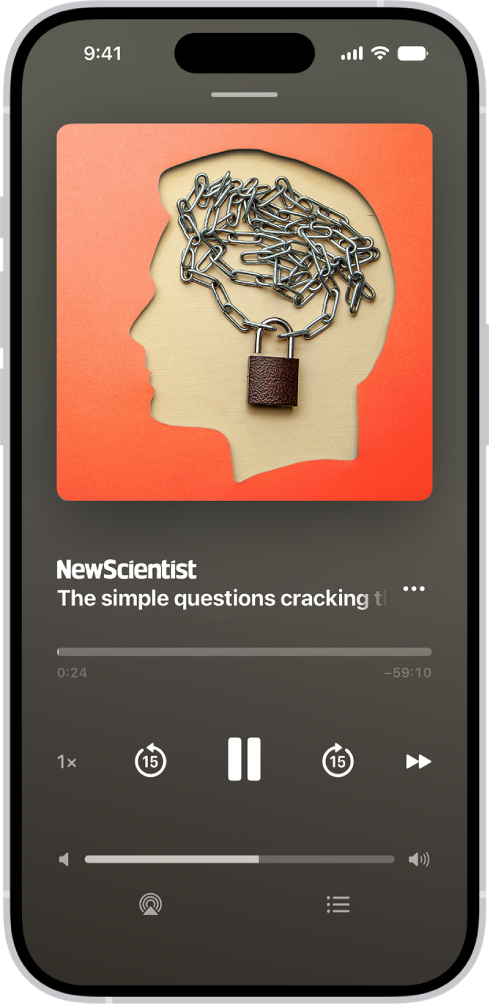
- As the story plays, use the mini player controls at the bottom of the screen to skip back, pause, or close the story.
- To access more controls, tap the mini player to open the full-screen player and then do any of the following:
- Adjust the volume: Drag the slider at the bottom of the screen left or right.
- Skip forward or back: Tap or touch and hold the rounded arrows.
- Speed it up or slow it down: Tap 1x, then choose a speed.
- Go to a specific time: Drag the slider below the image left or right.
- Go to the next story: Tap the Forward button.
- Go to your Up Next queue: Tap the Table of Contents Switch button.
- Save, share, or read the story: Tap the More button.
- Play on a different device: Tap the AirPlay button. Then choose an available device such as HomePod, Apple TV 4K, or Bluetooth® speakers.
- Switch back to the mini player: Swipe down from anywhere on the screen, or tap the Close button at the top of the screen.
- Close the full-screen player: Tap the More button, then tap Close Audio Player.
- To close the mini player, tap the Close button.
Audio stories can also appear in a feed. To listen to the story, tap the Play button (Apple News+ subscription required). You can also tap the story to read it, then tap the Play button at the top of the story.
Add stories to Up Next
- Open the News app on your iPhone.
- In the Audio tab or a news feed, tap the More button. Choose Play Next or Play Last.
To reorder stories in the Up Next queue, tap See All, touch and hold the Reorder button, then drag stories to the order you prefer.
Read, share, and remove audio stories
- Open the News app on your iPhone.
- Tap Audio and then do any of the following:
- Read, share, and more: Tap the More button and then choose an option.
- Remove stories from the Up Next queue or For You: Touch and hold the story and select Remove.
Note: Several of these options also appear when you swipe a story left or right.