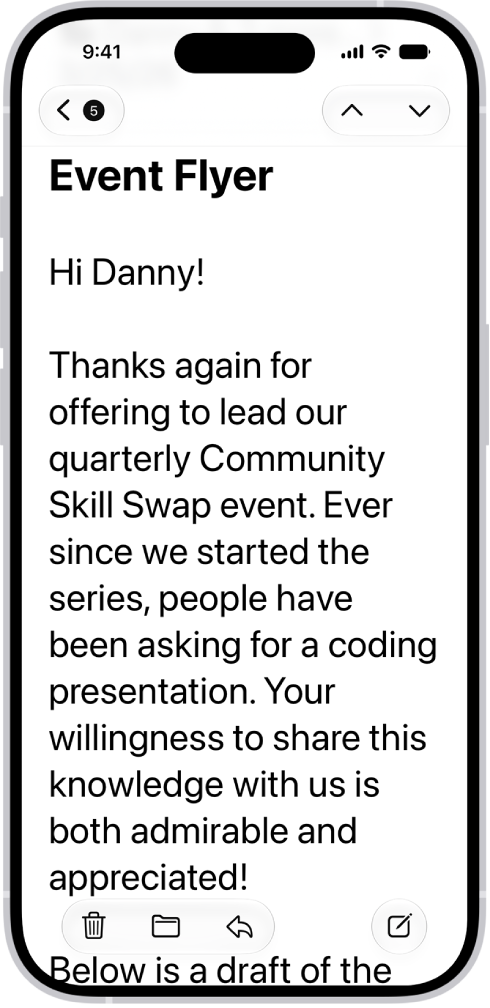
You can make it easier to read text on iPhone by increasing its size or making it bold. You can set a single preferred text size for supported apps, like Calendar, Mail, Messages, and Notes. For additional text sizes, there’s Larger Accessibility Sizes, too.
Make text bigger and bolder
For all supported apps, including Settings, Notes, Messages, Mail, Calendar, and more, you can choose a single preferred text size and turn on bold text.
- Open Settings, tap Accessibility, and then tap Display & Text Size.
-
Do any of the following:
-
Make text bigger: Tap Larger Text and drag the slider to adjust the text size.
For additional text sizes, turn on Larger Accessibility Sizes.
- Make text heavier: Turn on Bold Text.
-
Make text bigger: Tap Larger Text and drag the slider to adjust the text size.
Quick tip: You can change text size without leaving an app. Open Control Center and adjust the Text Size slider . If the slider isn’t there, tap the Add button in the top-left corner and tap Add a Control, then tap the Text Size control.
Turning on Display Zoom to increase the size of text also enlarges interface elements like icons and buttons.
You can also temporarily hover on text to see it larger, change display colors on iPhone to make it easier to see what’s onscreen or zoom in on the screen.