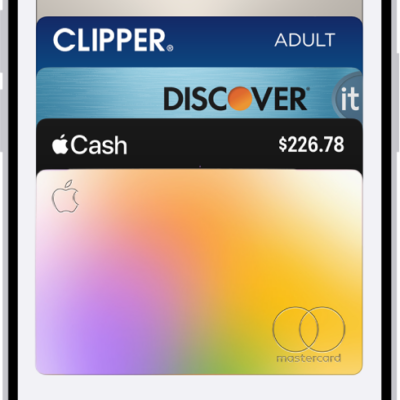
You can view card and pass details, show or remove expired passes, and remove a card or pass from Wallet.
Cards and passes can show useful details, like your account balance, recent transactions, reward or loyalty points, and flight information. Expired passes are hidden by default. But you can show them, and you can unhide, share, or delete a pass, too.
Here’s how to manage cards and passes in Wallet on Apple Watch.
View card or pass details
Useful information like an account balance, recent transactions, reward or loyalty points, and flight information can show up on cards and passes.
- Start the Wallet app on your Apple Watch.
- Scroll to the card or pass and tap it.
- Scroll down to view the information. To see more, tap Details.
View, unhide, or delete expired passes
By default, Wallet hides passes that have expired. To see expired passes do the following:
- Start the Wallet app on your Apple Watch.
- Tap the More Options button and then tap View [number] Expired Passes.
-
Tap a pass and then view its details.
You can also choose to unhide, share, or delete it.
To always show expired passes, go to the Settings app on your Apple Watch, tap Wallet & Apple Pay, then turn off Hide Expired Passes.
Remove a card or pass
- Start the Wallet app on your Apple Watch.
- Scroll to the card or pass and tap it.
- Tap Remove.
You can also go to the Apple Watch app on your iPhone, tap My Watch, tap Wallet & Apple Pay, tap the card, then tap Remove Card.
Remove your cards from Apple Pay if your Apple Watch is lost or stolen
Find My iPhone, if you’ve turned it on, can help you locate and secure your Apple Watch.
Removing your cards from Apple Pay takes another device or a call to the issuers of your cards.
See also
- Set up cards and passes in Wallet on Apple Watch
- Use cards and passes in Wallet on Apple Watch
- Protect a lost Apple Watch