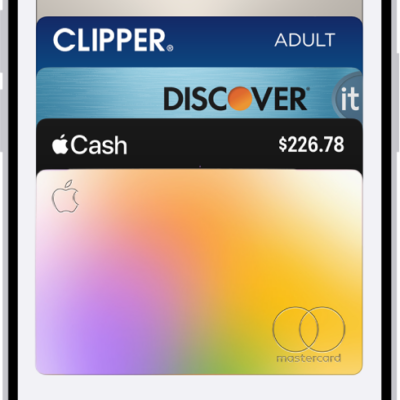
Use the Wallet app to keep your eligible debit and credit cards, passes, transit cards, identity cards, keys, and more—all in a secure and convenient place. Many cards and passes in Wallet on your iPhone are also available on your Apple Watch.
With Apple Cash in the U.S., for example, you can send money with Tap to Cash, and transit cards let you breeze through transit gates. You can rearrange your cards, keys, and passes, too.
Note: Apple Wallet requires eligible and supported cards and passes. Apple Wallet, Apple Pay, and its features aren’t available in all countries or regions.
What can I keep in Apple Wallet?
- Payment cards
- Debit and credit cards: Make purchases with Apple Pay on Apple Watch.
- Apple Cash (U.S. only): Send money in Messages or with Tap to Cash by simply holding your iPhone or Apple Watch near someone else’s.
- Identity cards
- Government-issued IDs: Show proof of age or identity in person, online, and in app at select businesses and venues.
- Employee badges: Access your workplace.
- Student IDs: Access your dorm and other places around campus.
- Transit and tickets
- Transit cards: Breeze through transit gates by holding your iPhone or Apple Watch to the reader.
- Tickets and boarding passes: See Use cards and passes in Wallet on Apple Watch.
- Keys
- Home: Unlock your compatible smart lock with just a tap of your iPhone or Apple Watch.
- Apartment building or condominium: Access your apartment building, condominium, or other shared living space.
- Hotel room: Check in without going to the lobby and unlock your room with a digital key from a participating hotel’s app.
- Car: Lock, unlock, and start your compatible car with a car key in Wallet.
- Scooter: Lock, unlock, and start your compatible scooter with a scooter key in Wallet.
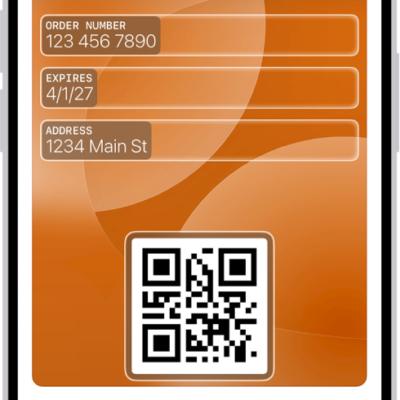
- Passes: Keep event tickets, coupons, membership cards, and more in one convenient place. You can even use a pass created on iPhone. See Use cards and passes in Wallet on Apple Watch.
Quick tip: For more on what Wallet can hold, go to the Wallet app on your iPhone, then tap the More button, and tap Discover.
Add a card or pass
Look for “Add to Apple Wallet” in an app, email, message, or web page.

Supported debit, credit, and transit cards can also go into the Wallet app directly.
- Start the Wallet app on your Apple Watch.
- Tap the More Options button, then tap Add Card.
- Choose a category and then follow the onscreen instructions. This might include receiving a text message, answering security questions, or confirming through the card issuer’s app.
You can also go to the Apple Watch app on your iPhone, tap My Watch, tap Wallet & Apple Pay, then tap Add Card.
Rearrange your cards, keys, and passes
- Start the Wallet app on your Apple Watch.
-
Touch and hold a card, then drag it to a new position.
Tip: To make a credit or debit card your default payment card, drag it to the top of the card stack.
See also
- Make purchases with Apple Pay on Apple Watch
- Use cards and passes in Wallet on Apple Watch
- Manage cards and passes in Wallet on Apple Watch