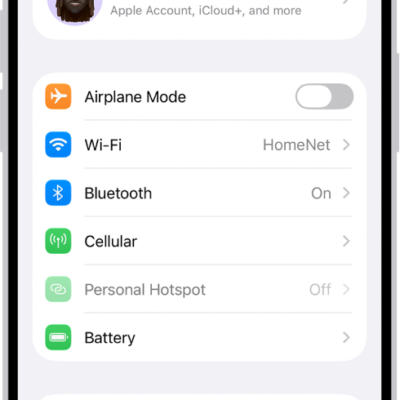
After your iPhone joins a Wi-Fi network, you can change settings for that network, share its password with another nearby device, and choose how iPhone joins new Wi-Fi networks and nearby Personal Hotspots.
You can forget a network, use Low Data Mode, and turn on a private Wi-Fi address, which helps reduce tracking of your iPhone across networks. You can also hide your IP address from known trackers. You can’t share a password unless the other device is nearby, though.
Change settings for the connected network
- Start the Settings app on your iPhone.
- Tap Wi-Fi, tap the Info button, and do any of the following:
- Forget the network: Tap Forget This Network.
- Use Low Data Mode: Turn on Low Data Mode to help reduce iPhone’s data usage on the network.
- Use a private Wi-Fi address: Turn on Private Wi-Fi Address to help reduce tracking of your iPhone across different Wi-Fi networks.
- Limit IP address tracking: Turn on Limit IP Address Tracking to hide your IP address from known trackers.
- Use cellular data in addition to Wi-Fi: Turn on Use Connectivity Assist.
- Configure DNS, HTTP Proxy, and other network settings: Tap a setting, then enter the details.
Share a Wi-Fi password
When your iPhone is on a Wi-Fi network, you can share the Wi-Fi password with an iPhone, iPad, or Mac nearby.
- Make sure your iPhone is unlocked, connected to the Wi-Fi network, and signed in to your Apple Account.
- Make sure of the following: the person you’re with is signed in to their Apple Account on their device, they’re in your contacts list, and their device is nearby.
- On your contact’s device, choose the Wi-Fi network.
- On your iPhone, wait for the Wi-Fi Password notification to appear. Then tap Share Password.
Set whether iPhone asks to join networks
iPhone automatically joins known networks. When none are in range, iPhone can let you know that other networks are available.
- Start the Settings app on your iPhone.
- Tap Wi-Fi, then tap Ask to Join Networks.
- Choose Off, Notify, or Ask.
Set whether iPhone joins Personal Hotspots automatically
With no Wi-Fi network available, iPhone can connect to a nearby Personal Hotspot on another device that’s signed in to your Apple Account.
- Start the Settings app on your iPhone.
- Tap Wi-Fi, then tap Auto-Join Hotspot.
- Choose Never, Ask to Join, or Automatic.