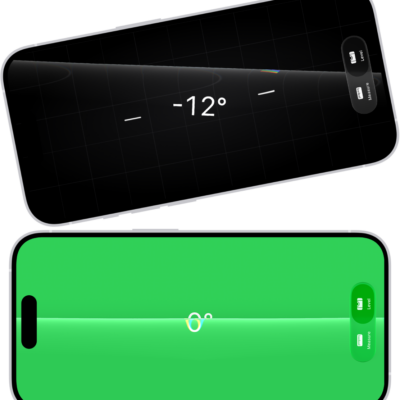
You can use your iPhone camera to measure nearby objects, automatically detect the dimensions of rectangular objects, or manually set the start and end points of a measurement.
On supported models, Edge guides help you measure the height and the straight edges of furniture, countertops, and other objects, and Ruler view shows more detail. While you’re measuring, a green dot appears to show that your iPhone camera is in use.
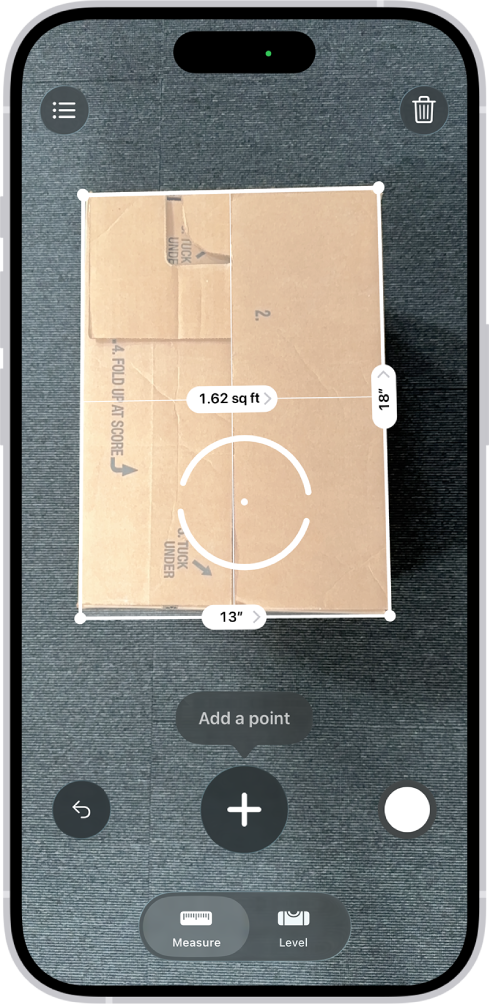
For best results, use Measure on well-defined objects located 0.5 to 3 meters (2 to 10 feet) from iPhone. (Measurements are approximate.)
Note: Measure works on external displays without turning on Screen Mirroring in Control Center.
Start a measurement
- Open the Measure app (in the Utilities folder) on your iPhone.
- Use the iPhone camera to slowly scan nearby objects.
- Position iPhone so that the object you want to measure appears on the screen.
Note: For your privacy, when you use Measure to take measurements, a green dot appears to indicate your camera is in use.
Take an automatic rectangle measurement
- Open the Measure app (in the Utilities folder) on your iPhone.
- Use the iPhone camera to slowly scan nearby objects.
- When iPhone detects the edges of a rectangular object, a white box frames the object; tap the white box or the Add button to see the dimensions.
- To take a photo of your measurement, tap the Take Picture button.
Take a manual measurement
- Open the Measure app (in the Utilities folder) on your iPhone.
- Align the dot at the center of the screen with the point where you want to start measuring. Tap the Add button.
- Slowly pan iPhone to the end point and then tap the Add button to see the measured length.
- To take a photo of your measurement, tap the Take Picture button.
- Take another measurement, or tap Clear to start over.
Use edge guides
On supported models, guide lines appear automatically, making it easy to measure the straight edges and height of furniture, countertops, and other objects.
- Open the Measure app (in the Utilities folder) on your iPhone.
- Position the dot at the center of the screen along the straight edge of an object until a guide line appears.
- Tap the Add button where you want to begin measuring.
- Slowly pan along the guide line. Tap the Add button at the endpoint to see the measured length.
- To take a photo of your measurement, tap the Take Picture button.
Use Ruler view
Ruler view shows more detail in your measurements on supported models.
- Open the Measure app (in the Utilities folder) on your iPhone.
- After measuring the distance between two points, move iPhone closer to the measurement line until it transforms into a ruler, showing incremental units of length.
- To take a photo of your measurement, tap the Take Picture button.