You can rearrange your apps in the grid view, list the apps in alphabetical order, and delete apps you don’t use.
Deleting an app from your iPhone removes it from Apple Watch, too, but you can also remove an app from your watch alone. Not all apps can be removed, though. And you can switch between list and grid view in the Settings app.
Here’s how to organize apps on Apple Watch.
Rearrange your apps on the App Grid
- Press the Digital Crown, then turn the Digital Crown to see all your apps.
-
Touch and hold an app and drag the app to a new location.
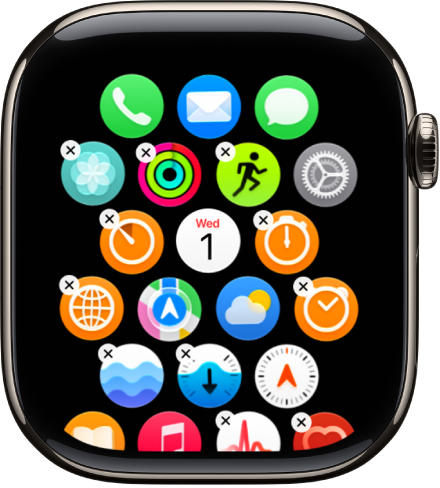
- Press the Digital Crown when you’re done.
You can also go to the Apple Watch app on your iPhone, tap My Watch, tap App View, then tap Arrangement. Touch and hold an app icon, then drag it to a new location.
Switch to the list or grid view
- Press the Digital Crown, then turn the Digital Crown to see all your apps.
-
Scroll to the bottom and choose an option:
-
List view
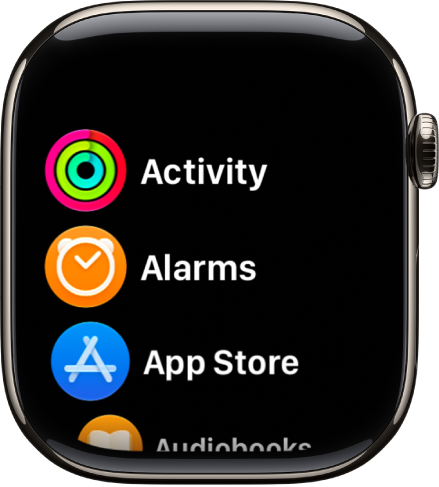
-
Grid view
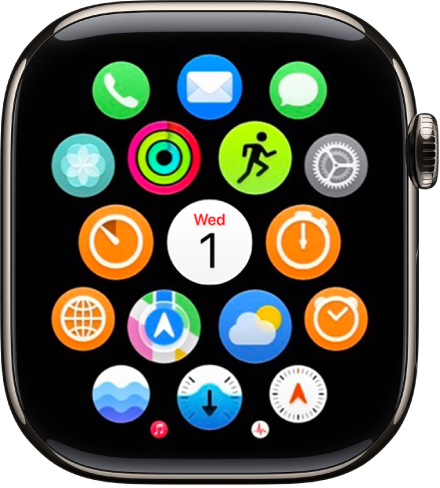
-
List view
You can also go to the Settings app, tap App View, then choose an option.
Remove an app from Apple Watch
If you remove an app from your iPhone, that app is also deleted from Apple Watch. To remove an app on Apple Watch only, do the following:
- Press the Digital Crown, then turn the Digital Crown to see all your apps.
-
Touch and hold an app. Then tap the Delete button.
Note: Not all apps can be removed from Apple Watch.
The deleted app stays on your paired iPhone until you delete it there as well. You can restore any app, including built-in Apple apps, if you download it from the App Store on your iPhone or Apple Watch.
See also