You can mark audio recordings as favorites and organize your recordings into folders.
Recordings you mark as favorites automatically appear in the Favorites folder. Related recordings can go together into folders, so you can locate them easily, and you can delete or reorder folders later. You can also mark several recordings as favorites at once, and move recordings into a folder.
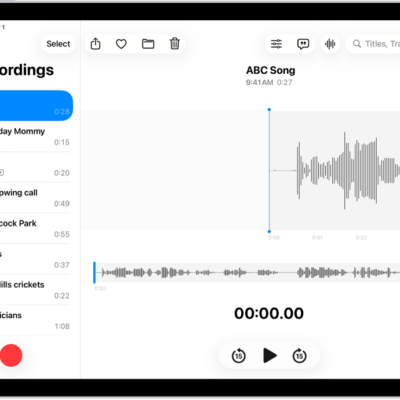
Here’s how to organize recordings in Voice Memos on iPad.
Note: Smart Folders hold your Apple Watch recordings, recently deleted recordings, and favorites, gathering files automatically by type and subject matter.
Mark recordings as favorites
- Go to the Voice Memos app on your iPad.
- In the list of recordings, do any of the following:
- Tap the recording you want to mark as a favorite, then tap the Favorite button above the waveform.
- Tap Edit above the list of recordings, select one or more recordings, tap Move to Folder, then tap Favorites. (If there isn’t a Favorites folder, create one by entering Favorites in the field.)
Recordings you mark as favorites automatically appear in the Favorites folder.
Organize recordings into folders
To locate related recordings easily, you can group them together into folders.
- Open the Voice Memos app on your iPad.
- Tap Edit above the list of recordings.
-
Select one or more recordings, tap the Share button, tap Move to Folder, and choose a folder.
To create a new folder, tap the New Folder button, type a name for the folder, then tap Save.
To view your folders, tap the Sidebar button; tap a folder to check its contents.
To return to the list of recordings, tap All Recordings above the folders.
Delete or reorder folders
- Open the Voice Memos app on your iPad.
- Tap the Sidebar button to go to the list of folders.
- Tap Edit above the folders and then do any of the following:
- Delete a folder: Tap the Delete button next to the folder. Tap the Trash button.
- Change the order of the folders: Drag the Reorder button next to any folder.
- Tap Done.
See also