You can organize your apps into folders to make them easier to find on your Home Screen pages.
A folder can hold more than one screen’s worth, too: it can contain multiple pages of apps. You can create, rename, or delete a folder, or move an app from a folder back to the Home Screen. Organizing your apps on the Home Screen doesn’t affect App Library, either.
Here’s how to organize your apps in folders on iPhone.
Create a folder
- Go to the Home Screen.
- Touch and hold the Home Screen background until the apps begin to jiggle.
-
To create a folder, drag an app onto another app and then drag other apps into the folder.
A folder can contain multiple pages of apps.
-
To rename the folder, touch and hold it, tap Rename, and then enter a new name.
If the apps begin to jiggle, tap the Home Screen background and try again.
- When you’re finished, tap Done.
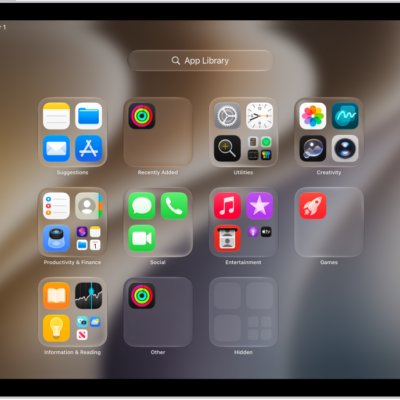
Note: If you organize your apps on the Home Screen, it doesn’t affect the organization of apps in App Library.
Delete a folder from your Home Screen
- Go to the Home Screen.
- Touch and hold the Home Screen background until the apps begin to jiggle.
-
Tap the folder to open it. Then drag all the apps out of it onto the Home Screen.
When the folder is empty, it’s deleted automatically.
Move an app from a folder to the Home Screen
Moving an app from a folder to the Home Screen makes it easier to locate and open.
- Go to the Home Screen.
- Locate the folder that contains the app. Tap the folder to open it.
- Touch and hold the app until the apps begin to jiggle.
- Drag the app from the folder to the Home Screen.