To keep tabs organized and make them easier to find again later, you can have Safari organize tabs into related topics, or create your own Tab Groups.
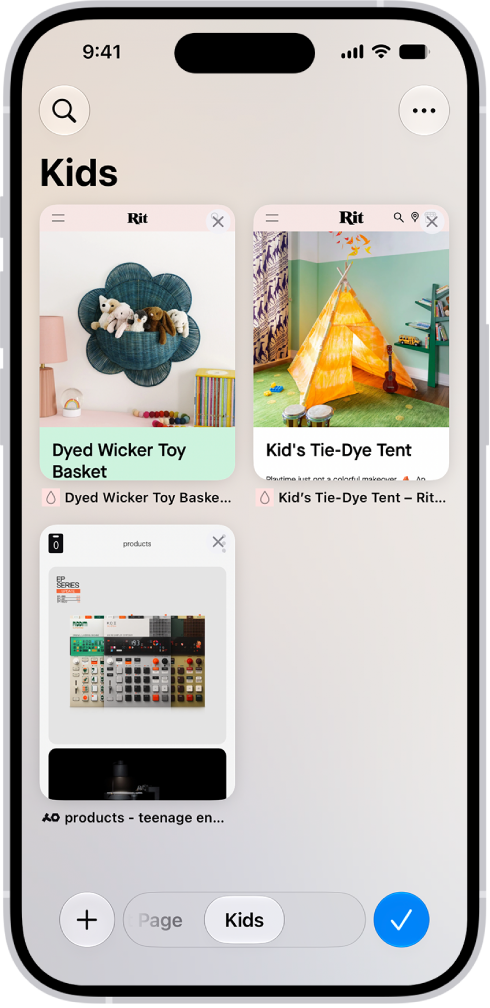
With Apple Intelligence, Safari can sort your tabs into suggested topics on its own, based on your browsing history. You can also reorder tabs, pin a tab at the top of a Tab Group, or move a tab to another Tab Group.
Here’s how to organize your tabs in Safari on iPhone.
Use Apple Intelligence to organize tabs into topics
Apple Intelligence can automatically organize your tabs into suggested topics based on your browsing history.
Note: Apple Intelligence on iOS 27 or later is available on an Apple Intelligence-enabled iPhone 15 Pro, iPhone 15 Pro Max, or iPhone 16 model or later. Apple Intelligence is not available in all languages or regions. Usage limits may apply.*
- Open the Safari app on your iPhone.
- To set whether Safari automatically organizes tabs, tap the Tabs button and tap the Organize button. Tap Automatically Create Topics.
- On the Tab screen, tap the New Tab button to open new tabs as you browse multiple websites. When you have two or more tabs that can be organized together by topic (for example, news), a suggested topic appears on the Tab screen with related tabs grouped together into thumbnails.
- Do any of the following:
- Preview tabs in a topic: Tap a topic to see thumbnails of each tab. Tap a thumbnail to open it.
- Open or close all tabs in a topic: Tap a topic to view all tabs within the topic. Tap the Back button to close the topic.
- See more options: Tap a topic to view all its tabs and tap the More button. Do any of the following:
- Copy links: Tap Copy Links.
- Move tabs to a Tab Group: Tap Move Tabs, then select a Tab Group to move them to.
- Close all tabs in this topic: Tap Close Tabs.
- Provide feedback on the suggested topic: Tap Looks Good or Something Isn’t Right.
To turn this feature off, tap the Organize button on the Tab screen, then tap Never.
Reorder tabs
- Open the Safari app on your iPhone.
- Tap the Tabs button.
- Tap the More button, tap Arrange Tabs By, and choose an option.
Or touch and hold the tab, then drag it to a new position.
Create a new Tab Group
- Open the Safari app on your iPhone.
- Tap the Tabs button.
- Touch and hold a tab, tap Move Tab, and then tap New Tab Group.
- Enter a name, then tap the Done button.
Quick tip: Switching between your Tab Groups is easy: Tap the tab groups in the bottom center of the screen.
Rename a Tab Group
- Open the Safari app on your iPhone.
- Tap the Tabs button.
- Tap the More button and then tap Rename Tab Group.
- Enter a name, then tap the Done button.
Pin a tab at the top of a Tab Group
Your Tab Groups can have pinned tabs in each group, and a pinned tab stays at the top of the Tab Group.
- Open the Safari app on your iPhone.
- Tap the Tabs button.
- Touch and hold the tab you want to pin, then tap Pin Tab.
Move a tab to another Tab Group
- Open the Safari app on your iPhone.
- Tap the Tabs button.
- Touch and hold a tab and then tap Move Tab.
- Choose one of the Tab Groups you created previously, or create a new group.
*Apple Intelligence is available with Siri and device language set to Chinese (Simplified), Chinese (Traditional), Danish, Dutch, English, French, German, Italian, Japanese, Korean, Norwegian, Portuguese, Spanish, Swedish, Turkish, or Vietnamese. Some features may not be available in all regions or languages. Some devices may not be available in all regions. Siri AI is available in beta in iOS 27, iPadOS 27, macOS 27, watchOS 27, and visionOS 27 and requires an Apple Intelligence–enabled device set to a supported language. Available in English to start. Siri AI will not be initially available in the EU on iOS, iPadOS, and watchOS. Certain Apple Intelligence features that rely on server-side models are subject to daily usage limits, including but not limited to Siri AI, Intelligent Photo Editing Tools, Image Playground, and AFM 3 Cloud models in Shortcuts. Daily limits may vary by feature, request complexity, system demand, system policies, and other factors. Expanded access to such features will be available for a fee in the future. Use of these features is subject to the Apple Intelligence Terms and Conditions.