You can use Magic Keyboard, including Magic Keyboard with Numeric Keypad, to enter text on iPhone. Magic Keyboard connects to iPhone using Bluetooth®.
Make sure the keyboard is turned on and charged first. There’s one more thing to check. If Magic Keyboard is already paired with another device, you need to unpair them before you can connect it to your iPhone. And once it’s paired, you can reconnect Magic Keyboard to iPhone later.
Pair Magic Keyboard
- Make sure the keyboard is turned on and charged.
- On iPhone, open Settings and tap Bluetooth. Then turn on Bluetooth.
- Select the device when it appears in the Other Devices list.
Note: If Magic Keyboard is still paired with another device, you must unpair them first, then you can connect Magic Keyboard to your iPhone. Use one of these options:
- On macOS 13 or later: Choose Apple menu > System Settings, click Bluetooth in the sidebar, Control-click the device, then choose Forget.
- On macOS 12.5 or earlier: Choose Apple menu > System Preferences, click Bluetooth, Control-click the device name, then click Remove.
Reconnect Magic Keyboard to iPhone
If you turn its switch to Off, or move Magic Keyboard or iPhone out of Bluetooth range (about 33 feet, or 10 meters), the keyboard disconnects.
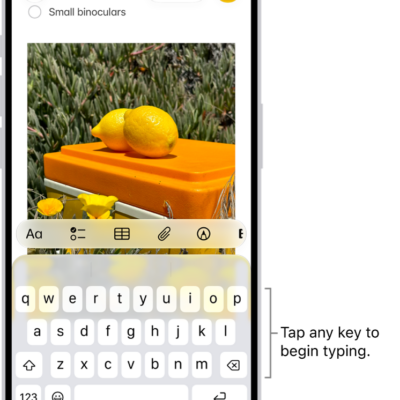
To reconnect, turn the keyboard switch to On, or bring the keyboard and iPhone back into range, then tap any key.