After you subscribe to Apple Music, you can pin your favorite music (including music videos) to the top of your library so it’s easily accessible. You can pin a playlist, an artist, an album, or a song, and unpin an item later. You can only pin content that’s in your library, though.
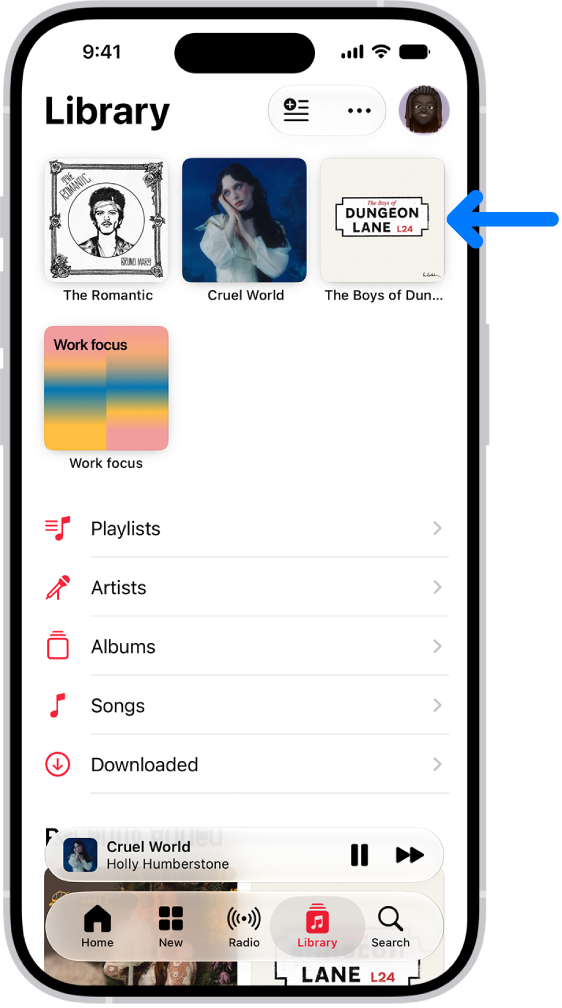
Pin music to the top of your library
- Open the Music app on your iPhone.
- Do any of the following:
- Pin a playlist: Touch and hold a playlist or tap the More button when viewing a playlist. Tap Pin Playlist.
- Pin an artist: Go to an artist page, tap the More button then tap Pin Artist.
- Pin an album: Touch and hold an album, then choose Pin Album. Or tap an album, tap the More button, and tap Pin Album.
- Pin a song or music video: Touch and hold a song or video or tap the More button next to a song or video and then tap Pin [item]. Or on the Now Playing screen, tap the More button and then tap Pin [item].
Pinning works only for content that’s in your library. To pin an artist, for example, you’ll need at least some of their content in your library. Pinned items show up at the top of your library.
Unpin an item in your library
- Open the Music app on your iPhone.
- Tap Library, touch and hold a pinned item, and tap Unpin [item].
Optionally, tap the More button, tap Edit Pins, then tap the Remove button.
Choose what happens when you tap a pinned item
When you tap a pinned item, you can customize what happens. For example, you can choose to open a pinned playlist page, play an album in its default order, or even play and shuffle songs for an artist.
- Open the Music app on your iPhone.
- Tap Library, touch and hold a pinned item, tap Tap Action, and then choose an action.
Choose Play or Shuffle, and the icon for that action appears next to the item name.
Quick tip: Items you pin can download to your library automatically. Go to Settings > Apps > Music, then turn on Download Pins.