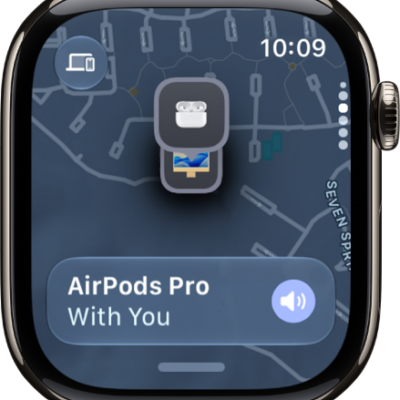
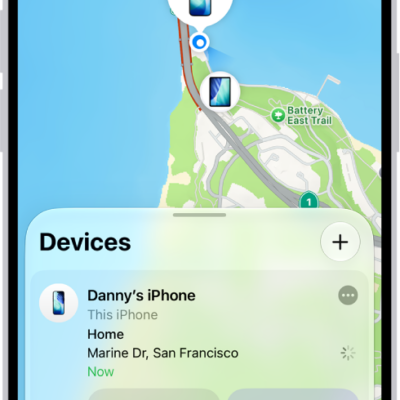
Apple Watch can help you find your iPhone nearby by playing a sound. With certain Apple Watch models, you can also use Precision Finding and see a general heading and distance to your iPhone.
In the dark? Your iPhone can flash as well as play a sound, so you can track it down. And if your iPhone isn’t in range of Apple Watch, you can try Find My on iCloud.com.
Here’s how to ping your iPhone with Apple Watch.
Ping your iPhone with sound
- Press the side button to open Control Center on Apple Watch.
- Tap the Ping iPhone button.
-
Your iPhone plays a sound so you can track it down.
Tip: In the dark? Touch and hold the Ping iPhone button, and your iPhone flashes as well.
Try Find My from iCloud.com when your iPhone isn’t in range of Apple Watch.
Ping and locate your iPhone with Precision Finding
Precision Finding helps your Apple Watch locate your iPhone, playing sound and showing a heading and distance.
Note: Precision Finding is supported on Apple Watch Series 9, Apple Watch Ultra 2, and iPhone 15 and later, excluding iPhone 16e and iPhone 17e. Precision Finding isn’t available in all countries and regions.
- Press the side button to open Control Center on Apple Watch.
-
Tap the Ping iPhone button.
Your iPhone plays a sound, and if your iPhone is within range, Apple Watch displays a general heading and distance to your iPhone—50 feet, for example.
-
To play a sound on your iPhone as you track it down, tap the Ping iPhone button in the bottom-right corner.
Tip: In the dark? Touch and hold the Ping iPhone button so your iPhone flashes.
-
Follow the heading shown on the screen, making adjustments as the heading moves.
When you’re close to your iPhone, the watch screen turns green and iPhone pings twice.
If your iPhone isn’t in range of Apple Watch, use Find Devices on iCloud.com.
See also