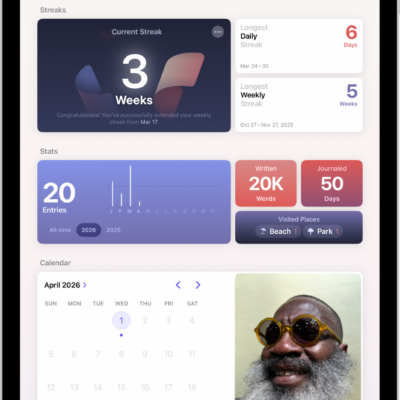
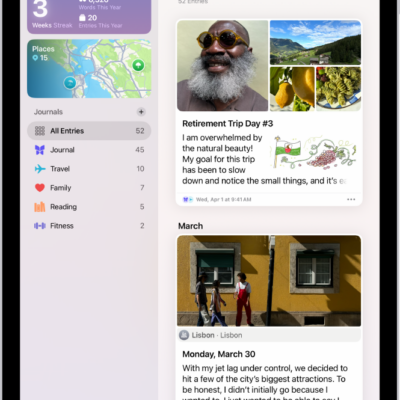
In the Journal app, you can print and export individual entries or your entire journal.
You can print a single journal entry or multiple entries, choosing all entries or a date range. You can also export a single journal entry or multiple entries as PDF files, and share them with an app such as Notes, Files, or Messages on your iPhone.
Here’s how to print and export entries in Journal on iPhone.
Print a single journal entry
- Start the Journal app on your iPhone.
- Choose a journal or tap All Entries.
- Scroll to the entry you want to print. Tap the More Options button.
- Tap Print.
Print multiple journal entries
- Start the Journal app on your iPhone.
- Choose a journal or tap All Entries.
- Tap the More button and tap Print.
- Choose All Entries or select a date range and then tap Print.
Export a single journal entry as a PDF file
- Start the Journal app on your iPhone.
- Choose a journal or tap All Entries.
- Scroll to the entry you want to export. Tap the More Options button.
- Tap Print and tap the Share button.
Choose an app such as Notes, Files, or Messages, or tap Save to Files.
Export multiple journal entries as PDF files
- Start the Journal app on your iPhone.
- Choose a journal or tap All Entries.
- Tap the More button.
- Tap Export and choose Export.
- Choose a location and then tap the Selected button.
Tag: Journal