Use the queue to see a list of upcoming songs, add songs and videos to the queue, and see what you recently played.
You can also use AutoPlay to add songs to the queue, manage the queue, and turn song transitions in the queue on or off. You can reorder the list, too. While a song is playing, the queue is on the Now Playing screen.
Here’s how to queue up your music on iPhone.
Use the queue
- Start the Music app on your iPhone.
- While a song is playing, tap the MiniPlayer to open the Now Playing screen.
-
Tap the Playing Next button and tap a song to play it and the songs that follow.
To reorder the list, drag the Reorder button.
- Tap the Playing Next button again to hide the queue.
Add music and music videos to the queue
- Start the Music app on your iPhone.
- While browsing or playing music, touch and hold a song, album, playlist, or video. Choose an option:
- Add music right after the currently playing item: Tap Play Next.
- Add music to the end of the queue: Tap Play After or Add to Queue.
Quick tip: When you’re using HomePod to stream music, friends on the same Wi-Fi network can add items to the queue.
Use AutoPlay to add songs to the queue
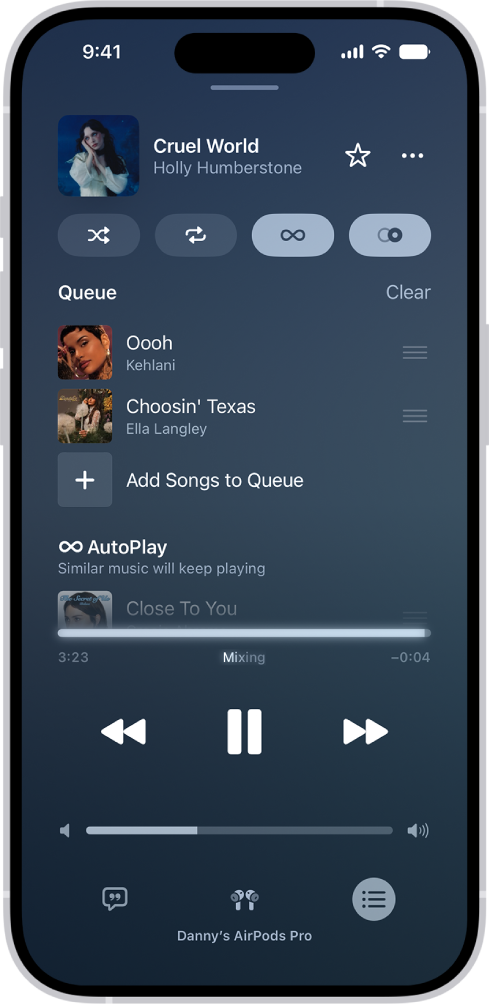
Not sure what to play next? If you’re an Apple Music subscriber, AutoPlay adds similar songs to the end of the queue and plays them when you play something. With AutoPlay on, the AutoPlay icon appears at the top of the queue while a song is playing.
- Start the Music app on your iPhone.
- While a song is playing, tap the MiniPlayer to open the Now Playing screen.
-
Tap the Playing Next button and tap the AutoPlay button at the top of the queue to turn AutoPlay on.
When AutoPlay is on, the button changes color. Tap it again to turn it off.
Note: If you turn off AutoPlay on one device that uses your Apple Account (your iPhone, for example), it’s also turned off on every other device using the same Apple Account.
Manage the queue
- Start the Music app on your iPhone.
- While a song is playing, tap the MiniPlayer to open the Now Playing screen.
-
Tap the Playing Next button and then do any of the following:
- Change the order of songs in the queue: Drag the songs into the order you want them to play.
- Add more songs to the queue: Scroll below the Queue section and tap Add Songs to Queue.
- Remove a song from the queue: Swipe left on the song and tap the minus button.
-
See how many songs are in the queue: Scroll to the bottom of the queue.
When multiple songs are repeating, you can see how many songs will be repeated instead.
- Remove all songs from the queue: Tap Clear at the top of the queue.
Quick tip: Friends on the same Wi-Fi network can also reorder items in the queue while you’re streaming music on HomePod.
See what you recently played
- Start the Music app on your iPhone.
- While a song is playing, tap the MiniPlayer to open the Now Playing screen.
-
Tap the Playing Next button. Then swipe down to see your playing history.
To play a song in the history, tap it. To remove your playing history, tap Clear.
Turn on or off song transitions in the queue
- Start the Music app on your iPhone.
- Tap the Playing Next button and tap the AutoMix button or the Crossfade button in the top-right corner to turn on or off AutoMix or Crossfade.