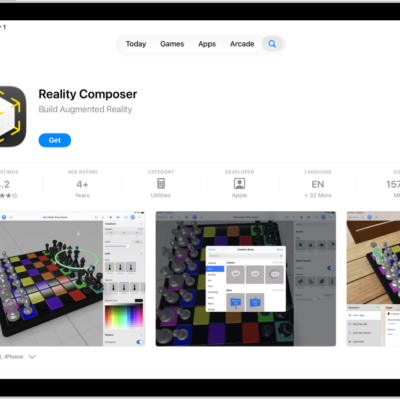
You can remove apps from your Home Screen or delete them from your iPhone entirely. If you remove an app from your Home Screen, it moves to App Library, and it isn’t deleted.
That’s the key difference. A removed app can still be used from App Library, while a deleted app is gone from your iPhone, though you can recover a deleted app later.
Here’s how to remove or delete apps from iPhone.
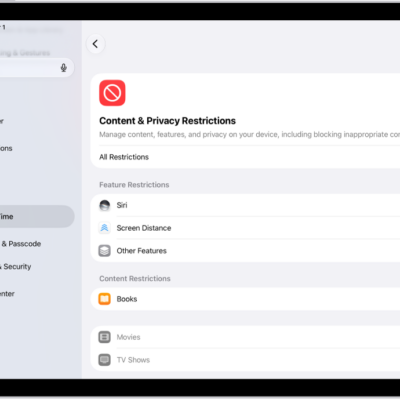
To block an app to prevent its use, you can use Screen Time settings.
Remove an app from the Home Screen
- Go to the Home Screen.
- Touch and hold an app and tap Remove App. Then tap Remove from Home Screen.
The app moves to App Library, where it can still be used.
Delete an app from iPhone
Deleting an app removes both it and its data from your iPhone.
- Touch and hold the app on the Home Screen or in App Library.
- Tap Remove App, then tap Delete App.
- Tap Delete to confirm.
Data stored in iCloud, like photos or documents you saved through the app, isn’t deleted when you delete the app. And after you delete an app, it may take a moment for the available storage on your iPhone to update.
Note: Some Apple apps can be removed from the Home Screen but can’t be deleted from iPhone. In the European Union, there may be other built-in apps you can delete.
Recover a deleted app
If it’s still available in the App Store, you can reinstall any app you previously downloaded.
- Open the App Store app on your iPhone.
- Tap the My Account button or your picture and tap Apps & Purchase History. Tap Your Apps.
- If you’re part of a Family Sharing group, tap My Apps or choose a family member.
- Find the app you want to download (if it’s still available in the App Store) and tap the Redownload button.