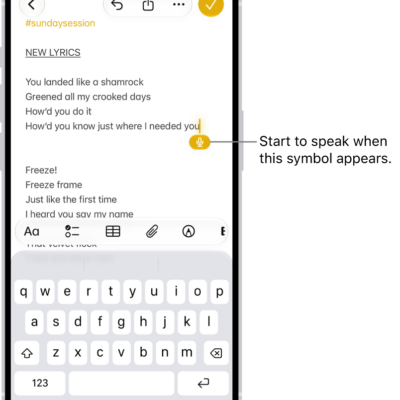
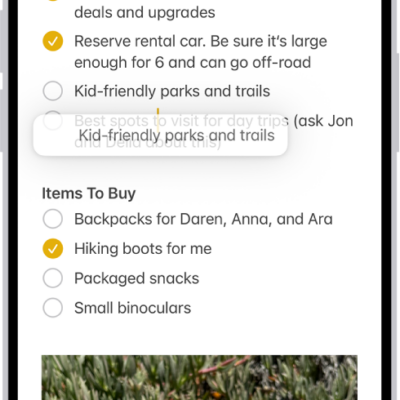
In apps on iPhone, you can use gestures and the keyboard to select and edit text in text fields. You can also use built-in proofreading tools.
You can select a word, a paragraph, or a block of text, and then cut, copy, or paste the text you want to revise. You can also fix mistakes, undo or redo the last edit, place the insertion point, and move text without cutting or copying it.
Select, cut, copy, and paste text
- To select text, do any of the following:
- Select a word: Double-tap with one finger.
- Select a paragraph: Triple-tap with one finger.
- Select a block of text: Double-tap and hold the first word in the block. Drag the grab points.
- After selecting the text you want to revise, tap the selection. Tap an editing option. You can also use these gestures:
- Cut: Pinch closed with three fingers two times.
- Copy: Pinch closed with three fingers.
- Paste: Pinch open with three fingers.
Fix mistakes
If you spot a mistake while entering text, you can do any of the following:
- Undo the last edit: Swipe left with three fingers, then tap the Undo button or Undo at the top of the screen.
- Redo the last edit: Swipe right with three fingers, then tap the Redo button or Redo at the top of the screen.
- Correct spelling and grammar: Tap a misspelled or misused word (underlined in red), then either tap a suggested correction to replace the word, or type the correction.
- Undo autocorrect: As you enter text, misspelled words are automatically corrected and temporarily underlined so you know what was changed. To revert the autocorrection to what you entered, tap the underlined word, then tap your spelling (the first one listed and marked with the Undo button).
Turn on or off proofreading features
- Start the Settings app on your iPhone.
- Tap General, then tap Keyboard.
- Turn on or off any of the following:
- Auto-Capitalization
- Auto-Correction
- Check Spelling and Grammar
Place the insertion point
-
Do any of the following:
- Tap where you want to add or edit text.
- Touch and hold to magnify the insertion point, then drag it.
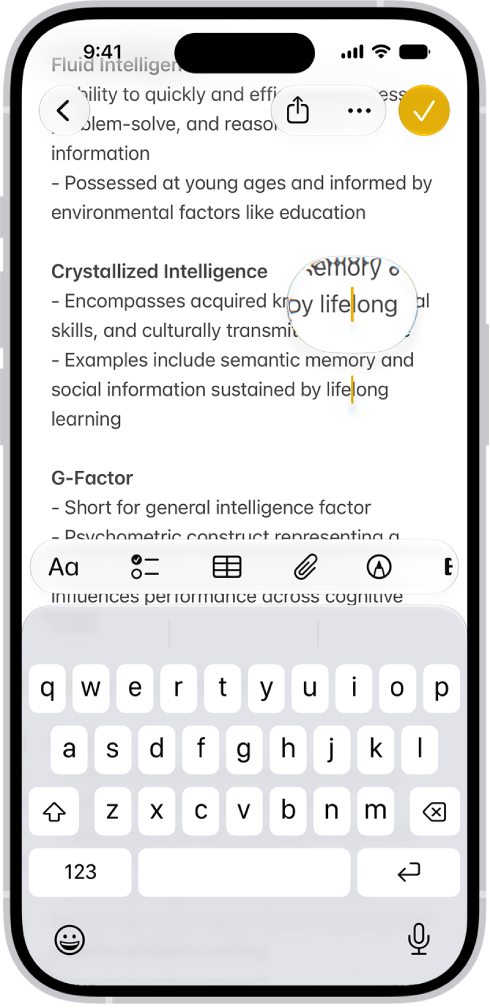
Note: To navigate a long document, touch and hold the right edge of the document, then drag the scroller to locate the text you want to revise.
- Enter the text you want to add.
Move the insertion point with a trackpad
To move and place the insertion point easily, turn the onscreen keyboard into a trackpad.
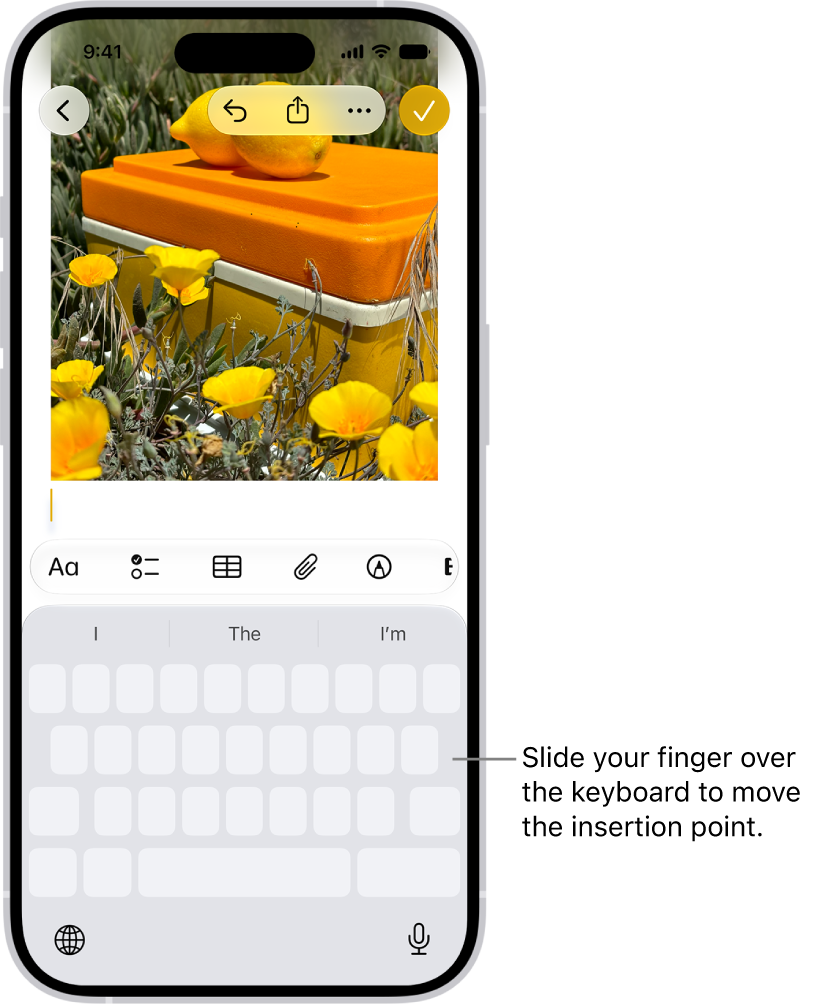
- Touch and hold the Space bar with one finger until the keyboard turns light gray and the characters on the keys disappear—now it’s a trackpad.
- Do either of the following:
- Move the insertion point: Slide your finger around the trackpad.
- Select text: Touch and hold the keyboard with a second finger and then adjust the selection by moving the first finger around the trackpad.
Move text without cutting or copying
- Select the text you want to move.
-
Touch and hold the selected text until it lifts up and drag it to another location within the app.
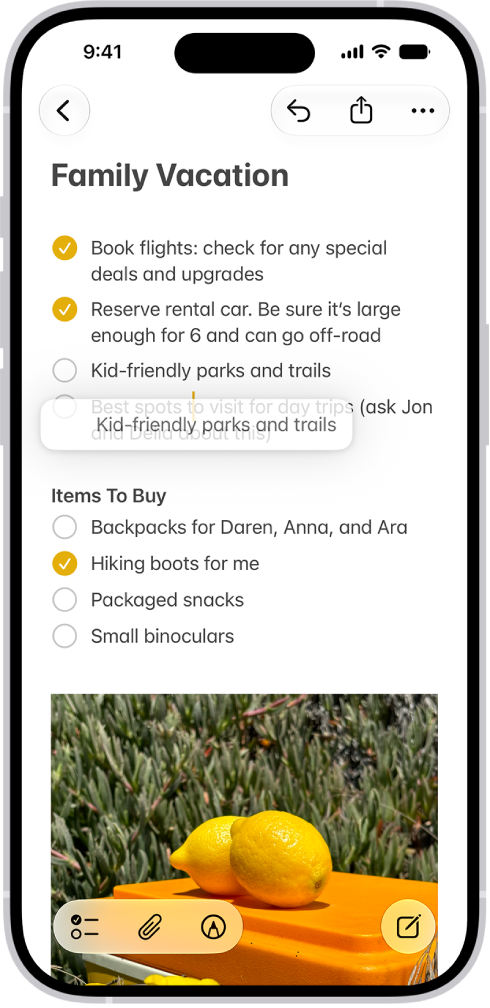
If you change your mind while moving the text, lift your finger before dragging, or drag the text off the screen.
Quick tip: To paste something on iPhone that you cut or copy on another Apple device, use Universal Clipboard.