On iPhone 15 and later, you can set a maximum battery level, like 80%, to help reduce battery wear, especially if you charge your iPhone frequently or keep it connected for long periods. iPhone may also recommend a charge limit based on your charging patterns.
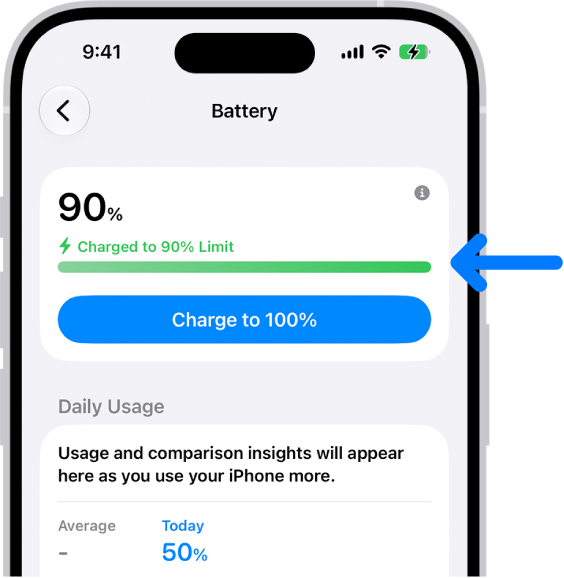
When Charge Limit is on, iPhone stops charging when it reaches your selected percentage. But it will occasionally charge to 100%, even with a lower limit set.
What to expect
- Your iPhone will occasionally charge to 100%—even with a lower limit set—to keep the battery percentage display accurate. This may happen more often if your iPhone isn’t regularly able to complete a full charge.
Set a Charge Limit
- Start the Settings app on your iPhone.
- Tap Battery and then tap Charging.
- Choose the charge percentage that works best for you. You can change or remove the limit anytime.
Change the Charge Limit
- Start the Settings app on your iPhone.
- Tap Battery and then tap Charging.
- Choose the charge percentage that works best for you. If you choose 100%, do any of the following:
- Temporarily override charge limit: Tap Allow Until Tomorrow. The charge limit will return to your set percentage at 6:00 a.m.
- Set a new charge limit: Tap Set Limit to 100%. The charge limit will remain at 100% until you change it again.
If you need to temporarily override your charge limit and charge your iPhone to full sooner than scheduled, go to the Settings app, tap Battery, then tap Charge to 100%.
Tag: Battery