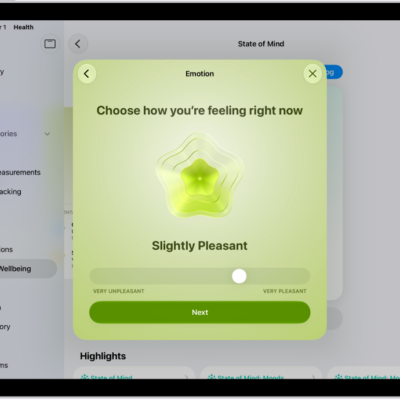
You can share health data stored in the Health app, such as health alerts and trends, with friends, family, and others caring for you.
The people you share with can see the health notifications you receive, too, including high heart rate and irregular rhythm notifications. You can also share notifications for significant trends, like a steep decline in activity. They need to be in your contacts first, and you can review or change what you’re sharing at any time.
Here’s how to share your data in Health on iPad.
Share health data with someone
Health notifications you receive, including irregular rhythm and high heart rate notifications, are visible to the people you share health data with. Sharing notifications for significant trends, such as a steep decline in activity, is another option.
Note: To share health data with someone, you need to include them in your contacts.
- Open the Health app on your iPad.
- Tap Sharing in the sidebar. Do one of the following:
- Set up sharing for the first time: Tap Share with Someone.
- Share with an additional contact: Tap Add another person and then tap Next.
- Use the search field to find someone in your contacts list and tap their contact information to select them.
- Tap See Suggested Topics or Set Up Manually, then choose topics to share.
- Scroll down to see all topics on a screen, choose options, and then tap Next to see the next screen.
- Tap Share, then tap Done.
When your invitation is accepted, you receive a notification.
Review or change the data you’re sharing with others
- Open the Health app on your iPad.
- Tap Sharing in the sidebar. Then tap the name of a person or a healthcare provider.
- Scroll down, then tap View Shared Data.
- Make any changes, then tap Done.
Stop sharing data with a contact or a provider
- Open the Health app on your iPad.
- Tap Sharing in the sidebar. Then tap the name of a person or a healthcare provider.
- Tap Stop Sharing or Remove Account.
Note: If you start sharing data with someone, simply removing them from Contacts doesn’t stop the information from being shared.
Share health and fitness data with apps and devices
With your permission, other apps can share health and fitness data with Health. A workout app you install, for instance, can have its exercise data appear in Health, and it can read and make use of your heart rate, weight, and other data shared by other devices and apps. If you skipped giving an app permission to share data with Health when you set it up, you can give permission later or remove it from an app.
To share your records from healthcare providers with apps, see Share your health records with other apps.
- Open the Health app on your iPad.
- Tap Summary in the sidebar and tap Profile next to your picture or initials at the top left.
-
Below Privacy, tap Apps or Devices.
The screen lists the items that requested access to Health data.
- To change the access for an item, tap it. Turn on or off permission to write data to—or read data from—Health.
Share your health and fitness data in XML format
XML, a common format for sharing data between apps, is the format Health uses when you export all of your health and fitness data.
- Open the Health app on your iPad.
- Tap Summary in the sidebar and tap Profile next to your picture or initials at the top left.
- Tap Export All Health Data. Then choose a method for sharing your data.
See also
- Share your medication list
- Intro to Health data on iPad
- View data shared by others in Health on iPad