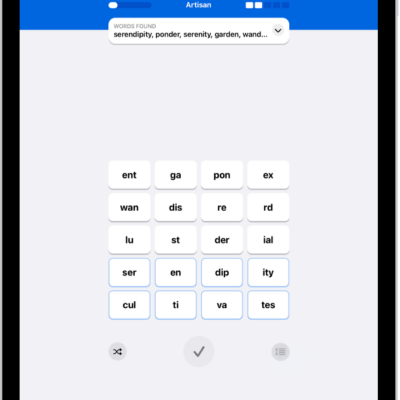
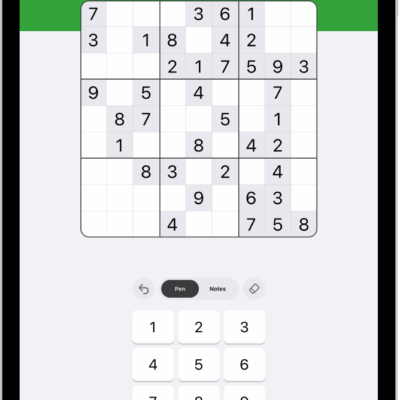
Apple News+ subscribers get access to a new crossword and crossword mini puzzle every day. Crossword puzzles start out easy but get increasingly challenging as the week goes on, and when you want a puzzle you can solve in next to no time, there’s the always-easy crossword mini.
You can navigate and solve both kinds of puzzles in multiple ways. For example, you can display puzzles in the traditional grid view, or show clues and answers in a list instead. You can select words by square or choose clues from a list.
You don’t have to solve puzzles all at once, either. You can return to a puzzle at any time, and the timer pauses while you’re away.
Note: Apple News, Apple News+, and puzzles aren’t available in all countries or regions.
Solve in grid view
- Open the News app on your iPad.
- Open a crossword or crossword mini puzzle.
-
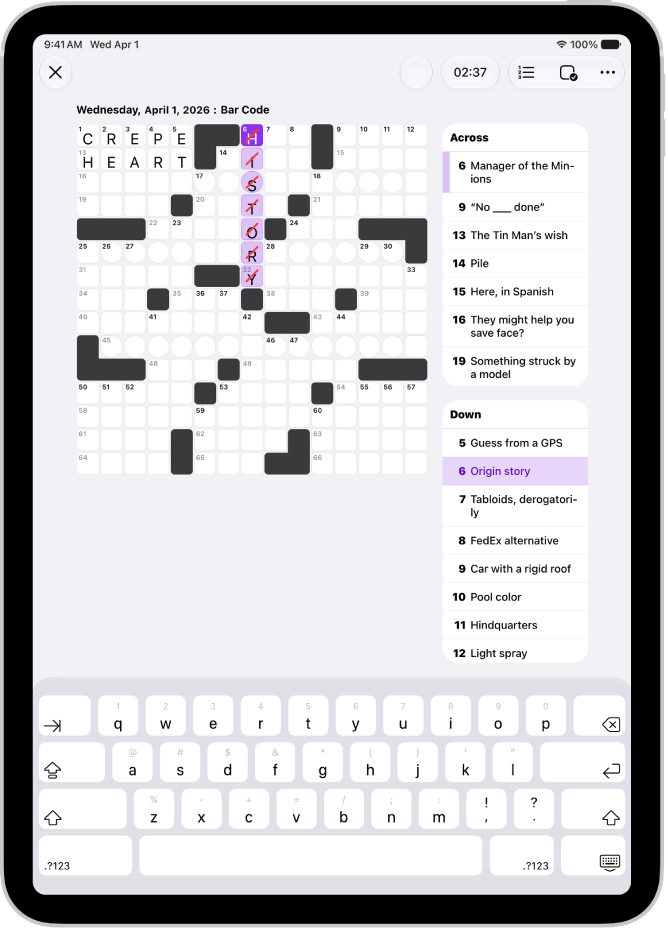
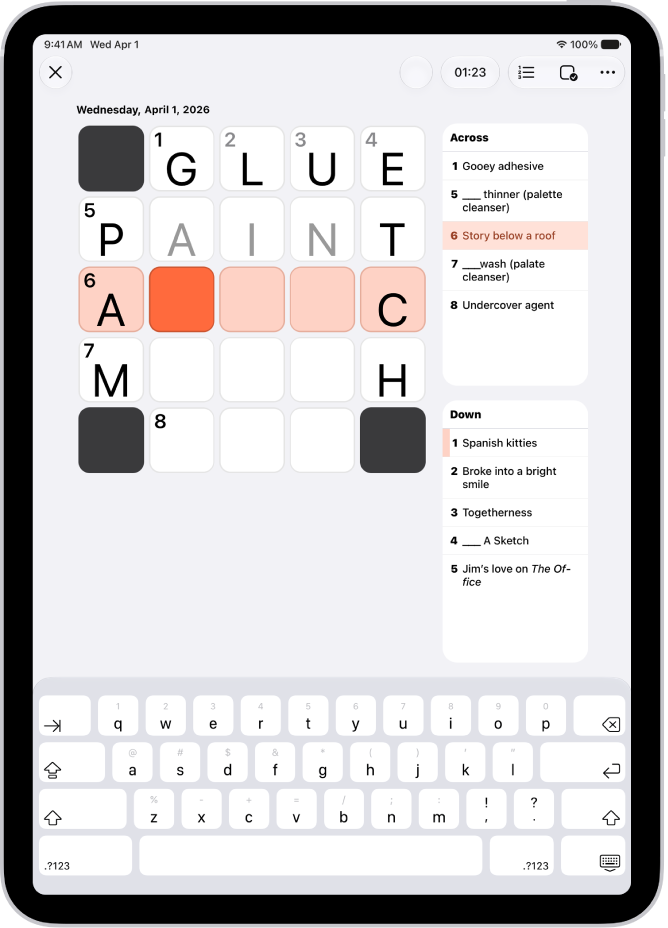
Tap a square to show the clue below the puzzle and then use the keyboard to enter the answer. You move to other squares as you type. You can also tap \< or > next to the clue to move to the previous or next clue.
With the keyboard showing, switch from across to down, or vice versa, by tapping the selected square again or tapping the clue.
Solve in list view
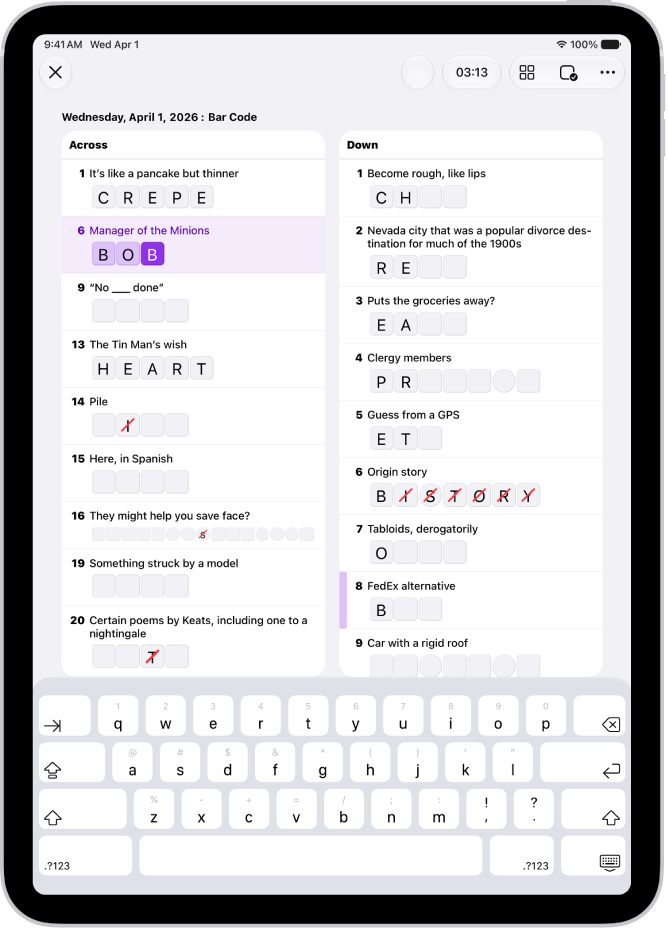
Instead of the traditional grid, you can show clues and answers in a list.
- Open the News app on your iPad.
- Open a crossword or crossword mini puzzle.
- Tap the List View button.
Tap the Grid View button to return to grid view.
Get hints and answers
If you’re unsure of an answer you entered, you can get a little help.
- Open the News app on your iPad.
- Open a crossword or crossword mini puzzle.
-
Tap the Puzzles Options button. Do any of the following:
- Mark incorrect answers: Tap Autocheck, Check Square, Check Word, or Check Puzzle.
-
Reveal answers: Tap Reveal, then tap Square, Word, or Puzzle to display the correct answer.
Note: When you reveal all or a portion of a puzzle, it doesn’t count toward stats in your Scoreboard or as part of a streak.
Some puzzles highlight clues that reference other clues. You can turn off these highlights. Tap the More button, tap Settings, then turn off Highlight Linked Clues.
Sometimes crossword grids include circles, and the letters in the circles relate to that puzzle’s theme.
Always use Autocheck
When you turn on Autocheck inside a puzzle, it stays on for that puzzle only. If you want Autocheck to stay on all the time, follow these steps:
- Open the News app on your iPad.
- Open a crossword or crossword mini puzzle.
- Tap the More button, tap Settings, turn on Always Autocheck, and tap the Close button.
-
Tap the Puzzles Options button, then tap Autocheck.
Autocheck stays on for all puzzles of that type until you turn it off.
Restart your puzzle
Want a fresh start? Clear a puzzle’s answers and reset the timer.
- Open the News app on your iPad.
- Open a crossword or crossword mini puzzle.
- Tap the Puzzles Options button.
- Tap Clear Puzzle.
Change how you move around the puzzle
- Open the News app on your iPad.
- Open a crossword or crossword mini puzzle.
- Tap the More button, choose Settings, and choose what happens as you enter a letter or an answer:
- Go to the next empty square: Select Skip Filled Squares.
- Go to the next square, whether or not it’s filled in: Deselect Skip Filled Squares.
- Go to the next clue: Next to At End of Word, choose Advance If Complete or Always Advance.
- Don’t go to the next clue: Next to At End of Word, choose Don’t Advance.
Show or hide the timer
You can show or hide the timer that appears above your puzzle.
- Open the News app on your iPad.
- Open a crossword or crossword mini puzzle.
- Do one of the following:
- Tap the Timer button.
- Tap the More button, choose Settings, then turn Show Timer on or off.
See also
- Find puzzles in Apple News+ on iPad
- Solve Quartiles puzzles in News on iPad
- Solve sudoku puzzles in News on iPad
- How to subscribe to individual channels in News on iPad