In the Reminders app, you can use tags as a fast and flexible way to categorize and organize your reminders. You can add one or more tags to a reminder, such as #shopping and #work, and easily search and filter your reminders across lists using the Tag Browser or Smart Lists.
A tag can be only one word, but dashes and underscores can combine words. You can also rename or delete a tag, and deleting it removes it from all Smart Lists that use it.
Note: All Reminders features described in this guide are available with updated reminders, but some features aren’t available when you use other accounts.
Add tags
- Start the Reminders app on your iPad.
-
When you create or edit an item in a list, tap the Tag button and type a tag.
A tag can be only one word, but you can use dashes and underscores to combine words. You can add multiple tags to an item.
View items with tags
- Start the Reminders app on your iPad.
-
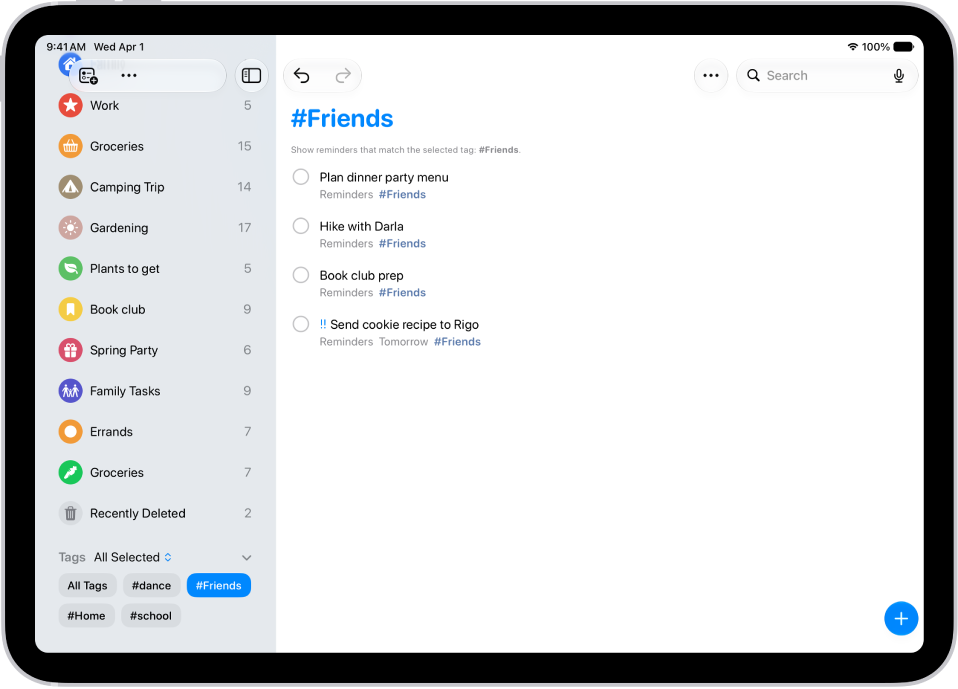
Below Tags at the bottom of the screen, do any of the following:
-
View items with specific tags: Tap one or more tags. Then choose to view items matching any or all of the selected tags.
Tip: To save this list as a Smart List, tap the More button, then tap Create Smart List.
-
View all items with tags: Tap All Tags.
-
View items with specific tags: Tap one or more tags. Then choose to view items matching any or all of the selected tags.
Rename or delete a tag
- Start the Reminders app on your iPad.
-
Below Tags (at the bottom-left), touch and hold a tag and tap Rename Tag or Delete Tag.
When you delete a tag, it’s also removed from all Smart Lists that use it.
See also