In the Vitals app on your Apple Watch, you can view overnight health metrics—heart rate, respiratory rate, wrist temperature, blood oxygen*, and sleep duration—to get a better understanding of your daily health status. On Apple Watch Series 12 and Apple Watch Ultra 4, you see heart rate variability instead of sleep duration, plus metrics collected during the day, like heart rate and heart rate variability.
The Vitals app establishes a typical range for each of your health metrics collected as you sleep and during the day. When multiple metrics are outside your typical range, you receive a notification along with context for factors that may be involved, like medications, elevation changes, or illness, for example.
Note: Your Apple Watch is not a medical device. For important information about using the Vitals app safely, see Important safety information for Apple Watch. For models of Apple Watch purchased in the United States on or after January 18, 2024 with part numbers ending in LW/A or LS/A, Blood Oxygen is not available in the Vitals app.
View your overnight vitals
- Start the Vitals app on your Apple Watch.
-
Do any of the following:
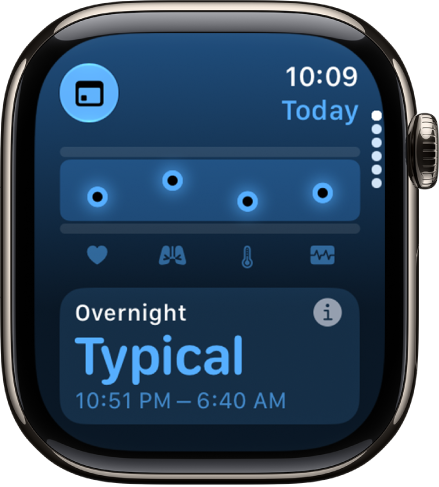
- Learn more about your overnight vitals: Tap Overnight Vitals. Then tap More Info to learn more about the health results you may see, and what it means when your vitals are within their typical ranges or if there has been a change between one of your metrics compared with your recent history.
-
View your health metrics: Turn the Digital Crown to a metric and tap the metric to learn more about the metric and factors that may cause an increase or decrease.
Note: When you view your overnight vitals on Apple Watch Series 12 and Apple Watch Ultra 4, you can see your overnight heart rate variability instead of sleep duration.
- View your training load: Turn the Digital Crown to Training Load. Tap Training Load to view it in the Activity app.
To view your overnight vitals for the last 7 days, tap the Calendar button at the top-left corner. To return to your overnight vitals summary, tap the Summary button.
View your daytime vitals
Your daytime vitals on Apple Watch Series 12 and Apple Watch Ultra 4 take into account your heart rate and heart rate variability measurements, helping highlight when something may be off or impacting your readiness score.
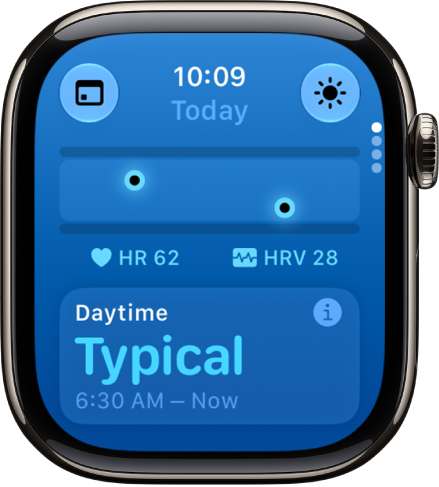
- Start the Vitals app on your Apple Watch.
- Tap the Overnight Vitals button to switch to daytime vitals.
- Do any of the following:
- Learn more about your daytime vitals: Tap Daytime, then tap More Info. You can learn more about your health results, what it means when your vitals are within their typical ranges, or if one of them has changed from your recent history.
- View your health metrics: Turn the Digital Crown to a metric and tap the metric to learn more about the metric and factors that may cause an increase or decrease.
- To return to overnight vitals, tap the Daytime Vitals button.
To view your daytime vitals for the last 7 days, tap the Calendar button at the top-left corner. To return to your daytime vitals summary, tap the Summary button.
View your vitals on iPhone or iPad
- Go to the Health app on your iPhone or iPad.
- Tap Browse and tap Vitals.
- Tap a health metric to learn more.
Turn on Vitals notifications
You get notifications by default when at least two of your overnight metrics fall outside of your typical range, and you can turn them back on if you’ve turned off notifications for Vitals.
- Start the Settings app on your Apple Watch and then tap Vitals.
- Turn on Notifications.
Note: The back of your Apple Watch needs skin contact for features like wrist detection, haptic notifications, blood oxygen level measurements, and the heart rate sensor. Wearing your Apple Watch with the right fit—not too tight, not too loose, and with room for your skin to breathe—keeps you comfortable and lets the sensors do their job.
*Not all features are available in all areas and on all models.
See also