You can turn off your scheduled alarms and turn off or delete your sleep schedules.
You can turn off only your next scheduled alarm, and after your next wake up time, your normal alarm comes back. Or you can turn off all sleep schedules and alarms, permanently turn off the alarm for a sleep schedule, or delete a sleep schedule and its alarm.
Here’s how to turn off alarms and delete sleep schedules in Health on iPhone.
Turn off only your next scheduled alarm
- Open the Health app on your iPhone.
- Tap Browse and tap Sleep. Tap Sleep again.
- Scroll down to Your Schedule and tap Edit (below Next).
-
Turn off Alarm.
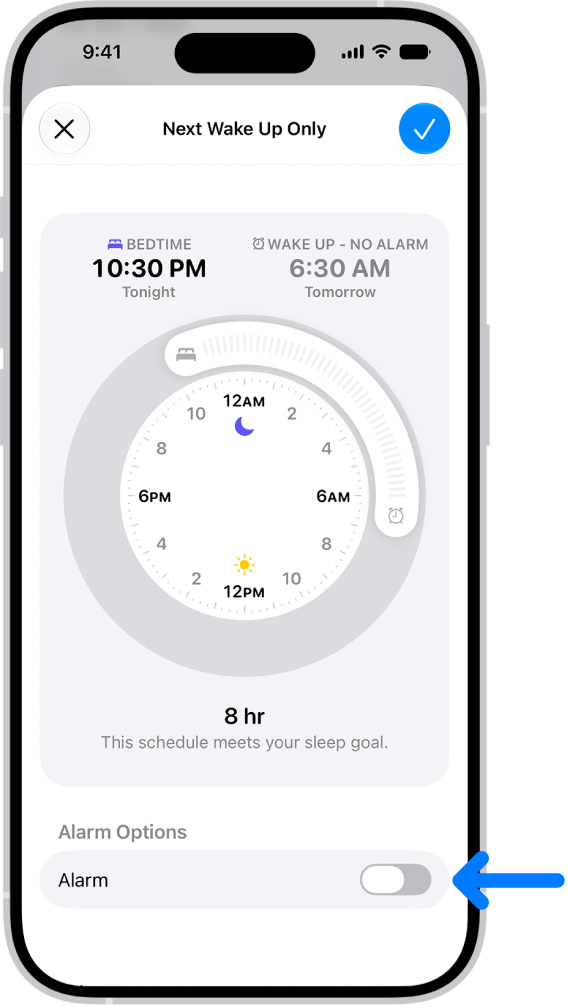
- When you’re finished, tap the Done button.
After your next wake up time, your normal alarm resumes.
Note: The Clock app is another place to change your next sleep schedule alarm.
Turn off all sleep schedules and alarms
You can turn all your sleep schedules off at once after you’ve created one or more. When all sleep schedules are off, scheduled alarms are turned off, too.
- Open the Health app on your iPhone.
- Tap Browse and tap Sleep. Tap Sleep again.
- Scroll down to Your Schedule.
- Tap Full Schedule & Options. Then turn off Sleep Schedule (at the top of the screen).
You can turn them all on again later.
Permanently turn off the alarm for a sleep schedule
With multiple sleep schedules, you can turn off the alarm for each one separately. So if you have sleep schedules for weekdays and weekends, for example, you could turn off the weekend schedule’s alarm.
- Open the Health app on your iPhone.
- Tap Browse and tap Sleep. Tap Sleep again.
- Scroll down to Your Schedule, then tap Full Schedule & Options.
- Tap Edit for the sleep schedule you want to change.
- Turn off Alarm.
You can turn it back on again later.
- Tap the Done button.
The rest of your sleep schedule remains in effect.
Delete a sleep schedule and its alarm
- Open the Health app on your iPhone.
- Tap Browse and tap Sleep. Tap Sleep again.
- Scroll down to Your Schedule, then tap Full Schedule & Options.
- Tap Edit for the schedule you want to remove.
- Tap Delete Schedule (at the bottom of the screen).