With Undo Send, you can change your mind and unsend an email message in the Mail app. There’s a catch: you have 10 seconds. You can also set a delay for all emails to give yourself a little more time to unsend them.
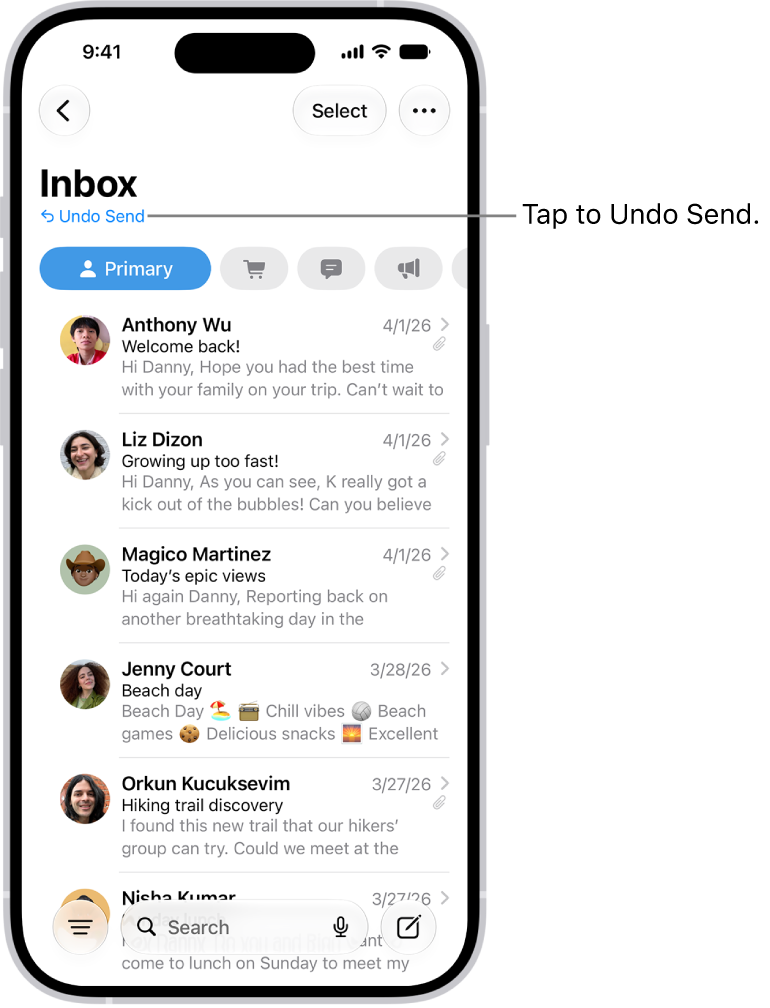
Undo a sent email
You have 10 seconds to change your mind after you send an email message.
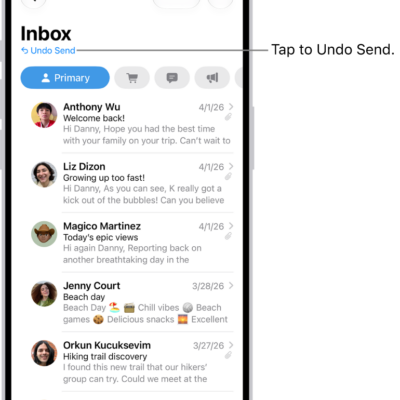
- Tap Undo Send at the top of the inbox to pull back the message.
Delay sending emails
Setting a delay gives you a little more time to change your mind and unsend emails.
- Open Settings, tap Apps, tap Mail and tap Undo Send Delay. Choose a length of time to delay outgoing email messages.
Tag: Mail