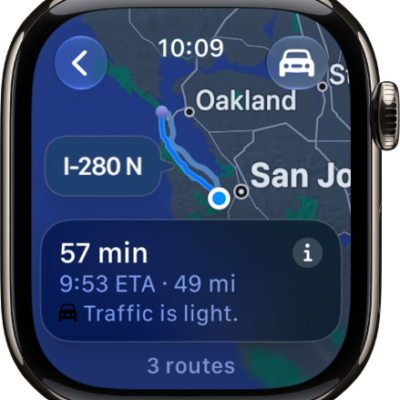
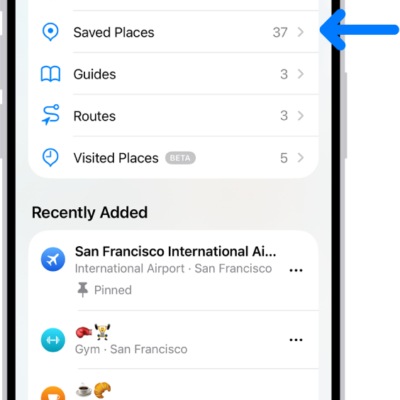
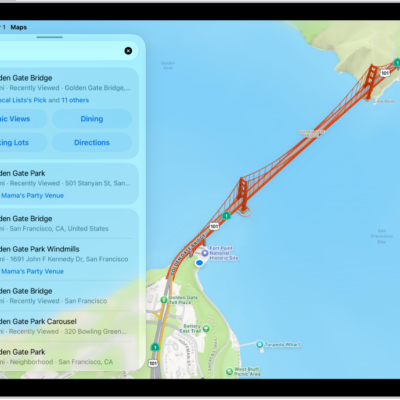
In the Maps app on your iPhone, you can save a map area or a hiking route, then view it on your paired Apple Watch even when you can’t access Wi-Fi or cellular service. With downloaded maps, you can view information like hours and ratings on place cards, get turn-by-turn directions for hiking, driving, walking, cycling, or riding transit, and see your estimated time of arrival.
Offline maps are automatically available on your Apple Watch when your iPhone is on and within Bluetooth range (about 33 feet or 10 meters). And if you sync them, they’re available on your Apple Watch even when your iPhone isn’t nearby.
Note: Offline maps are available only in select regions, and a downloaded map works only in its specific region. Maps features vary by country and region.
Get offline maps on iPhone and sync with Apple Watch
Synced offline maps stay available on Apple Watch even when your paired iPhone isn’t nearby.
- Start the Maps app on your iPhone.
- Tap your picture or initials next to the search field and tap Offline Maps. Then turn on Sync with Apple Watch.
- Do any of the following:
- Get an offline map: See Download offline maps.
- Get a walking route or hike: See Save walks or hikes in Maps.
Use offline maps on Apple Watch
- Start the Maps app on your Apple Watch.
- Tap the Search button and tap your picture or initials at the top-right corner. Then tap Offline Maps.
-
Tap an offline map.
Maps below “On This Watch” are available even when your iPhone isn’t nearby. Maps below “On Your iPhone” are available only when your iPhone is nearby.
See also