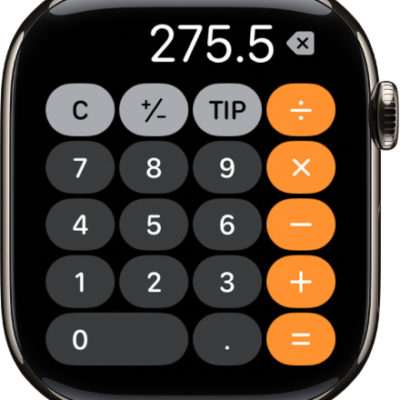
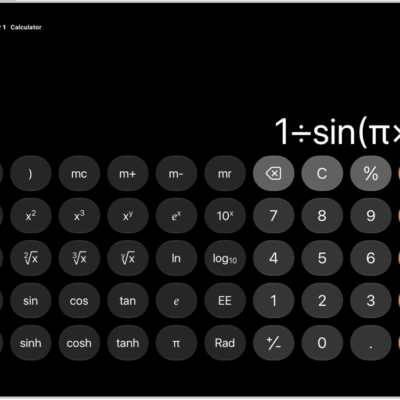
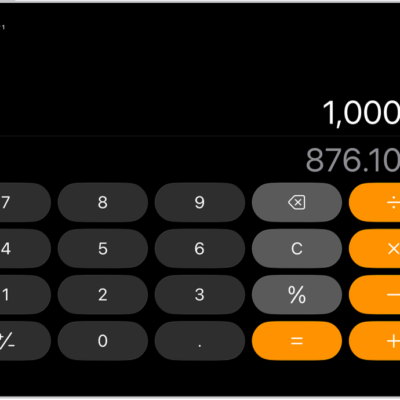
You can perform arithmetic calculations with a basic calculator in the Calculator app, and Siri can do the math for you, too, like 18 percent of 225.
You can clear digits, numbers, or the display, delete the entire number you last entered, copy a calculation result, and repeat the last operation. If you need more, you can switch to another mode to access algebraic, exponential, logarithmic, and trigonometric keys, or instantly calculate unit or currency conversions.
Siri: Ask Siri something like, “What’s 18 percent of 225?”
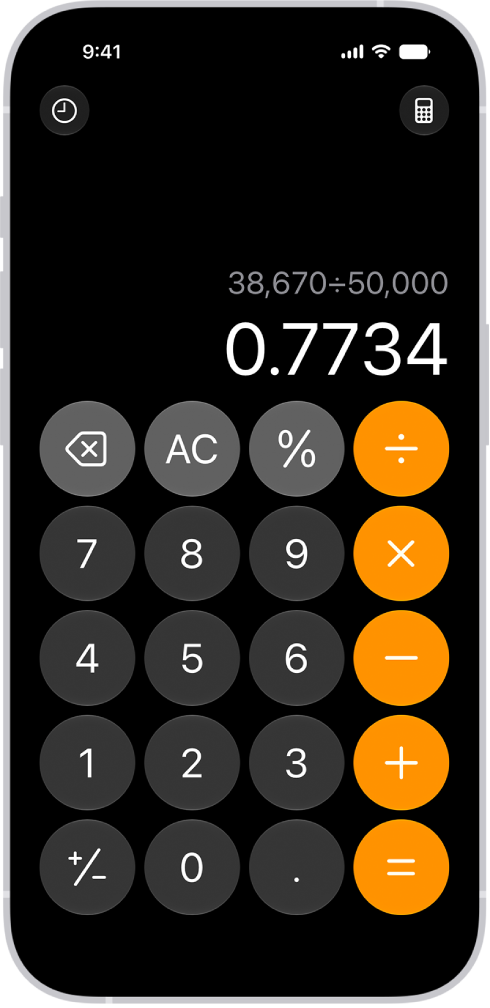
Switch to the basic calculator
- Start the Calculator app on your iPhone.
- Tap the Change Mode button and then tap Basic.
Clear digits, numbers, or the display
- Start the Calculator app on your iPhone.
- Enter a digit or calculation.
- Do one of the following:
- Delete the last digit: If you make a mistake when you enter a number, tap the Delete key.
- Delete the entire number you last entered: Tap the Clear (C) key.
- Delete the expression: Tap the All Clear (AC) key, or touch and hold the Delete key or the Clear (C) key.
Clear digits, numbers, or the display
- Start the Calculator app on your iPhone.
- Enter a digit or calculation.
- Do one of the following:
- Delete the last digit: If you make a mistake when you enter a number, tap the Delete key.
- Delete the entire number you last entered: Tap the Clear (C) key.
- Delete the expression: Tap the All Clear (AC) key, or touch and hold the Delete key or the Clear (C) key.
Switch to another mode
- Start the Calculator app on your iPhone.
- Tap the Change Mode button. Do one of the following:
- Access algebraic, exponential, logarithmic, and trigonometric keys, and more: Tap Scientific.
- Solve handwritten math problems, evaluate expressions, and assign variables: Tap Math Notes and then tap the New Note button.
- Draw graphs: Tap Math Notes, tap the New Note button, write an equation, then tap Insert Graph.
- Instantly calculate unit or currency conversions: Tap Convert.
Note: For written math and variable names, Calculator uses select numeric systems.
Copy a calculation result
- Start the Calculator app on your iPhone.
- Enter a calculation, touch and hold the calculation result in the display, and tap Copy.
- Paste the result somewhere else, such as in a note or message.
You can also copy previous calculations.
Repeat the last operation
After you complete an operation, you can do one of the following:
-
Apply the last operation to the current result: Tap the equal sign.
For example, if you enter “1 × 2 =”, your result is 2. Each time you tap the equal sign, the currently displayed answer is multiplied by 2, producing these results: 4, 8, 16, 32, and so on.
-
Apply the last operation to a new number: Enter a new number, then tap the equal sign.
For example, if you enter “100 + 15% =”, the result is 115. Then, if you enter “150 =”, the result is 150 + 15%, or 172.5.