Got a tip for us?

Calculator

You can perform arithmetic calculations with a basic calculator in the Calculator app, and Siri can do the math for you, too, like 18 percent of 225.

You can clear digits, numbers, or the display, delete the entire number you last entered, copy a calculation result, show commas in large numbers, and repeat the last operation. If you need more, you can switch to another mode to access algebraic, exponential, logarithmic, and trigonometric keys, or instantly calculate unit or currency conversions.

Siri: Ask Siri something like, “What’s 18 percent of 225?” Learn how to use Siri.
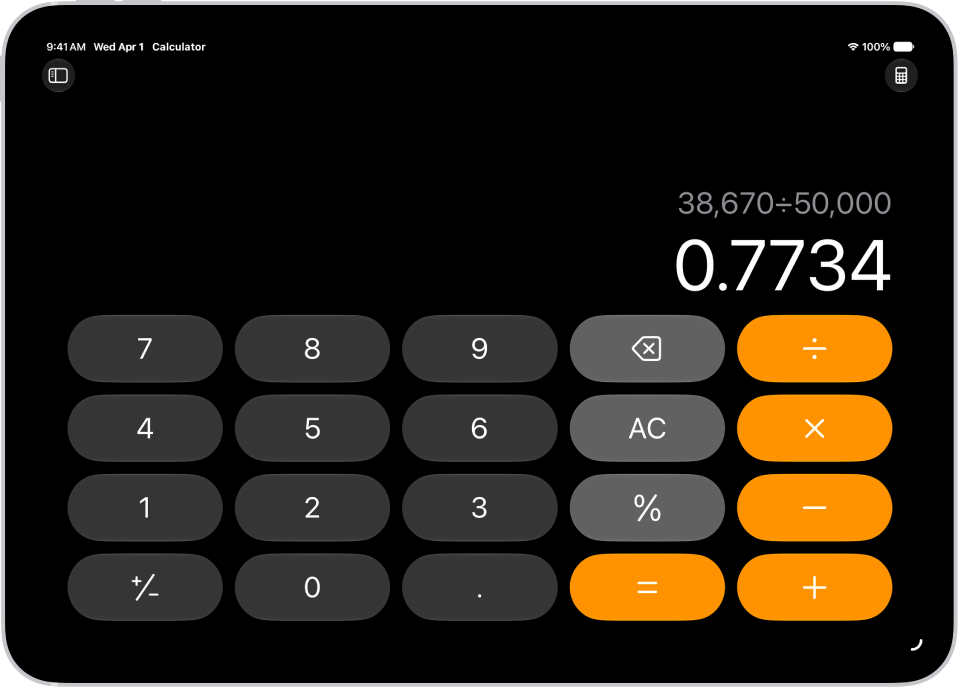
The basic calculator on iPad.

Switch to the basic calculator

  1. Go to the Calculator app on your iPad.
  2. Tap the Change Mode button and then tap Basic.

Clear digits, numbers, or the display

  1. Start the Calculator app on your iPad.
  2. Enter a digit or calculation.
  3. Do one of the following:
    • Delete the last digit: If you make a mistake when you enter a number, tap the Delete key.
    • Delete the entire number you last entered: Tap the Clear (C) key.
    • Delete the expression: Tap the All Clear (AC) key, or touch and hold the Delete key or the Clear (C) key.

Switch to another mode

  1. Start the Calculator app on your iPad.
  2. Tap the Change Mode button. Do one of the following:

Note: Select numeric systems are what Calculator uses for written math and variable names.

Copy a calculation result

  1. Start the Calculator app on your iPad.
  2. Enter a calculation, touch and hold the calculation result in the display, and tap Copy.
  3. Paste the result somewhere else, such as in a note or message.

You can also copy previous calculations.

Show commas in large numbers

  1. Start the Calculator app on your iPad.
  2. In the menu bar, tap View and choose Show Thousands Separator.

Repeat the last operation

Once an operation is complete, do one of the following:

  • Apply the last operation to the current result: Tap the equal sign.

    For example, if you enter “1 × 2 =”, your result is 2. Each time you tap the equal sign, the currently displayed answer is multiplied by 2, producing these results: 4, 8, 16, 32, and so on.

  • Apply the last operation to a new number: Enter a new number, then tap the equal sign.

    For example, if you enter “100 + 15% =”, the result is 115. Then, if you enter “150 =”, the result is 150 + 15%, or 172.5.

See also
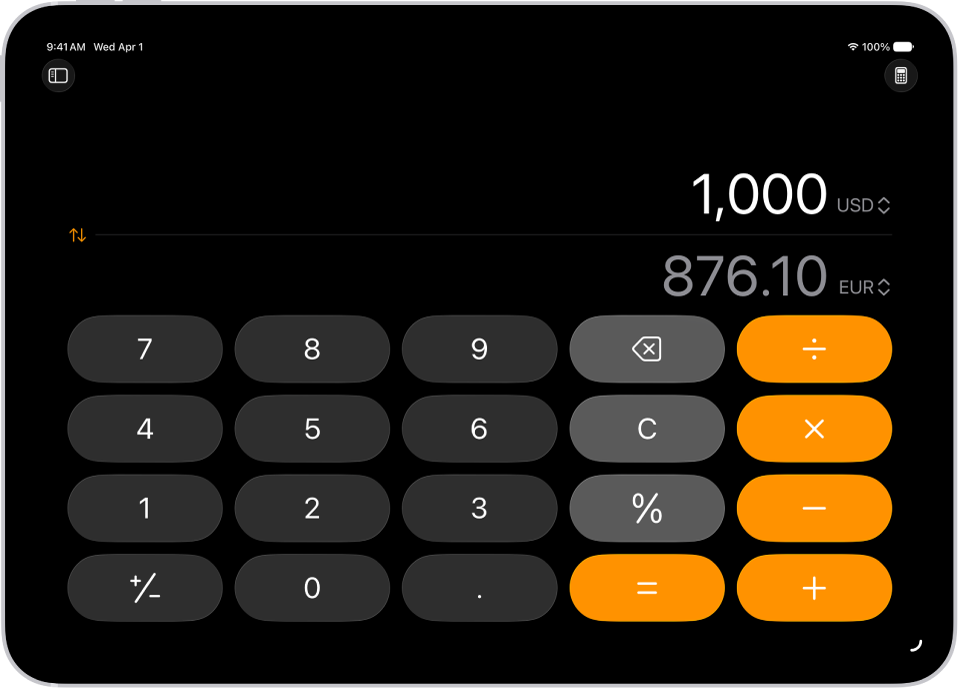
You can convert length, weight, currencies, and more while using the basic or scientific calculator. You just choose which units or currencies you want to convert from and to. Conversions appear as you type, with categories like Speed, Time, and Weight, and you can also convert units and currencies in Math Notes.

The basic calculator with a currency conversion.

  1. Go to the Calculator app on your iPad.
  2. While using the basic or scientific calculator, tap the Change Mode button. Then tap Convert.
  3. Tap the Unit button and choose the units or currencies you want to convert from and to.

    Swipe the categories at the top of the list to see others, such as Speed, Time, and Weight.

  4. Enter a value in either field to see conversions as you type.
  5. To reverse how the units are converted, tap the Swap Units button.

Math Notes can also convert units and currencies. Type or write “50 m in feet =” in a note, for example.

See also

Keep track of previous calculations in the basic or scientific calculators, and copy results from them to use in Calculator or other apps. In the Calculator app, your history lets you reload a calculation where you left off earlier, copy the answer, or delete one calculation or all of them.

  1. Go to the Calculator app on your iPad.
  2. Tap the Change Mode button and choose Basic or Scientific.
  3. Do one of the following:
    • In full-screen view: Tap the History button.
    • In smaller windows: Tap the Clock button.
  4. Do any of the following:
    • Reload the calculation: Tap the listing. The calculation appears where you left off earlier.
    • Copy the answer: Touch and hold the listing and tap Copy Expression or Copy Result.
    • Delete the calculation: Swipe left, then tap the Delete button.
    • Delete all previous calculations: Tap Edit, tap Clear All, and then tap Clear History.
    • Delete multiple calculations: Tap Edit and tap the calculations. Tap Delete.

See also

In the Calculator app, you can solve math problems in basic or scientific mode, convert units, or handwrite problems and generate graphs using Math Notes. You can change units of length, weight, currency, and more, and evaluate expressions and assign variables in Math Notes.

iPad showing the scientific calculator with memory, exponential, logarithmic, and trigonometric functions.

Choose the calculator for the task

Do basic math, or switch to the scientific calculator where you can perform advanced calculations involving powers, roots, exponents, fractions, logarithms, trigonometry, and more. Tap the Change Mode button, tap Basic or Scientific, then enter your expression.

The basic calculator with a currency conversion on iPad.

Convert units easily

Miles to millimeters? Yen to euros? Change units of length, weight, power, pressure, speed, currency, and more with the unit conversion mode. Tap the Change Mode button, tap Convert, then tap the Unit button to choose the units or currencies.

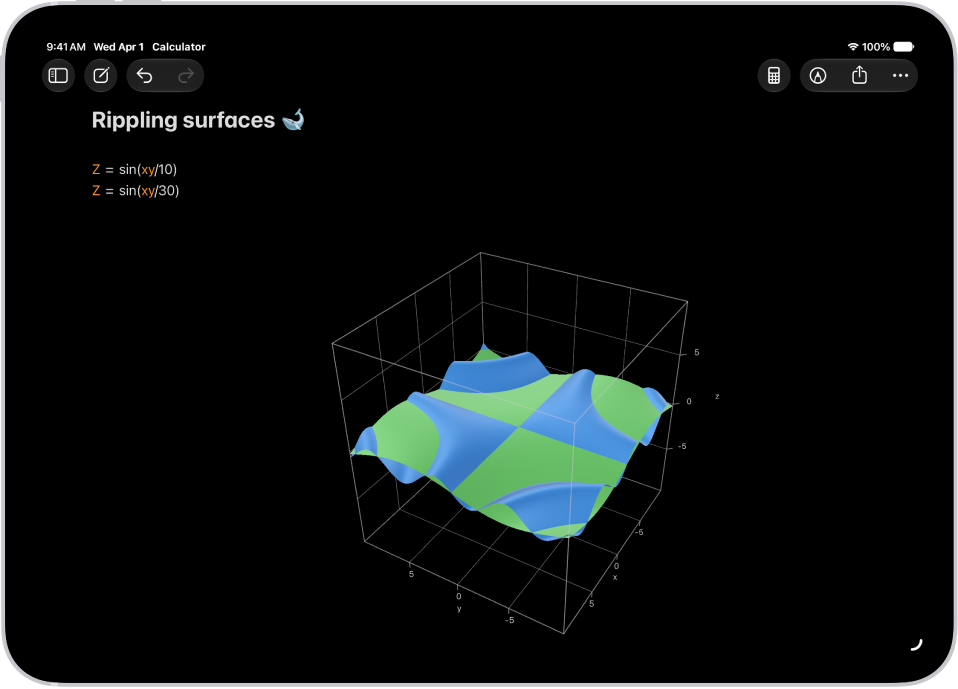
Math Notes in Calculator on iPad showing two 3-variable equations and their corresponding 3D graphs, then a third graph with the two graphs combined.

Visualize your expressions with graphs

Evaluate expressions, assign variables, and plot graphs in Math Notes. Tap the Change Mode button, tap Math Notes, then write an equation with two or three variables. Tap the equal sign of the equation to design your graph.

There’s more to Calculator than the basics, so start with these guides:

You can solve mathematical expressions, create and use variables, or graph equations in Math Notes in the Calculator app—for example, when learning new concepts in class, doing day-to-day budgeting, planning an event, or remodeling your home.

You can type or write a math expression, and Math Notes automatically converts any units and currency used in expressions. You can also mix different systems, and any graphs using a value automatically update when you change it. You can choose how your iPad responds to the math problems you enter, too.

Note: Math Notes relies on common mathematical symbols and select numeric systems for written math and variable names, and it uses the same operations as the scientific calculator.

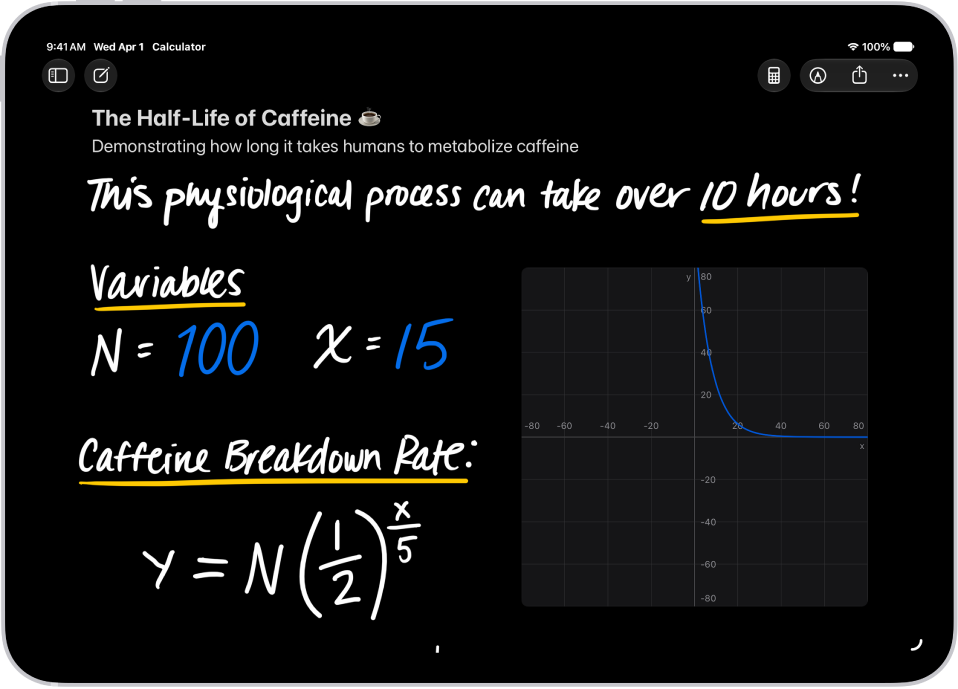
A Math Note open in Calculator, with declared variables, equations, and a drawing of the math problem.

Solve expressions

  1. Go to the Calculator app on your iPad.
  2. Tap the Change Mode button and tap Math Notes.
  3. Tap to open a previous Math Note, or tap the New Note button to start a new one.
  4. Do any of the following:
    • Type a math expression, then include an equal sign.
    • Tap the Handwriting button, write a math expression horizontally, then include an equal sign.
    • Tap the Handwriting button, write a stack of numbers, then draw a horizontal line below the numbers to add the numbers in the stack. Write a different symbol to the left of each number if you want a different operation.
  5. Tap the equal sign to see what Math Notes understood in what you wrote. To correct mistakes, you can fix any of the following:
    • Unrecognized math and unsolvable expressions: Tap any dotted red lines to see details about the error.
    • Ambiguous characters: Tap any dotted blue lines to clarify what you wrote.

Horizontal expressions follow the standard order of operations in Math Notes, so multiplication is completed before addition and subtraction, for instance. To have expressions calculated first, add parentheses around them. Math Notes evaluates vertically stacked math from top to bottom.

Math Notes converts any units and currency in your expressions automatically, and you can even mix different systems, like 42 meters + 143 feet. The units and currency it supports match the Convert mode of the basic or scientific calculator. For more about converting, check out our article, Convert units or currency.

Update values

  1. Start the Calculator app on your iPad.
  2. Tap the Change Mode button, tap Math Notes, and tap the note you want to update.
  3. Do one of the following:
    • Erase the number, then enter a new value.
    • Tap the number, then slide left and right to adjust the value using the scrubber that appears above the number.
    • Using an Apple Pencil, hover over the number until you see a scrubber, then slide left and right to adjust the value.

Graphs that use the values update automatically, and so do the results or graphs of any equations using a variable the value was assigned to.

Use variables in expressions and equations

  1. Start the Calculator app on your iPad.
  2. Tap the Change Mode button and tap Math Notes.
  3. Tap to open a Math Note in the sidebar, or tap the New Note button to start a new one.
  4. To declare a variable, type or write a letter or word to use as the variable, followed by an equal sign.
  5. Type or write a value or expression after the equal sign to assign a value to the variable.
  6. Type or write the variable name in an expression or an equation to use it.

Note: Math Notes works through entries from top left to bottom right. Before you use a variable in an expression (such as x + 10 =), you have to declare it (for example, x = 5), or you’ll get an error. Variable names can contain only characters from the Latin alphabet, and vertical math doesn’t support variables.

Equations with two or three variables let you graph in two or three dimensions.

Show results automatically or as suggestions

You can choose how you want your iPad to respond to the math problems you enter in Math Notes.

  1. Start the Calculator app on your iPad.
  2. Tap the Change Mode button and tap Math Notes.
  3. Tap to open a Math Note in the sidebar, or tap the New Note button to start a new one.
  4. Enter text, or tap the Handwriting button and begin writing.
  5. Tap the More button, tap Math Results, and then do one of the following:
    • If you want problems to be solved: Choose Insert Results. Answers appear automatically when you type or write a solvable math problem.
    • If you want suggestions to appear: Choose Suggest Results. When you type or write an equal sign or select a solvable math problem, a Solve button appears that, when tapped, inserts the answer.
    • If you don’t want any math results: Choose Off. Answers don’t appear when you type or write an equal sign after an expression.

Use a light background

Math Notes can switch from its default dark background to a light background instead.

  1. Start the Calculator app on your iPad.
  2. Tap the Change Mode button and tap Math Notes.
  3. Tap to open a Math Note in the sidebar, or tap the New Note button to start a new one. Enter text or write.
  4. Tap the More button and tap Use Light Background.

You can also show lines or grids in notes.

See also

You can use the scientific calculator for exponential, logarithmic, and trigonometric functions. You can also view complete expressions with parentheses, trigonometry, and multiple operations before you get the final answer.

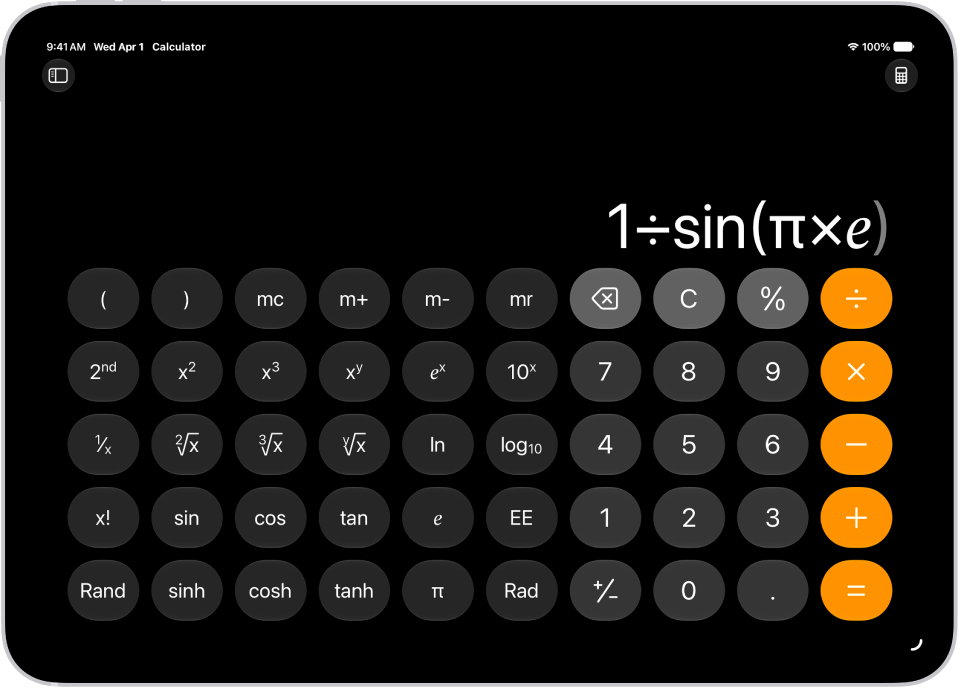
You can work with stored values, use trigonometric and hyperbolic functions, choose radians or degrees, and use mathematical constants. You can even generate a random number between 0 and 1. It follows the standard order of operations, too, so multiplication is completed before addition and subtraction.

Note: The Calculator app uses the standard order of operations. For example, multiplication is completed before addition and subtraction. Add parentheses around expressions that you want calculated first.

iPad showing the scientific calculator with memory, exponential, logarithmic, and trigonometric functions.

Switch to the scientific calculator

  1. Open the Calculator app on your iPad.
  2. Tap the Change Mode button and tap Scientific.

Work with stored values

  1. Open the Calculator app on your iPad.
  2. Tap the Change Mode button and tap Scientific.
  3. As you calculate, you can do any of the following:
    • Add the value on the screen to memory: Tap m+.
    • Subtract the value on the screen from memory: Tap m-.
    • Recall the stored value in memory: Tap mr.
    • Clear the stored value from memory: Tap mc.

Use exponential and logarithmic functions or notation

  1. Open the Calculator app on your iPad.
  2. Tap the Change Mode button and tap Scientific.
  3. Do any of the following:

    • Square a value: Enter a number and tap x2. Then tap =.
    • Cube a value: Enter a number, tap x3, and tap =.
    • Raise a value to the power of y: Enter a base number, tap xy and enter the value of y. Then tap =.
    • Raise e to the power of x: Enter the value of x, tap ex, and then tap =.
    • Raise 10 to the power of x: Enter the value of x, tap 10x, and tap =.
    • Calculate a factorial: Enter a number and tap x!. Tap =.
    • Calculate a reciprocal: Enter a number, tap 1/x, and tap =.

      Tip: Tap EE as a shortcut to use scientific notation, instead of tapping the × and 10x keys.

Use the keys just below those keys to get the inverse functions: the square root, cube root, yth root, natural logarithm, and logarithm.

To access additional functions (such as yx or powers of 2), tap the “2nd” key near the top left.

Use trigonometric and hyperbolic functions

  1. Open the Calculator app on your iPad.
  2. Tap the Change Mode button and tap Scientific.
  3. Find any of the following:
    • Sine: Tap sin and enter a number. Tap =.
    • Cosine: Tap cos, enter a number, and then tap =.
    • Tangent: Tap tan and enter a number. Then tap =.
    • Hyperbolic sine: Tap sinh, enter a number, and then tap =.
    • Hyperbolic cosine: Tap cosh, enter a number, and tap =.
    • Hyperbolic tangent: Tap tanh, enter a number, and then tap =.

To access the inverse of these functions (such as arcsine or arctangent), tap the “2nd” key near the top left.

Use radians or degrees

The scientific calculator uses degrees by default.

  1. Open the Calculator app on your iPad.
  2. Tap the Change Mode button and tap Scientific.
  3. Tap Rad to switch to radians.

    When you’re using radians instead of degrees, the label Rad appears in the lower left of the display, and the Rad key becomes Deg.

To switch back to degrees, tap the Deg key.

The Rad/Deg key sits just above the ÷ key in portrait orientation, with your iPad held vertically, and near the bottom center in landscape orientation, when it’s held horizontally.

Use mathematical constants

  1. Open the Calculator app on your iPad.
  2. Tap the Change Mode button and tap Scientific.
  3. Do any of the following:
    • Insert pi: Tap π.
    • Insert Euler’s number: Tap ℯ.

Generate a random number between 0 and 1

  1. Open the Calculator app on your iPad.
  2. Tap the Change Mode button and tap Scientific.
  3. Tap Rand.

Look for the Rand key just above the Delete key when your iPad is vertical, in portrait orientation. In landscape orientation, held horizontally, it moves to the bottom left.

See also

In Math Notes, you can insert a graph or overlay the graphs of multiple equations on the same two-dimensional grid or three-dimensional space to see how they relate.

You can graph in two or three dimensions, include defined variables, and create a graph from an existing equation. When you edit your equation, the graph updates automatically, and you can resize a graph or combine graphs in one grid or space.

Note: For written math and variable names, Math Notes works with common mathematical symbols and select numeric systems, plus the same operations as the scientific calculator.

A Math Note open in Calculator, with a declared variable, an equation, and a graph.

Graph in two dimensions

  1. Go to the Calculator app on your iPad.
  2. Tap the Change Mode button and tap Math Notes.
  3. Tap to open a previous Math Note, or tap the New Note button to start a new one.
  4. Type or write an equation with exactly two undefined variables, with one on each side of the equal sign.

    You can include defined variables as well. For example, if you know a = 3, you can graph velocity = 0.5at^2. The graph’s y-axis shows velocity, and the x-axis shows t.

  5. Tap Insert Graph in the menu that appears, then, if asked, tap to assign a variable to the x-axis.
  6. Tap to select the graph and then do any of the following:

    • Reframe the graph: Swipe with two fingers to pan.
    • Zoom in or out: Pinch open and closed.
    • See coordinates: Touch and hold the graphed function. Move your finger along the line to see each point’s x- and y-value.
    • Move the graph in the note: Drag from the middle or an edge (not a handle) of the graph.

Any equation you enter gets read as y = f(x) in all graphs, so the variable left of the equal sign graphs on the y-axis, with the other variable on the x-axis.

Graph in three dimensions

  1. Start the Calculator app on your iPad.
  2. Tap the Change Mode button and tap Math Notes.
  3. Tap to open a previous Math Note, or tap the New Note button to start a new one.
  4. Type or write an equation with a “z” on the left side of the equal sign and “x” and “y” on the right.

    For example, z  =  (y3+x3)/2.

  5. Tap Insert 3D Graph in the menu that appears, then, if asked, tap to assign variables to axes.
  6. Tap to select the graph and then do any of the following:

    • Inspect the graph from other angles: Drag from the middle of the graph.
    • Move the graph in the note: Drag the edge (not a handle) of the graph.

Math Notes in Calculator on iPad showing two 3-variable equations and their corresponding 3D graphs, then a third graph with the two graphs combined.

Create a graph from an existing equation

  1. Start the Calculator app on your iPad.
  2. Tap the Change Mode button, tap Math Notes, and then open a Math Note with an equation.
  3. Tap to place a cursor in the equation (without selecting text).
  4. Tap the equation again to reveal a menu above or below the equation, tap the Forward button, and then do one of the following:
    • Create a new graph: Tap Insert Graph.
    • Add an additional graph: Tap Graphs, then tap Insert Graph.

Modify a graph

  1. Start the Calculator app on your iPad.
  2. Tap the Change Mode button, tap Math Notes, and open a Math Note with a graph.
  3. Do any of the following:
    • Change the shape of the function: Edit your equation. The graph updates automatically.
    • Resize the graph: Tap the graph and drag an edge or corner handle.
    • Adjust the axes: Tap the graph, tap the Graph Viewport button, and then swipe left or right on the numbers to make them larger or smaller, or tap Equalize Axes.
    • Zoom to the best view of the graph: Tap the graph and then tap Recenter.
    • Center the origin: Tap the Graph Viewport button and tap Center Origin.
    • Duplicate the graph: Tap the graph and tap the Duplicate button.
    • Recolor the graph: Tap the line or surface of the graph and tap the color picker to the right of the equation.

Work with multiple graphs

  1. Start the Calculator app on your iPad.
  2. Create a graph in two or three dimensions, as above.
  3. Type or write another equation and then tap Insert Graph or Add to Existing Graph.

    You can also tap an equal sign of any equation you already wrote to add it to an existing graph.

  4. Do any of the following:

    • Combine graphs in one grid or space: Tap a graph, tap the 2D Graph Settings button or the 3D Graph Settings button, and then tap the equation in the list that you want to add to the graph. A the Visibility button appears.
    • Hide a graph: Tap the graph, tap the 2D Graph Settings button or the 3D Graph Settings button, and tap the Visibility button to uncheck it.

See also

You can perform basic arithmetic calculations with the calculator. You can also quickly calculate a tip and split the check.

When you split the check, you see the tip amount, the total amount, and what each person owes. The Tip feature is not available in all countries or regions, though. And if you remove the Calculator app from your iPhone, it’s removed from your watch, too.

Here’s how to use Calculator on Apple Watch.

Siri: Ask Siri something like, “What’s 73 times 9?” See Ask Siri to get information.

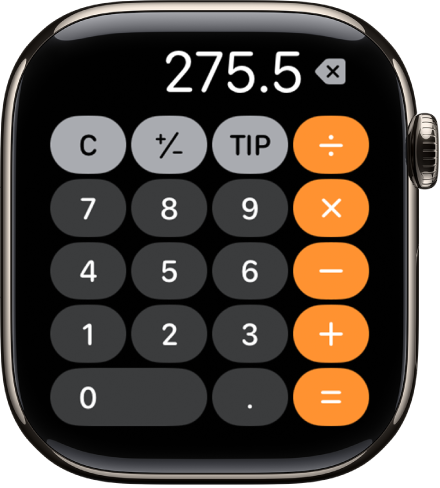
Apple Watch showing the Calculator app. The screen shows a typical number pad with math functions on the right. Along the top are the C, plus or minus, and Tip buttons.

Perform a quick calculation

  1. Start the Calculator app on your Apple Watch.
  2. Tap numbers and operators to get a result.

Split the check and calculate a tip

  1. Start the Calculator app on your Apple Watch.
  2. Enter the total amount of the bill and tap Tip.
  3. Turn the Digital Crown to choose a tip percentage.
  4. Tap People and then turn the Digital Crown to enter the number of people sharing the bill.

    You see the tip amount, the total amount, and how much each person owes if the bill is split evenly.

    Note: The Tip feature is not available in all countries or regions.

Note: Remove the Calculator app from your iPhone, and it’s removed from Apple Watch, too.

Keep track of previous calculations in the basic or scientific calculators, and copy results from them to use in Calculator or other apps. They’re behind the Clock button, and when you reload a calculation, it appears where you left off earlier.

See previous calculations

  1. Start the Calculator app on your iPhone.
  2. Tap the Change Mode button and choose Basic or Scientific.
  3. Tap the Clock button and then do any of the following:
    • Reload the calculation: Tap the listing. The calculation appears where you left off earlier.
    • Copy the answer: Touch and hold the listing and tap Copy Expression or Copy Result.
    • Delete the calculation: Swipe left, then tap the Delete button.
    • Delete all previous calculations: Tap Edit, tap Clear All, and then tap Clear History.
    • Delete multiple calculations: Tap Edit and tap the calculations. Tap Delete.

In the Calculator app, you can solve math problems in basic or scientific mode, convert units, or handwrite problems and generate graphs using Math Notes. The scientific calculator handles powers, roots, exponents, fractions, logarithms, trigonometry, and more. And you’ll even find conversions for currency.

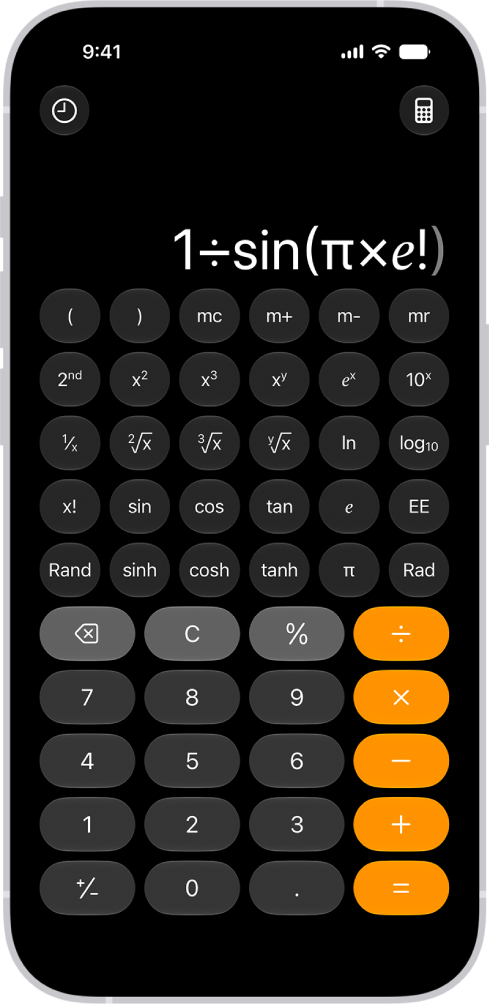
iPhone showing the scientific calculator with memory, exponential, logarithmic, and trigonometric functions.

Choose the calculator for the task

Do basic math, or switch to the scientific calculator where you can perform advanced calculations involving powers, roots, exponents, fractions, logarithms, trigonometry, and more. Tap the Change Mode button, tap Basic or Scientific, then enter your expression.

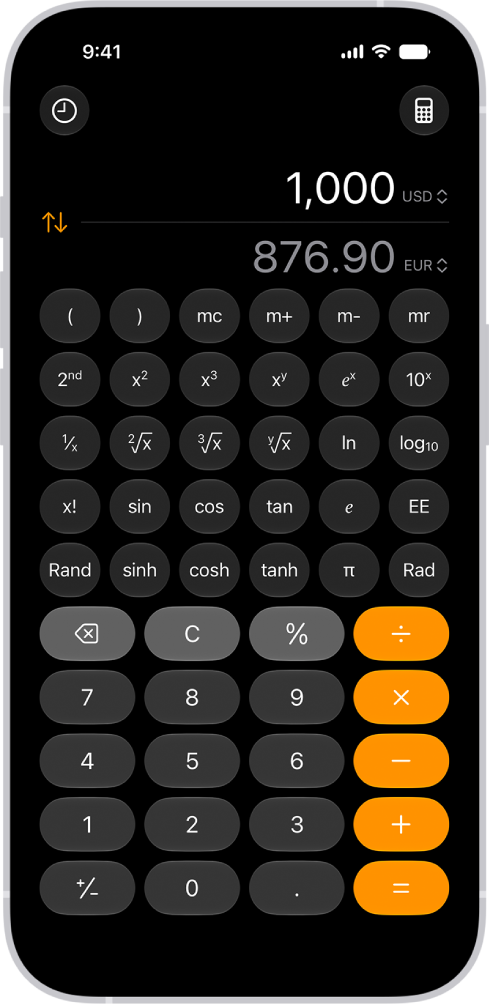
The basic calculator with a currency conversion on iPhone.

Convert units easily

Miles to millimeters? Yen to euros? Change units of length, weight, power, pressure, speed, currency, and more with the unit conversion mode. Tap the Change Mode button, tap Convert, then tap the Unit button to choose the units or currencies.

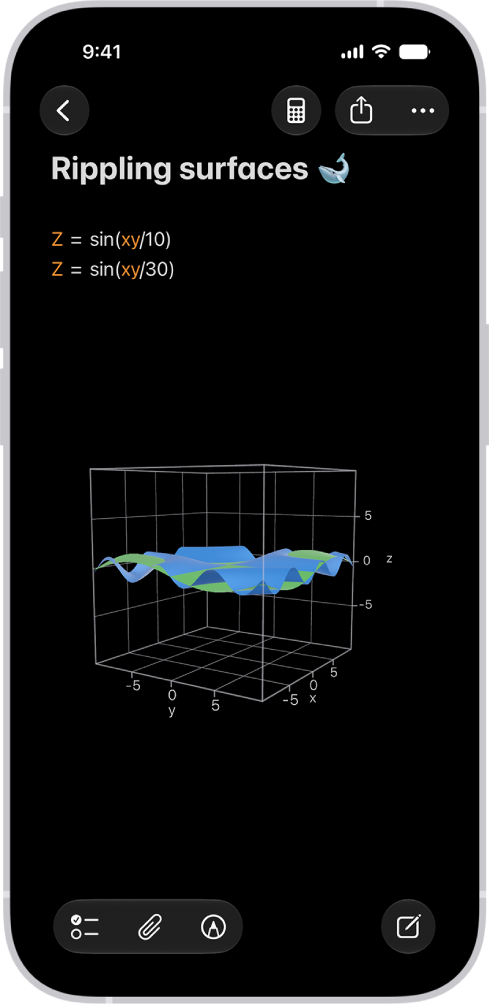
Math Notes in Calculator on iPhone showing two 3-variable equations and their corresponding 3D graphs combined in the same space.

Visualize your expressions with graphs

Evaluate expressions, assign variables, and plot graphs in Math Notes. Tap the Change Mode button, tap Math Notes, tap the New Note button to start a note, then write an equation with two or three variables. Tap the equal sign of the equation to design your graph.