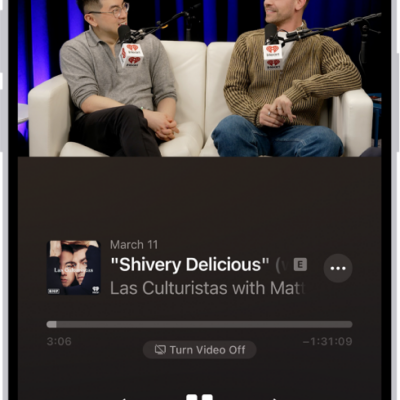
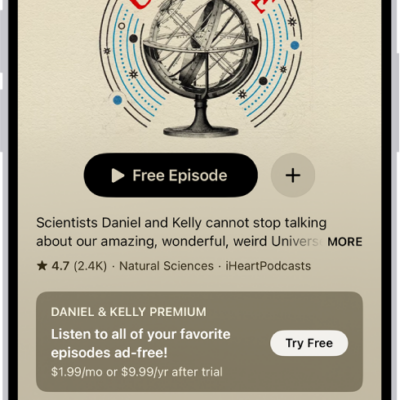
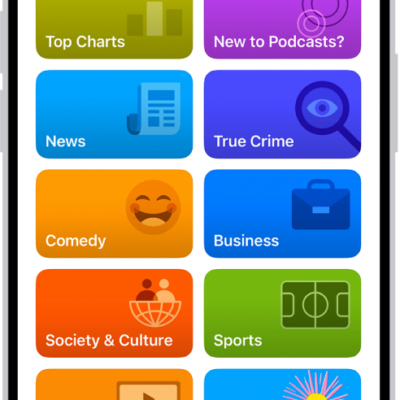
You can add the Podcasts widget to your Home Screen to view and play episodes without opening the Podcasts app. You can add episodes from the Up Next queue, saved episodes, or episodes from a show you follow.
You can add one like any other widget. You can customize most Podcasts widgets after adding them, though the Up Next widget can only be added and removed.
Here’s how to use the Podcasts widget on iPhone.
Add a Podcasts widget to the Home Screen
- Touch and hold the Home Screen until the apps begin to jiggle.
- Tap the Edit button, then tap Add Widget to open the widget gallery.
- Scroll down and tap Podcasts.
- Swipe left and right to view the different widget sizes and layouts. When you see the option you like, tap Add Widget.
- Tap the Done button.
To move the widget on your Home Screen, touch and hold the Home Screen until the apps begin to jiggle. Drag the widget to a new location, then tap the Done button.
Customize a widget
You can customize most Podcasts widgets after adding them. (The Up Next widget can only be added and removed.)
- Touch and hold the widget on the Home Screen.
- Tap Edit Widget.
- Do any of the following:
- Edit a Library widget: Choose which list to display, such as Latest Episodes, Saved Episodes, Downloaded Episodes, or a station you created.
- Edit a show widget: Choose a show from your followed shows. Your most recently played shows appear at the top.
Remove a widget
- Touch and hold the Home Screen until the apps begin to jiggle.
- Tap the Remove button at the top left of the widget.
- Tap Remove.
Tag: Podcasts