Got a tip for us?

Podcasts

You can add the Podcasts widget to your Home Screen to view and play episodes without opening the Podcasts app. You can add episodes from the Up Next queue, saved episodes, or episodes from a show you follow.

You can add one like any other widget. You can customize most Podcasts widgets after adding them, though the Up Next widget can only be added and removed.

Here’s how to use the Podcasts widget on iPhone.

Add a Podcasts widget to the Home Screen

  1. Touch and hold the Home Screen until the apps begin to jiggle.
  2. Tap the Edit button, then tap Add Widget to open the widget gallery.
  3. Scroll down and tap Podcasts.
  4. Swipe left and right to view the different widget sizes and layouts. When you see the option you like, tap Add Widget.
  5. Tap the Done button.

To move the widget on your Home Screen, touch and hold the Home Screen until the apps begin to jiggle. Drag the widget to a new location, then tap the Done button.

Customize a widget

You can customize most Podcasts widgets after adding them. (The Up Next widget can only be added and removed.)

  1. Touch and hold the widget on the Home Screen.
  2. Tap Edit Widget.
  3. Do any of the following:
    • Edit a Library widget: Choose which list to display, such as Latest Episodes, Saved Episodes, Downloaded Episodes, or a station you created.
    • Edit a show widget: Choose a show from your followed shows. Your most recently played shows appear at the top.

Remove a widget

  1. Touch and hold the Home Screen until the apps begin to jiggle.
  2. Tap the Remove button at the top left of the widget.
  3. Tap Remove.

The Podcasts app offers millions of shows on a variety of topics such as news, true crime, comedy, and more. You can watch or listen online, or download episodes so you can play them even when you’re not connected to the internet.

You can browse shows by category, or search for a specific show or episode by show name, episode title, person, or category.

Here’s how to get started with Podcasts on iPhone.

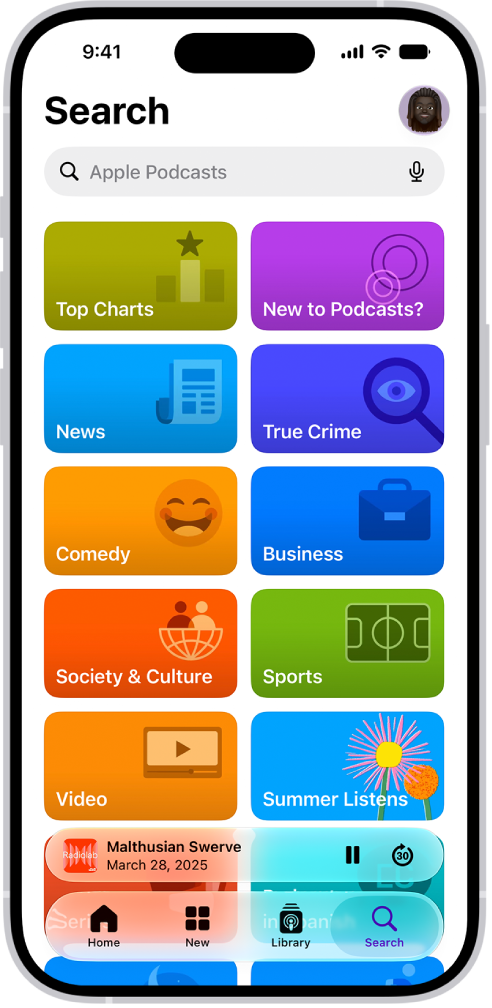
The Search screen in the Podcasts app, showing podcast categories. Toward the bottom of the screen is the MiniPlayer. Below that are the Home button and the search field.

Find podcasts

Tap Search to browse shows by category. To search for a specific show or episode, enter a word or phrase—for example, a show name, episode title, person, or category. To find episodes within a specific show, tap Episodes on the show page, then search.

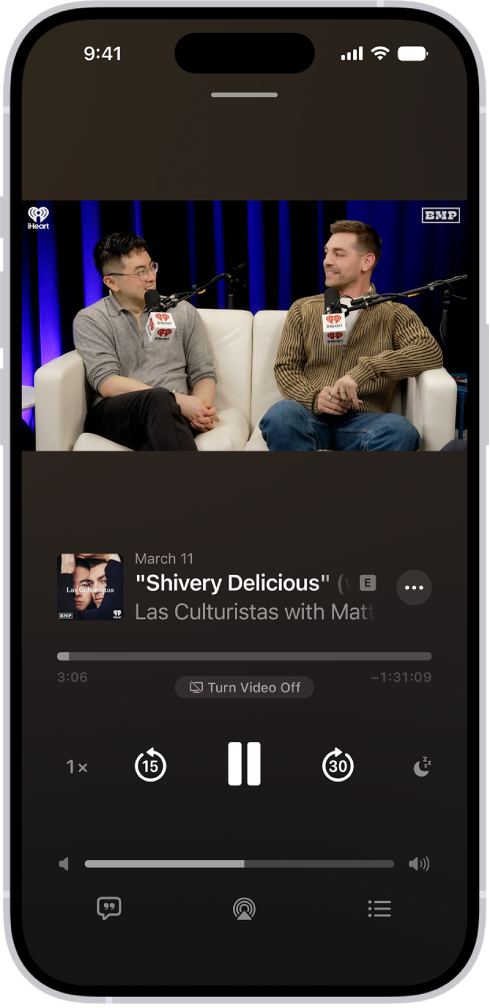
The Now Playing screen in the Podcasts app, showing a video. Below the video is the podcast artwork, the episode title, the playback controls, and the volume slider. At the bottom of the tab are the View Transcript button, the AirPlay icon, and the Playing Next button.

Play podcasts

Tap the Play button to start playing a show or episode. Video episodes open directly in the Now Playing screen, where you can access playback controls, navigate through chapters, access links to other media, view the transcript, select output devices, and more. For audio episodes, tap the MiniPlayer at the bottom of the screen to open the Now Playing screen.

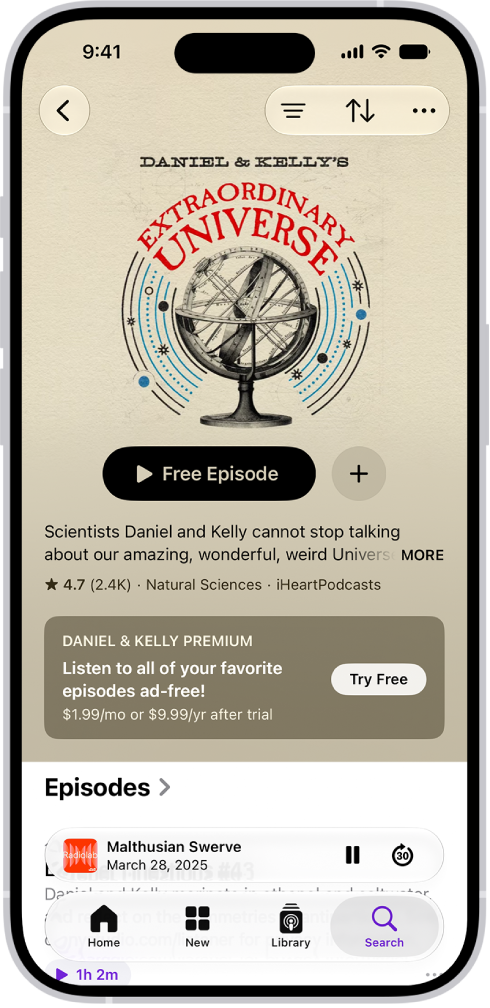
A show page in the Podcasts app showing an episode list. At the top of the screen are the Back, Follow, and More buttons. Toward the bottom of the screen is the MiniPlayer. Below that are the Home, New, Library, and Search buttons.

Follow a show

Once you find a show you like, tap the Follow button to add it to your library. Whether to automatically download new episodes and get notifications for them is up to you.

In the Podcasts app, you can play video and audio podcasts. You can change the playback speed, see what’s playing next, watch or listen to an episode when you’re offline, set a sleep timer, and use other playback controls.

You can also navigate episodes by chapter, discover content mentioned in an episode, and access links shared by podcast creators. Video podcasts even have their own controls in full-screen video mode.
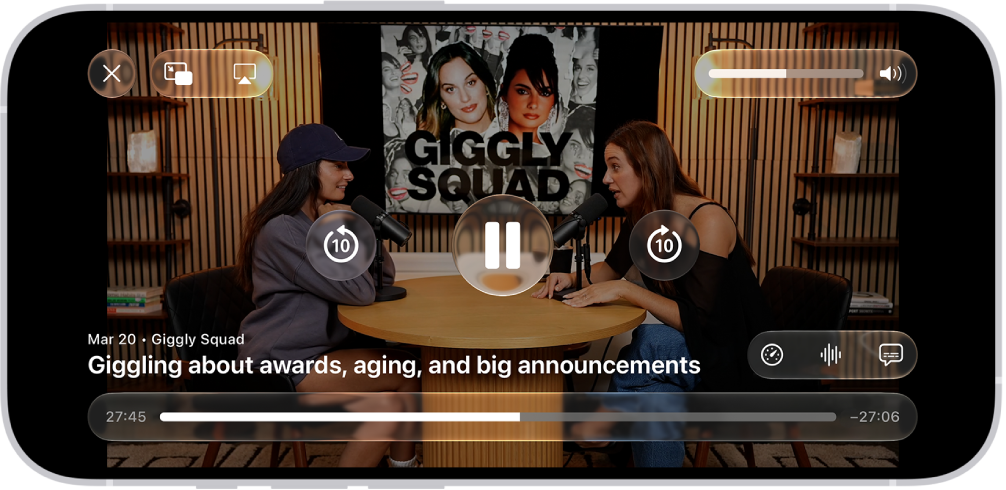
A video podcast in the Podcasts app expanded to full-screen video mode. At the top of the screen are display options and the volume control. The Skip Back, Pause, and Skip Forward buttons appear in the center of the screen. Episode details, the progress bar, and controls for playback speed, enhanced dialogue, and subtitles appear at the bottom of the screen.

Quick tip: In the car, you can listen to podcasts with CarPlay. Vehicle displays that support it also let you watch video podcasts when you’re not driving.

Play a podcast

  1. Start the Podcasts app on your iPhone.
  2. Do one of the following:
    • Find a podcast: Search or browse for an episode.
    • Choose a recently played podcast: Tap Home, then scroll to the Recently Played section.
  3. Tap the Play button below an episode title.

Audio episodes appear in the MiniPlayer, where you can pause, resume playing, or skip ahead. Unless you’ve turned video off in the player, video episodes open directly in the Now Playing screen.

Open the Now Playing screen

  1. Start the Podcasts app on your iPhone.
  2. Play a podcast.
  3. If you’re playing an audio podcast, tap the MiniPlayer at the bottom of the screen to open the Now Playing screen.
  4. In the Now Playing screen, do any of the following:
    • Pause playback: Tap the Pause button.
    • Jump to a specific time: Drag the slider above the playback controls.
    • Switch between video and audio modes: While playing a video podcast, tap Turn Video Off or Turn Video On.
    • Adjust the volume: Touch and hold the volume bar and then slide your finger left or right.
    • Change the playback speed: Tap the Playback Speed button (or the current playback speed) and then select a speed, or swipe left or right to adjust the speed. You can also touch and hold the Playback Speed button (or the current playback speed) and then slide your finger up or down to choose a speed.
    • Hear voices more clearly: Tap the Playback Speed button (or the current playback speed), then tap Enhance Dialogue.
    • Skip back or forward: Tap the Skip Back button to jump back 15 seconds or the Skip Forward button to jump ahead 30 seconds.
    • Jump to a chapter: When chapters are available, tap the Playing Next button, tap the Down arrow next to the name of the current chapter, and choose the chapter you want to play. You can also drag the slider above the playback controls to navigate between chapters, or open the transcript and tap the chapter.
    • Explore other media mentioned in an episode: When a podcast mentions content that’s available in apps such as Music, Apple TV, Books, Podcasts, or News,, it appears as a link. Tap the mentioned item in the player or transcript to view details or access the content.
    • Show or hide the episode transcript: If the View Transcript button or the Hide Transcript button appears, tap the button.
    • Play the video or audio on another device: Tap the AirPlay button.
    • Show or hide the queue: Tap the Playing Next button.
    • Access more options: Tap the More button.
    • Set a sleep timer: Tap the Sleep Timer button and then choose an option.

Use controls in full-screen video mode

Watching a video podcast? You can expand it to fill the whole screen for an immersive viewing experience.

  1. Start the Podcasts app on your iPhone.
  2. Play a video podcast.
  3. Tap the video thumbnail to expand the video to full screen.
  4. Do any of the following:
    • Change the playback speed: Touch and hold the Playback Speed button and then slide your finger up or down to choose a speed.
    • Choose options for subtitles: If you see the Captions button, tap it and choose an option.
    • Stream sound to another device: Tap the AirPlay button.
    • Highlight or copy text that appears in the video: Tap the More button, then tap Show Text. Optionally, tap Copy All to copy the text to the Clipboard.
    • Switch to picture-in-picture view: Tap the Picture-in-Picture Start button.
    • Exit full-screen video mode: Tap the Close button.

Access episode links

  1. Start the Podcasts app on your iPhone.
  2. Search or browse for an episode.
  3. On the episode page, tap a highlighted link to open the content.

Choose what to play next

To watch or listen to episodes later, add them to your queue.

  1. Start the Podcasts app on your iPhone.
  2. Find a podcast.
  3. Tap the More button for an episode and choose Play Next or Add to Queue.
  4. Tap the Playing Next button in the Now Playing screen. If you don’t see the Playing Next button, tap the MiniPlayer near the bottom of the screen to open the Now Playing screen.
  5. In the Queue section, do any of the following:
    • Play an episode: Tap the episode. The next episode in the queue plays immediately after the previous episode finishes.
    • Reorder episodes: Drag the Reorder button to move an episode up or down in the list.
    • Remove an episode from the queue: Swipe left on the episode, then tap Remove.
    • Remove all episodes from the queue: Tap Clear.

If you watch or listen to multiple episodes of a show in a row, additional episodes appear in the Continue Playing section of the Now Playing screen. These episodes play after the ones you added to the Queue section, so you can easily pick up where you left off in a show. You can also tap an episode in Continue Playing to start watching or listening right away.


You can rate and review a show, read reviews from other listeners, and delete a review you wrote if you later change your mind.

You can rate a show from 1 to 5 stars, write a review to add your thoughts, and edit your review later. You can also follow your favorite podcasts, and subscribe to a show or channel in Podcasts on iPad.

Here’s how to rate or review podcasts on iPad.

Rate or review a show

  1. Open the Podcasts app on your iPad.
  2. Search or browse to find a show, or tap Shows in the sidebar.
  3. Tap the show you want to rate or review and then scroll down to Ratings & Reviews.
  4. Do any of the following:
    • Rate a show: Tap a star to rate the show from 1 to 5.
    • Review a show: Tap Write a Review. Tap a star to rate the show and enter your review. Tap the Send button.
    • Edit a review: Tap Write a Review, make any changes. Then tap the Send button.

Delete a rating or review

  1. Open the Podcasts app on your iPad.
  2. Choose Account > Account Settings in the menu bar.
  3. Tap your name (you may need to sign in), then tap Ratings and Reviews.
  4. Tap Ratings and Reviews, then tap Edit.
  5. Tap the Remove button next to the rating or review you want to remove.
  6. Tap Done.

See also

You can add the Podcasts widget to your Home Screen to view and play episodes without opening the Podcasts app. You can add episodes from the Up Next queue, saved episodes, or episodes from a show you follow.

It comes in different sizes and layouts. You can customize most Podcasts widgets after you add them, and you’re able to move a widget to a new location on your Home Screen or remove it when you don’t need it anymore.

Add a Podcasts widget to the Home Screen

  1. Touch and hold the Home Screen until the apps begin to jiggle.
  2. Tap the Edit button at the top of the screen. Tap Add Widget to open the widget gallery.
  3. Scroll down and tap Podcasts.
  4. Swipe left and right to view the different widget sizes and layouts. When you see the option you like, tap Add Widget. Then tap the Done button at the top of the screen.

To move the widget on your Home Screen, touch and hold the Home Screen until the apps begin to jiggle. Drag the widget to a new location, then tap the Done button.

Customize a widget

You can customize most Podcasts widgets after adding them. (The Up Next widget can only be added and removed.)

  1. Touch and hold the widget on the Home Screen.
  2. Tap Edit Widget.
  3. Do any of the following:
    • Edit a Library widget: Choose which list to display, such as Latest Episodes, Saved Episodes, Downloaded Episodes, or a station you created.
    • Edit a show widget: Choose a show from your followed shows. Your most recently played shows appear at the top.

Remove a widget

  1. Touch and hold the Home Screen until the apps begin to jiggle.
  2. Tap the Remove button at the top left of the widget.
  3. Tap Remove.

See also

Podcasts you follow are automatically downloaded to your Apple device, and episodes you’ve played are automatically deleted. You can change these download settings and adjust other download options.

If you haven’t listened to a show you follow in a while, though, new episodes stop downloading automatically. You can resume automatic downloads at any time, and you can adjust these settings for a particular podcast you follow.

Here’s how to change your download settings for Podcasts on iPad.

Turn automatic downloads on or off

  1. Open the Settings app on your iPad.
  2. Tap Apps and tap Podcasts.
  3. Tap Automatically Download and choose an option.

Quick tip: To automatically download a particular podcast, open the Podcasts app, then tap Shows in the sidebar. Touch and hold the show, then tap Settings. Tap Automatically Download to limit automatic downloads to a certain number of episodes or a timeframe. Tap Download Video to choose whether to download video., then tap Automatically Download to choose a download option.

Remove downloaded podcasts after you watch or listen to them

  1. Open the Settings app on your iPad.
  2. Tap Apps and tap Podcasts.
  3. Turn on Remove Played Downloads.

    To adjust this setting for a particular podcast you follow, tap Shows, then touch and hold the show’s artwork. Tap Settings, then turn on Remove Played Downloads.

Resume automatic downloads

If you haven’t watched or listened to a show you follow lately, its new episodes stop downloading automatically, but you can resume automatic downloads at any time.

  1. Open the Podcasts app on your iPad.
  2. In the sidebar, tap Shows.
  3. Tap a show.
  4. Tap the Resume Automatic Downloads button. Then tap Turn On Automatic Downloads.

Turn off automatic syncing across Apple devices

  1. Open the Settings app on your iPad.
  2. Tap Apps and tap Podcasts.
  3. Turn off Sync Library.

See also

In the Podcasts app, you can listen to content from Apple Music, Apple News+, and eligible third-party subscription apps. If you subscribed through the App Store, the connection happens on its own, as long as the app offers content in Podcasts. Once it’s connected, you can play its subscriber-only shows.

Note: Not all apps offer content that’s available in Podcasts.

Eligible app subscriptions connect to Podcasts automatically when the app offers content in Podcasts and you subscribed through the App Store.

If you subscribed using another method, do the following:

  1. Open the Podcasts app on your iPad.
  2. Search or browse for a channel with an eligible subscription.
  3. On the Channel page, tap the Already a Subscriber link and then follow the instructions to connect your app subscription.

After an app subscription is connected, its channel shows up in your library, and all its subscriber-only shows and episodes play in Podcasts.

See also

You can select your favorite categories and channels in the Podcasts app to get better show recommendations and access shows from your subscriptions. Favorite categories rank higher in search results, and favorite channels are easier to find in your library. You can remove them if you change your mind, too.

Select your favorite categories

Adding categories to your favorites gets you better show recommendations and easy access to category pages. Favorite categories also rank higher in search results, and they appear with a Favorite icon at the top of the Manage Categories screen.

  1. Start the Podcasts app on your iPad.
  2. In the sidebar, tap Categories.
  3. Do any of the following:
    • Add a category to your favorites: Tap a category, then tap the Favorite button. To add a new category as a favorite, tap Manage. Then select one or more categories.
    • Remove a category from your favorites: Tap a category, then tap the Remove Favorite button. You can also tap Manage. Then tap the Remove Favorite button next to a category.

Select your favorite channels

Favorite channels are easier to find in your library, though you can remove them from your favorites if you change your mind. In the Library, a Favorite icon marks them at the top of the Channels section.

Note: If you haven’t subscribed to any channels yet, followed any shows that a channel offers, or added a channel as a favorite, Channels won’t appear in the sidebar.

  1. Start the Podcasts app on your iPad.
  2. In the sidebar, tap Channels.

    You can also search or browse for a channel.

  3. Do any of the following:

    • Add a channel to your favorites: Tap the channel and tap the Favorite button.
    • Remove a channel from your favorites: Tap the channel, then tap the Remove Favorite button.

See also

In the Podcasts app, you can view and search episode transcripts. In the static transcript view, you can select text and play, copy, or share from that point, and in the scrolling transcript on the Now Playing screen, any paragraph can take you to that point in the episode.

Note: Transcript availability may vary by language, and by country or region.

View transcripts

  1. Start the Podcasts app on your iPad.
  2. Do any of the following:
    • While viewing episode information: Scroll down to the Transcripts section. You can also tap the More button and tap View Transcript.
    • From the MiniPlayer or the Now Playing screen: Tap the View Transcript button.

Transcripts aren’t available when watching in full-screen video mode. Instead, you can tap the Captions button to turn on subtitles (if available). You can also tap the Close button to return to the Now Playing screen, then tap the View Transcript button to view the video and transcript side by side in landscape orientation.

You can interact with transcripts in multiple ways. In the static transcript view, you can select text and choose whether to play, copy, or share from that point. In the scrolling transcript on the Now Playing screen, you can tap any paragraph to jump to that point in the episode, or touch and hold a paragraph to share from that point.

To hide the transcript on the Now Playing screen, tap the Hide Transcript button.

Search transcripts

  1. Start the Podcasts app on your iPad.
  2. While viewing a transcript, do one of the following:
    • While viewing the scrolling transcript: Tap Search.
    • While viewing the static transcript: Tap the Search Transcript button at the top right of the screen.
  3. Optionally, tap the Search Options button in the search field to specify whether the capitalization or the entire word needs to match in the search results.

See also

The Podcasts app plays both video and audio podcasts. You can change the playback speed, see what’s playing next, watch or listen to an episode when you’re offline, and set a sleep timer to stop playback later.

You can also navigate episodes by chapter, discover content mentioned in an episode, and access links shared by podcast creators. Video episodes open directly in the Now Playing screen, where you’ll find full-screen video controls.

Play a podcast

  1. Start the Podcasts app on your iPad.
  2. Do one of the following:

    • Find a podcast: Search or browse for an episode.
    • Choose a recently played podcast: Tap Home, then scroll to the Recently Played section.
  3. Tap the Play button below the episode title.

    Video episodes open directly in the Now Playing screen, unless you’ve turned video off in the player. For audio episodes, the episode appears in the MiniPlayer, where you can do any of the following:

    • Pause playback: Tap the Pause button.
    • Change the playback speed: Tap the Playback Speed button (or the current playback speed). Then select a speed.
    • Hear voices more clearly: Tap the Playback Speed button (or the current playback speed), then tap Enhance Dialogue.
    • Skip back or forward: Tap the Skip Back button to jump back 15 seconds or the Skip Forward button to jump ahead 30 seconds.
    • Jump to a chapter: When chapters are available, tap the Playing Next button and tap the Down arrow next to the name of the current chapter. Then choose the chapter you want to play. You can also drag the slider above the playback controls to navigate between chapters, or open the transcript and tap the chapter.
    • Show or hide the episode transcript: If the View Transcript button or the Hide Transcript button appears, tap the button.
    • Show or hide the queue: Tap the Playing Next button.
    • Set a sleep timer: Tap the Sleep Timer button and then choose an option.

Open the Now Playing screen

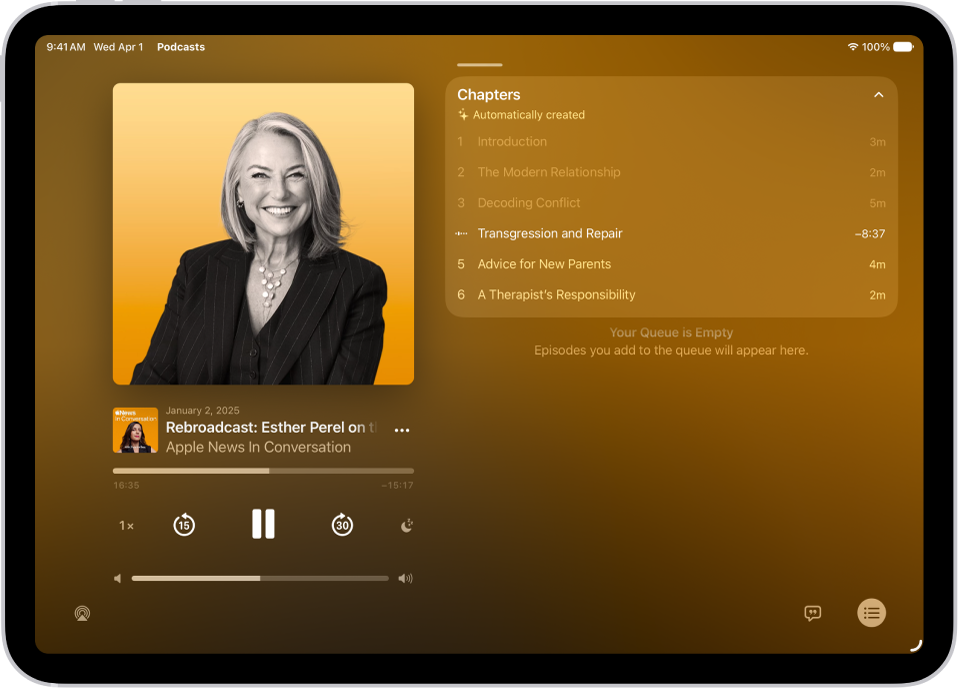
The Now Playing screen in the Podcasts app, showing the podcast artwork, the episode title, the playback controls, and the volume slider. At the right of the screen is a list of chapters. At the bottom of the screen is the AirPlay icon, the View Transcript button, and the Playing Next button.

  1. Start the Podcasts app on your iPad.
  2. Play a podcast.
  3. If you’re playing an audio podcast, tap the MiniPlayer at the bottom of the screen to open the Now Playing screen, where additional controls are available.
  4. Do any of the following:
    • Jump to a specific time: Drag the slider below the episode information.
    • Adjust the volume: Touch and hold the volume bar and then slide your finger left or right.
    • Jump to a chapter: When chapters are available, tap the Playing Next button and tap the Down arrow next to the name of the current chapter. Then choose the chapter you want to play.
    • Explore other media mentioned in an episode: When a podcast mentions content that’s available in apps such as Music, Apple TV, Books, News, or Podcasts, tap the mentioned item in the player or transcript to view details or access the content.
    • Play the video or audio on another device: Tap the AirPlay button.
    • Show or hide the episode transcript: If the View Transcript button or the Hide Transcript button appears, tap the button.
    • Show or hide the queue: Tap the Playing Next button.
    • Access more options: Tap the More button.

Use controls in full-screen video mode

For an immersive viewing experience, expand a video podcast to fill the entire screen while you watch.

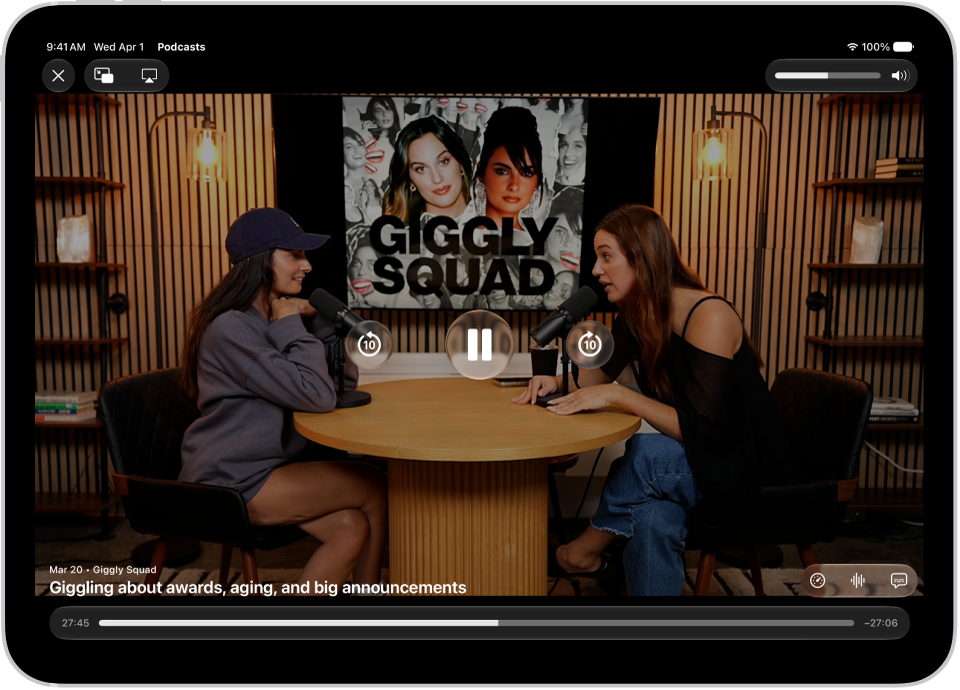
A video podcast in the Podcasts app expanded to full-screen video mode. At the top of the screen are display options and the volume control. The Skip Back, Pause, and Skip Forward buttons appear in the center of the screen. Episode details, the progress bar, and controls for playback speed, enhanced dialogue, and subtitles appear at the bottom of the screen.

  1. Start the Podcasts app on your iPad.
  2. Play a video podcast.
  3. Tap the video thumbnail to expand the video to full screen.
  4. Do any of the following:
    • Change the playback speed: Touch and hold the Playback Speed button and then slide your finger up or down to choose a speed.
    • Hear voices more clearly: Touch and hold the Playback Speed button and tap Enhance Dialogue. Then choose Enhance More or Enhance.
    • Choose options for subtitles: If you see the Captions button, tap it and choose an option.
    • Play the audio on another device: Tap the AirPlay button.
    • Highlight or copy text that appears in the video: Tap the More button, then tap Show Text. Optionally, tap Copy All to copy the text to the Clipboard.
    • Switch to picture-in-picture view: Tap the Picture-in-Picture Start button.
    • Exit full-screen video mode: Tap the Close button.

Access episode links

  1. Start the Podcasts app on your iPad.
  2. Search or browse for an episode.
  3. On the episode page, tap a highlighted link to open the content.

Choose what to play next

Episodes you add to your queue are there to watch or listen to later.

  1. Start the Podcasts app on your iPad.
  2. Search or browse to find an episode.
  3. Tap the More button near an episode and then choose Play Next or Add to Queue.
  4. Tap the Playing Next button.

    If you don’t see the Playing Next button, tap the MiniPlayer at the bottom of the screen to open the Now Playing screen.

  5. In the Queue section, do any of the following:

    • Play an episode: Tap the episode. The next episode in the queue plays immediately after the previous episode finishes.
    • Reorder episodes: Drag the Reorder button to move an episode up or down in the list.
    • Remove an episode from the queue: Swipe left on the episode, then tap Remove.
    • Remove all episodes from the queue: Tap Clear.

If you watch or listen to multiple episodes of a show in a row, additional episodes appear in the Continue Playing section of the Now Playing screen. These episodes play after the ones you added to the Queue section, so you can easily pick up where you left off in a show. You can also tap an episode in Continue Playing to start watching or listening right away.

See also