Got a tip for us?

Podcasts

When you find a show you like in the Podcasts app, follow it to add it to your library so you can get notified about new episodes, change the playback order, and more.

Podcasts you follow are on your other Apple devices and the Apple Podcasts website, too. You can follow a show from search results, show information, or Now Playing, and unfollow it later.

Here’s how to follow your favorite podcasts on iPad.

Follow a podcast

Podcasts you follow are added to your library, and you can access them on your other Apple devices or on the Apple Podcasts website.

  1. Start the Podcasts app on your iPad.
  2. Search or browse to find a show.
  3. Do any of the following:

    • From search results: Tap the Follow button.
    • While viewing show information: Tap Follow.

      You can also tap the More button, then tap Follow.

    • While viewing episode information, or from Now Playing: Tap the More button and then tap Follow Show.

Unfollow a podcast

  1. Start the Podcasts app on your iPad.
  2. In the sidebar, tap Shows.
  3. Tap a show, tap the Check button near the top right, and then tap Unfollow Show.

    Or tap the More button near the top right, then tap Unfollow.

Get notifications for new episodes

Get notified when new episodes are available for podcasts you follow.

  1. Start the Podcasts app on your iPad.
  2. Choose Account > Account Settings in the menu bar.
  3. Tap Notifications, then turn on notifications for the shows you want. If Allow Notifications on This iPad appears at the top of the screen, notifications are turned off for Podcasts. Tap Allow Notifications on This iPad, then tap Allow.

    Tip: You can also control notifications for a specific show from its settings page. Open the show, tap the More button, tap Settings, then turn Notifications on or off.

Customize playback speed and Enhance Dialogue settings for a show you follow

  1. Start the Podcasts app on your iPad.
  2. Tap Shows in the sidebar, then select a show. (You can also search or browse for a show you follow.)
  3. Tap the More button, tap Settings, and then scroll down to Speed & Audio Adjustments.
  4. Choose Custom for This Show. Select a playback speed and turn Enhance Dialogue on or off.

See also

In the Podcasts app, you can customize the podcasts you follow, catch up on the latest episodes, and create your own stations.

Your library shows recently updated shows, the shows you follow, and channels you subscribe to. You can change the episode playback order, set download limits for each podcast, mark episodes as played, and hide the ones you’ve already played.

Here’s how to organize your podcast library on iPad.

View your podcast library

  1. Start the Podcasts app on your iPad.
  2. In the sidebar, tap any of the following:
    • Recently Updated: See shows you follow with recently released episodes.
    • Shows: See shows that are in your library. If you downloaded or saved episodes from podcasts you don’t follow, tap All to see them. Tap Followed to view only shows you follow. You can tap any show to see its information and the episodes you saved or downloaded.
    • Channels: See channels you subscribe to, channels you added to your favorites, and channels that have shows you follow. You can tap a channel to browse all of its shows.
    • Categories: See categories you added to your favorites, along with categories for any shows you follow.
    • Saved: See episodes you saved.
    • Downloaded: See episodes you downloaded. You can watch or listen to these episodes without an internet connection.
    • Latest Episodes: See the most recent episodes from each show you follow. To change how long episodes stay in this playlist, tap the More button.
    • Stations: If you created stations, each one is listed.

Change the episode playback order

  1. Start the Podcasts app on your iPad.
  2. In the sidebar, tap Shows.
  3. Touch and hold a show, then tap Settings.
  4. Choose an option under Episode Order.

    When you play an episode from the show page, the remaining episodes play based on the order you choose.

Set download limits for each podcast

  1. Start the Podcasts app on your iPad.
  2. In the sidebar, tap Shows.
  3. Touch and hold a show, then tap Settings.
  4. Scroll down to Automatically Download, then choose an option.
  5. Tap Download Video. Choose On to download video for offline playback, or Off to download audio only.

Mark an episode as played or unplayed

  1. Start the Podcasts app on your iPad.
  2. Search or browse for a podcast.
  3. Do any of the following:
    • Mark an episode while viewing show information: Swipe right on an episode and tap Played or Unplayed.
    • Mark an episode while viewing episode information: Tap the More button. Then tap Mark as Played or Mark as Unplayed.
    • Mark all episodes listed while viewing a show you follow: Tap the More button. Tap Mark All as Played, Mark Filtered as Played, Mark All as Unplayed, or Mark Filtered as Unplayed.

Hide episodes you already played

To hide episodes you already played, change a show’s settings.

  1. Start the Podcasts app on your iPad.
  2. In the sidebar, tap Shows.
  3. Touch and hold a show and tap Settings. Then turn on Hide Played Episodes.

To automatically hide played episodes for all shows you follow, go to Settings > Apps > Podcasts, then turn on Hide Played Episodes.

Create your own station

Similar to a music playlist, a station groups shows you follow based on themes like comedy, news, or morning commute. And episodes from the podcasts you choose regularly land in your station automatically.

  1. Start the Podcasts app on your iPad.
  2. In the sidebar, tap New Station.

    If New Station doesn’t appear, tap the More button next to Stations.

  3. Add a title, then tap Save.
  4. Tap Choose Podcasts and then tap the shows you want to add to the station (or turn on Include All Podcasts).

Quick tip: It’s possible to adjust how many episodes from each podcast get added to your station. Tap the station, tap the More button, and then tap Station Settings. For the same settings across all podcasts in a station, tap Episodes and choose an option. Or, for a single show, tap the show in the Podcasts list and choose an option to adjust its settings.

See also

The Podcasts app offers millions of shows on a variety of topics such as news, true crime, comedy, and more. You can watch or listen online, or download episodes so you can play them even when you’re not connected to the internet, and when you find a show you like, you can follow it.

Video episodes open in the Now Playing screen, where you can navigate through chapters and view the transcript. You can also choose whether to automatically download new episodes from shows you follow.

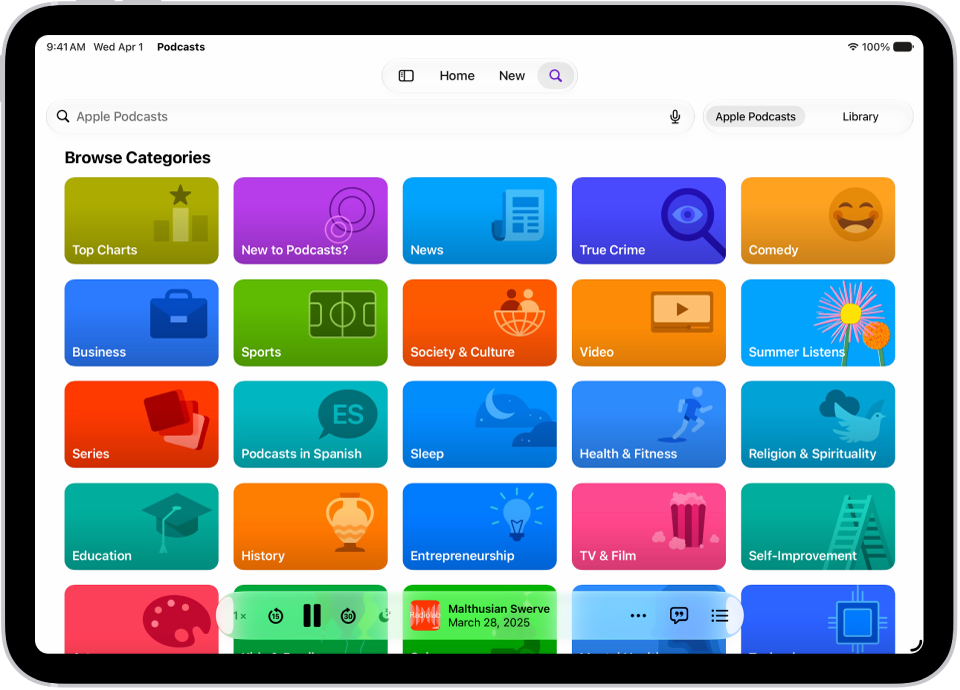
The Search screen in the Podcasts app, showing podcast categories. Towards the bottom of the screen is the MiniPlayer.

Find podcasts

Tap Search to browse shows by category. To search for a specific show or episode, enter a word or phrase—for example, a show name, episode title, person, or category. To find episodes within a specific show, tap Episodes on the show page, then search.

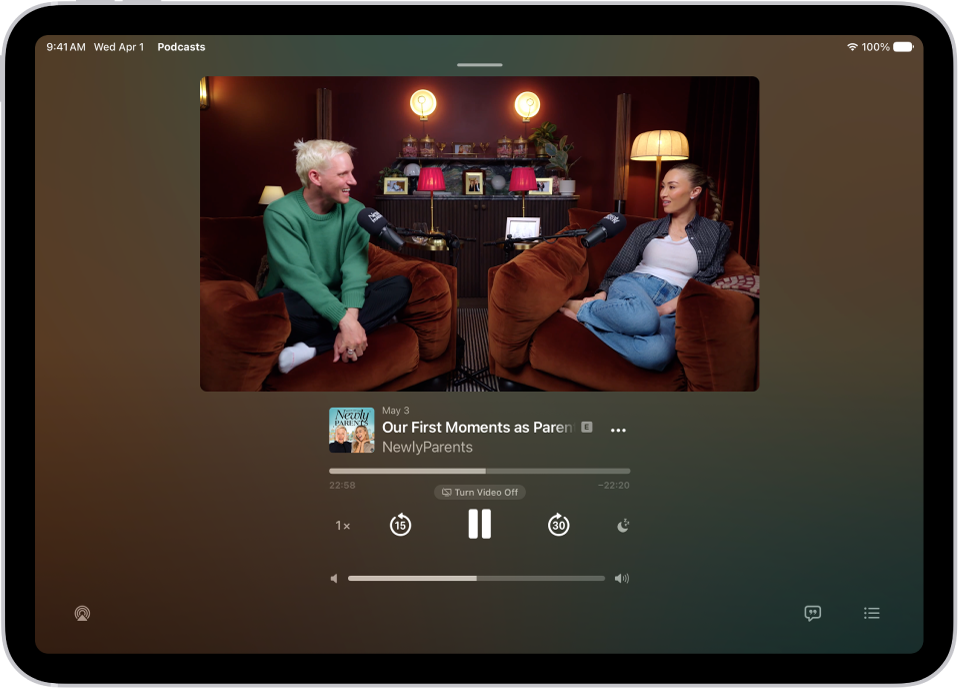
The Now Playing screen in the Podcasts app, showing a video podcast, the episode title, the progress bar, the playback controls, and the volume slider. The AirPlay button, the View Transcript button, and the Playing Next button appear at the bottom of the screen.

Play podcasts

Tap the play button to start playing a show or episode. Video episodes open directly in the Now Playing screen, where you can access playback controls, navigate through chapters, access links to other media, view the transcript, and more. For audio episodes, tap the MiniPlayer at the bottom of the screen to open Now Playing.

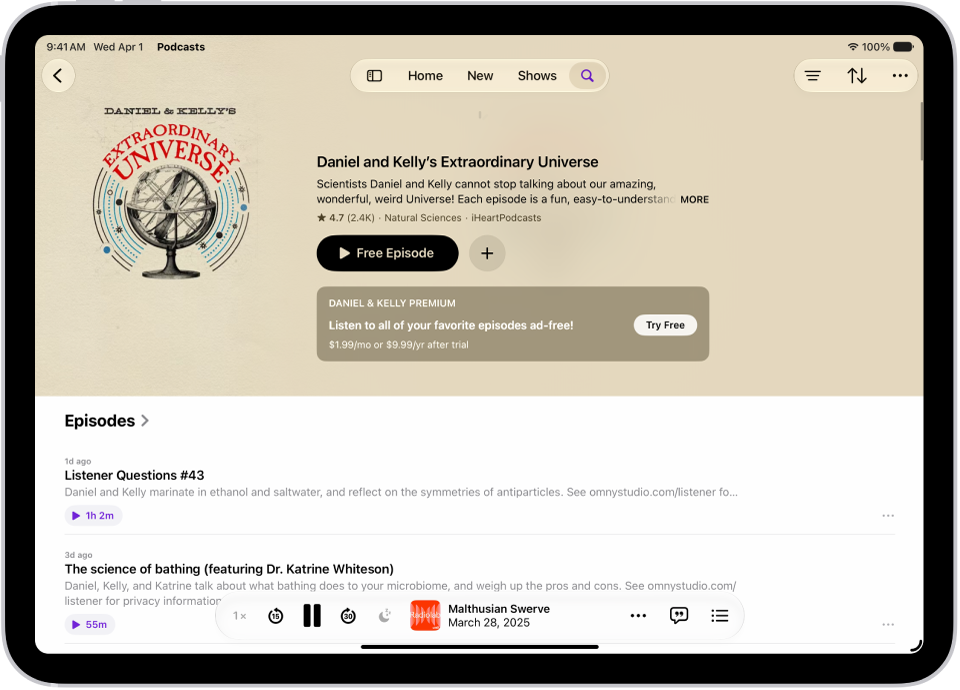
A show page in the Podcasts app showing two episodes with summaries of each and the MiniPlayer at the bottom.

Follow a show

When you find a show you like, tap the Follow button to add it to your library. You can choose whether to automatically download new episodes and get notifications for them.

To get more out of your podcasts, try these guides:

In the Podcasts app, you can download, save, and share podcast episodes.

A saved episode is downloaded automatically, so you can listen to it offline, and by default, only audio is downloaded for video episodes, though you can download video as well. You can also remove a saved or downloaded episode, or remove all episodes from a show. You can share an episode, too.

Here’s how to download, save, remove, and share podcast episodes on iPad.

Download an episode

  1. Start the Podcasts app on your iPad.
  2. Search or browse to find a show.
  3. Tap the show, swipe left on an episode, and then tap the Download button.

    You can also tap the More button under an episode, then tap Download.

Save an episode

  1. Start the Podcasts app on your iPad.
  2. Search or browse to find a show.
  3. Tap the show, swipe left on an episode, and tap the Save button.

    You can also tap the More button under an episode, then tap Save.

When you save an episode, it’s automatically downloaded so you can listen to it offline. To turn off this option, go to Settings > Apps > Podcasts, then turn off Download When Saving.

By default, only audio is downloaded for video episodes. To download video as well, go to Settings > Apps > Podcasts, then turn Download Video on.

Remove a saved episode

  1. Start the Podcasts app on your iPad.
  2. In the sidebar, tap Saved.
  3. Swipe left on an episode. Then tap the Unsave button.

    You can also remove a saved episode while looking at an episode list or the episode’s information. Tap the More button, then tap Unsave.

Remove a downloaded episode

  1. Start the Podcasts app on your iPad.
  2. In the sidebar, tap Downloaded, then tap a show.
  3. Swipe left on an episode. Tap the Remove Download button.

    You can also remove a downloaded episode while looking at the episode list or the episode’s information. Tap the More button, then tap Remove Download.

Remove all downloaded episodes from a show

  1. Start the Podcasts app on your iPad.
  2. In the sidebar, tap Downloaded and touch and hold a show.
  3. Tap Remove Downloads.

Remove all downloaded episodes

  1. Start the Podcasts app on your iPad.
  2. In the sidebar, tap Downloaded.
  3. Tap the More button at the top right, then tap Remove All Downloads.

Share a podcast show or episode

  1. Start the Podcasts app on your iPad.
  2. Do any of the following:

    • While viewing show information: Tap the More button near the top right. Tap Share.
    • While viewing episode information: Tap the Share button.
    • To specify the starting time for a shared episode: From the Now Playing screen, tap the More button, then tap Share. Tap From Start and choose From [time]. Then tap the Done button.

      The shared episode starts from the point where you’re watching or listening when you tap Share.

  3. Choose how to share the show or episode.

See also

In the Podcasts app, you can subscribe to, change, cancel, and share your podcast subscriptions. Paid subscriptions allow you to support the shows you love, and they often include premium extras, early access to new episodes, or ad-free listening.

Subscribing to a show automatically follows it, too, and you can access it on your other Apple devices. A channel you subscribe to appears in the Channels section of your library, and you can share your subscriptions with up to five other family members.

Note: Not all subscriptions and channels are available in all countries, regions, or languages.

Subscribe to a show or channel

  1. Start the Podcasts app on your iPad.
  2. Search or browse to find a show or channel.
  3. Select the show or channel you want to subscribe to.
  4. Tap the subscription button (if available).

Shows you’ve subscribed to or followed are available on your other Apple devices and in the Apple Podcasts app, too (when you subscribe to a show, you follow it automatically); see our guide, Follow your favorite podcasts. Once you subscribe to a channel or follow one of its shows, it shows up in the Channels section of your library.

Change or cancel your subscriptions

  1. Start the Podcasts app on your iPad.
  2. Choose Account > Account Settings in the menu bar.
  3. Tap Manage Subscriptions.
  4. Tap a subscription to change or cancel it.

Share Apple Podcasts subscriptions

You can share podcast channel subscriptions with up to five other family members when you use Family Sharing, and they automatically get access to the channels you subscribe to.

If you join a family group where a member subscribes to a show you already subscribe to, you switch to the group’s subscription, and yours doesn’t renew on your next billing date. A family group that doesn’t subscribe uses your subscription.

Note: A show subscription stays shared with your family group until you cancel the subscription or leave the Family Sharing group.

See also

Use the Podcasts app to search for or browse shows about science, news, politics, comedy, and more. When you find a show you like, you can follow it to add it to your library.

Then you can watch or listen offline, get notified about new episodes, and access followed shows on your other Apple devices and on Apple Podcasts on the web. You can also find episodes within a show, and filter or sort them. Shows may offer paid subscriptions, too.

Note: A show may offer paid subscriptions, with access to exclusive shows and episodes, new releases, ad-free episodes, and more. You’re able to subscribe to a show or channel and then manage your subscriptions. People with an existing subscription to Apple Music, Apple News+, or an eligible third-party app can play its subscriber content in Podcasts, too. See our article, Listen to subscriber-only content.

The Search screen in the Podcasts app, showing podcast categories. At the bottom of the screen is the Rewind, Pause, Skip Forward, and Sleep Timer buttons, episode artwork, the episode title, the More button, and the View Transcript button.

Find podcasts

  1. Open the Podcasts app on your iPad.
  2. Do any of the following:

    • Search by category, title, person, or topic: Tap the Search button (or tap Search in the sidebar). Enter a word or phrase in the search field. Top hits appear as you type.

      Tap the Search button on the onscreen keyboard to view all results for the word or phrase you typed. Tap a show, channel, or episode to go directly to it.

    • Discover new shows: Tap New to see new and trending shows, and the Apple editorial collections. You can also tap the Search button or Search and get a personalized list of categories to choose from, as well as editorial collections.

      Tip: To quickly see the top shows and episodes for a specific category, tap Top Charts, tap the All Categories pop-up menu in the top-right corner, then tap a category.

    • Add shows by URL: In the sidebar, tap Shows, tap the More button, and then tap Follow a Show by URL. Enter the URL and tap Follow.

      Note: The URL must be for a valid podcast RSS feed.

Find episodes within a show

  1. Open the Podcasts app on your iPad.
  2. Search or browse for a show.
  3. Tap the show and then do any of the following:
    • Browse episodes: Scroll down to see recent episodes (or tap See All Episodes, if available).
    • Search for a specific episode: Scroll down and then tap See All Episodes. Tap the search field near the top of the screen and then enter a word or phrase. Suggested results appear as you type. To view all results, tap the Search button on the keyboard.

Filter episodes

  1. Open the Podcasts app on your iPad.
  2. Search or browse for a show.
  3. Tap the show. Then tap the Filter button (available only if the show has Video or Subscriber-Only episodes).
  4. Choose one or more filters, such as All Episodes or Video.

Note: Additional filter options like Unplayed, Saved, or Downloaded become available once you follow the show or add one or more of its episodes to your library. If these options are missing, follow the show, then check the filters again.

By default, shows you follow are filtered to Unplayed episodes, and you can remove this filter to see all episodes. Filter changes stick until you change them again. Your filter selections won’t change whether you can find any episode of the show using search.

Sort episodes

  1. Open the Podcasts app on your iPad.
  2. Search or browse for a show.
  3. Tap the show, tap the More button, and then tap Sort.
  4. Choose Sort Newest to Oldest or Sort Oldest to Newest.

View podcasts shared with you

When a friend shares a show or episode with you in Messages, you can easily find it in Podcasts.

  1. Open the Podcasts app on your iPad.
  2. Tap Home. Then scroll down to the Shared with You section.

    If you don’t see Shared with You, check to make sure your friend is in your contacts, and that Podcasts is turned on in Settings > Apps > Messages > Shared with You.

See also Find all the content someone shared with you.

Get personalized recommendations

You can get personalized podcast recommendations based on your watching and listening activity and your favorite channels and categories.

  1. Open the Podcasts app on your iPad.
  2. Tap Home.
  3. Do any of the following:

    • View recommended shows: Scroll left or right in the You Might Like row.
    • Refine your show recommendations: Tap a show in the You Might Like row, tap the More button, and tap Suggest Less.
    • View suggested episodes based on your watching and listening: Scroll down to the More to Discover row. Scroll left or right.
    • Opt out of personalized recommendations: Tap the My Account button or your profile picture (you may need to open the sidebar), tap your name, and then turn off Personalized Recommendations.

      Note: Your Personalized Recommendations setting also applies to the App Store, Apple Books, iTunes Store, Apple TV, and subscriptions from Apple.

You’ll also see other recommendations based on categories you watch and listen to, plus any subscriptions you already purchased.

See also

Use the Podcasts app to play content from Apple Podcasts. You can play episodes stored locally on your Apple Watch or stream them from your iPhone.

If your watch is near your iPhone or connected to Wi-Fi or a cellular network, you can stream podcasts, and several Podcasts settings can be changed right on your watch. From the Home screen, you can see the latest episodes of shows you follow.

Here’s how to play podcasts on Apple Watch.

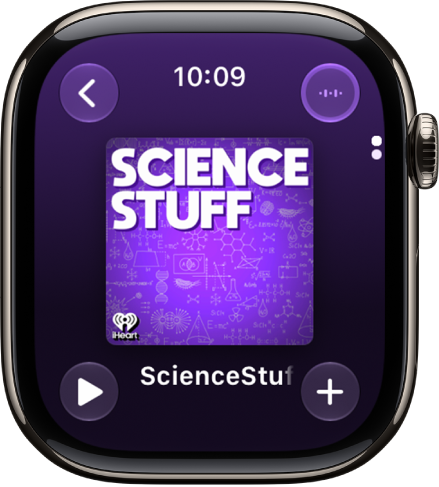
A Podcasts screen showing an episode with the Back, Play, More Options, and Audio Output buttons.

Play a podcast

When your Apple Watch is near your iPhone or connected to a Wi-Fi network, you can stream podcasts to your Apple Watch, and a cellular network works too on Apple Watch models with cellular. Otherwise, Apple Watch can play only downloaded episodes.

  1. Start the Podcasts app on your Apple Watch.
  2. Do any of the following:
    • See what’s up next: Turn the Digital Crown to scroll through the Home screen and see the latest episodes of shows you follow.
    • Browse your library: Tap the Back button and then tap Library to see shows you follow, saved, or downloaded.
    • Search: Tap the Back button, tap Search, and then enter what you’re looking for.
  3. Tap an episode to play it.
  4. Use the playback controls to play, pause, skip forward and backward, adjust the speed, or change the audio destination.

Change Podcasts settings

Right on your Apple Watch, you can change a number of Podcasts settings.

  1. Start the Settings app on your Apple Watch.
  2. Tap Podcasts, where you can adjust these settings:
    • Up Next: Choose the number of episodes downloaded to your Apple Watch from Up Next when your Apple Watch is syncing.
    • Saved: Choose the number of episodes not downloaded from Saved when your Apple Watch is syncing.
    • Cellular Downloads: On an Apple Watch with cellular service, choose to allow downloads on a cellular network.
    • Continuous Playback: Turn on to play another episode after the current episode ends.
    • Skip Buttons: Choose the time interval used when tapping the Skip Forward or Skip Back buttons.
    • External Controls: Tap Next/Previous or Forward/Back to choose the behavior of headphone controls.
    • Reset Identifier: Reset the identifier used to report aggregate app usage statistics to Apple.

See also

Podcasts you follow are automatically downloaded to your Apple device. Episodes you’ve played are automatically deleted from your device. You can change these settings, and adjust other download options.

You can also change them for a single podcast, limiting automatic downloads to a certain number of episodes or a timeframe, or choosing whether to download video, and turn on Remove Played Downloads just for that show. Here’s how to change your download settings for Podcasts on iPhone.

Turn automatic downloads on or off

  1. Start the Settings app on your iPhone.
  2. Tap Apps and tap Podcasts.
  3. Tap Automatically Download and then tap an option.

Quick tip: You can set automatic downloads for a particular podcast. Go to the Podcasts app , tap Library , and then tap Shows. Touch and hold the show, and tap Settings. From there, tap Automatically Download to cap automatic downloads at a certain number of episodes or a timeframe, or tap Download Video to choose whether video downloads too.

Remove downloaded podcasts after you watch or listen to them

  1. Start the Settings app on your iPhone.
  2. Tap Apps and tap Podcasts.
  3. Turn on Remove Played Downloads.

To adjust this setting for a particular podcast you follow, tap Library , tap Shows, then touch and hold the show. Tap Settings, then turn on Remove Played Downloads.

Resume automatic downloads

New episodes of a show you follow stop downloading automatically when you haven’t watched or listened to it in a while, but you can resume automatic downloads at any time.

  1. Start the Podcasts app on your iPhone.
  2. Tap Library, tap Shows, and then tap a show.
  3. Tap the Resume Automatic Downloads button. Then tap Turn On Automatic Downloads.

Turn off automatic syncing across Apple devices

  1. Start the Settings app on your iPhone.
  2. Tap Apps and tap Podcasts.
  3. Turn off Sync Library.

Use the Podcasts app to search for or browse shows about science, news, politics, comedy, and more. When you find a show you like, you can follow it to add it to your library.

Then you can watch or listen offline, get notified about new episodes, and access followed shows on your other Apple devices and on Apple Podcasts on the web. You can also find episodes within a show, and filter or sort them. Shows may offer paid subscriptions, too.

Note: Some shows offer paid subscriptions with perks like exclusive episodes, new releases, episodes without ads, and more. You can easily subscribe to a show or channel and manage your subscriptions. And if you’re already a subscriber to Apple Music, Apple News+, or an eligible third-party app, its subscriber content plays right in Podcasts.
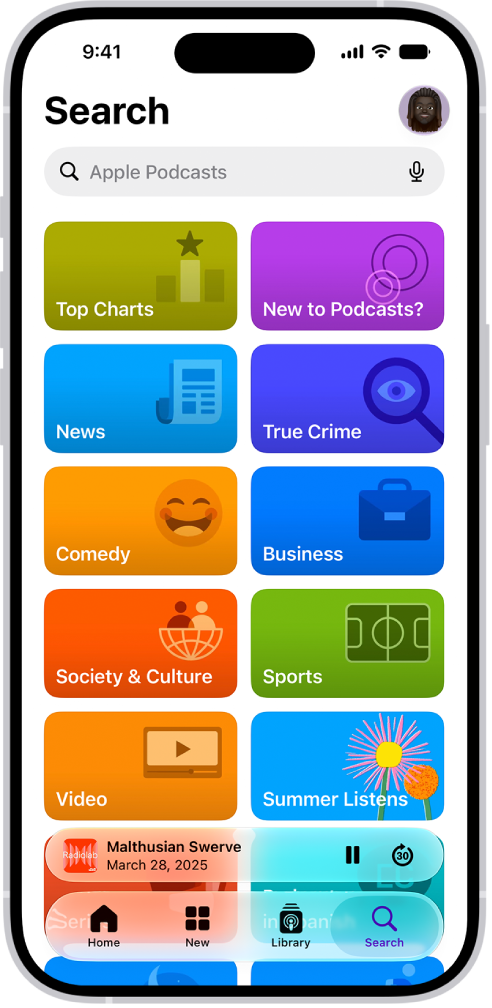
The Search tab in the Podcasts app, showing podcast categories. Toward the bottom of the screen is the MiniPlayer. Below that are the Home, New, Library, and Search buttons.

Find podcasts

  1. Open the Podcasts app on your iPhone.
  2. Do any of the following:

    • Search by category, title, person, or topic: Tap the Search button and then enter a word or phrase in the search field. Top hits appear as you type. Tap the Search button on the onscreen keyboard to view all results for the word or phrase you entered. Tap a show, channel, or episode to go directly to it.
    • Discover new shows: Tap New to see new and trending shows, and the Apple editorial collections. Or tap Search and get a personalized list of categories to choose from, as well as editorial collections.

      Tip: To quickly see the top shows and episodes for a specific category, tap Top Charts, tap the All Categories pop-up menu in the top-right corner, then tap a category.

    • Add shows by URL: Tap Library, tap the More button, and tap Follow a Show by URL. Enter the URL, then tap Follow.

      Note: The URL must be for a valid podcast RSS feed.

Find episodes within a show

  1. Open the Podcasts app on your iPhone.
  2. Search or browse for a show.
  3. Tap the show and then do any of the following:
    • Browse episodes: Scroll down to see recent episodes (or tap See All Episodes, if available).
    • Search for a specific episode: Scroll down and then tap See All Episodes. Tap the search field near the top of the screen and then enter a word or phrase. Suggested results appear as you type. To view all results, tap the Search button on the keyboard.

Filter episodes

  1. Open the Podcasts app on your iPhone.
  2. Search or browse for a show.
  3. Tap the show. Then tap the Filter button (available only if the show has Video or Subscriber-Only episodes).
  4. Choose one or more filters, such as All Episodes or Video.

Note: More filter options, such as Unplayed, Saved, or Downloaded, show up when you follow the show or add one or more of its episodes to your Library. If you don’t see them, follow the show and check the filters again. By default, shows you follow are filtered to Unplayed episodes, so remove that filter to see every episode. Filter changes you make for a followed show stay until you change them again, and they never stop you from finding any episode of the show using search.

Sort episodes

  1. Open the Podcasts app on your iPhone.
  2. Search or browse for a show.
  3. Tap the show, tap the More button, and then tap Sort.
  4. Choose Sort Newest to Oldest or Sort Oldest to Newest.

View podcasts shared with you

If a friend shares a show or episode with you in Messages, it’s easy to find in Podcasts.

  1. Open the Podcasts app on your iPhone.
  2. Tap Home. Then scroll down to the Shared with You section.

If you don’t see Shared with You, check to make sure your friend is in your contacts, and that Podcasts is turned on in Settings > Apps > Messages > Shared with You.

Get personalized recommendations

Personalized podcast recommendations are available based on your favorite channels and categories and your watching and listening activity.

  1. Open the Podcasts app on your iPhone.
  2. Tap Home.
  3. Do any of the following:
    • View recommended shows: Scroll left or right in the You Might Like row.
    • Refine your show recommendations: Tap a show in the You Might Like row, tap the More button, and tap Suggest Less.
    • View suggested episodes based on your watching and listening: Scroll down to the More to Discover row. Scroll left or right.
    • Opt out of personalized recommendations: Tap the My Account button or your profile picture, tap your name, and then turn off Personalized Recommendations.

Note: Your Personalized Recommendations setting applies to the App Store, Apple Books, and iTunes Store too, as well as Apple TV and subscriptions from Apple. You can also get other recommendations based on categories you watch and listen to, plus any subscriptions you already purchased.


You can rate and review a show, read reviews from other listeners, and delete a review you wrote if you later change your mind. It all happens in Ratings & Reviews, for the show you want to rate or review, where you can rate the show from 1 to 5 stars or write a review.

Rate or review a show

  1. Open the Podcasts app on your iPhone.
  2. Search or browse for a show.
  3. Tap the show you want to rate or review and then scroll down to Ratings & Reviews.
  4. Do any of the following:
    • Rate a show: Tap a star to rate the show from 1 to 5.
    • Review a show: Tap Write a Review. Tap a star to rate the show and enter your review. Then tap the Submit button.
    • Edit a review: Tap Write a Review, make any changes and tap the Submit button.

Delete a rating or review

  1. Open the Podcasts app on your iPhone.
  2. Tap Home. Then tap the My Account button or your profile picture.
  3. Tap your name (you may need to sign in), then tap Ratings and Reviews.
  4. Tap Edit, then tap the Remove button.
  5. Tap Done.