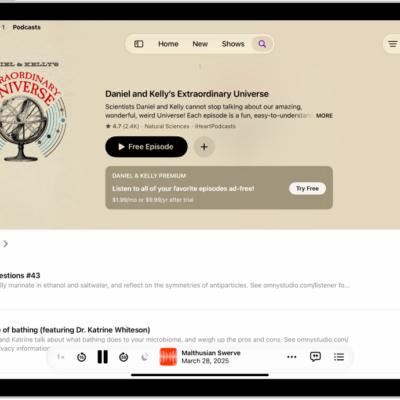
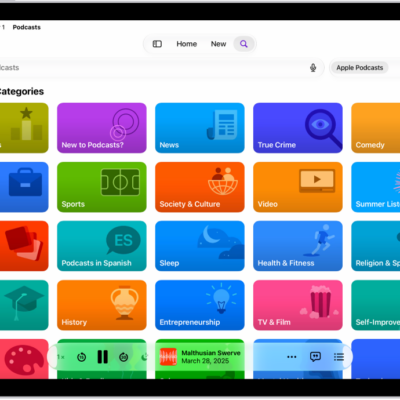
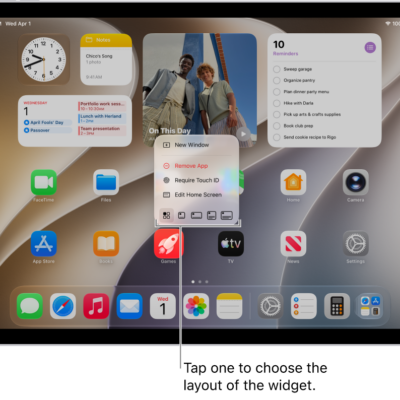
In the Podcasts app, you can customize the podcasts you follow, catch up on the latest episodes, and create your own stations.
Your library shows recently updated shows, the shows you follow, and channels you subscribe to. You can change the episode playback order, set download limits for each podcast, mark episodes as played, and hide the ones you’ve already played.
Here’s how to organize your podcast library on iPad.
View your podcast library
- Start the Podcasts app on your iPad.
- In the sidebar, tap any of the following:
- Recently Updated: See shows you follow with recently released episodes.
- Shows: See shows that are in your library. If you downloaded or saved episodes from podcasts you don’t follow, tap All to see them. Tap Followed to view only shows you follow. You can tap any show to see its information and the episodes you saved or downloaded.
- Channels: See channels you subscribe to, channels you added to your favorites, and channels that have shows you follow. You can tap a channel to browse all of its shows.
- Categories: See categories you added to your favorites, along with categories for any shows you follow.
- Saved: See episodes you saved.
- Downloaded: See episodes you downloaded. You can watch or listen to these episodes without an internet connection.
- Latest Episodes: See the most recent episodes from each show you follow. To change how long episodes stay in this playlist, tap the More button.
- Stations: If you created stations, each one is listed.
Change the episode playback order
- Start the Podcasts app on your iPad.
- In the sidebar, tap Shows.
- Touch and hold a show, then tap Settings.
-
Choose an option under Episode Order.
When you play an episode from the show page, the remaining episodes play based on the order you choose.
Set download limits for each podcast
- Start the Podcasts app on your iPad.
- In the sidebar, tap Shows.
- Touch and hold a show, then tap Settings.
- Scroll down to Automatically Download, then choose an option.
- Tap Download Video. Choose On to download video for offline playback, or Off to download audio only.
Mark an episode as played or unplayed
- Start the Podcasts app on your iPad.
- Search or browse for a podcast.
- Do any of the following:
- Mark an episode while viewing show information: Swipe right on an episode and tap Played or Unplayed.
- Mark an episode while viewing episode information: Tap the More button. Then tap Mark as Played or Mark as Unplayed.
- Mark all episodes listed while viewing a show you follow: Tap the More button. Tap Mark All as Played, Mark Filtered as Played, Mark All as Unplayed, or Mark Filtered as Unplayed.
Hide episodes you already played
To hide episodes you already played, change a show’s settings.
- Start the Podcasts app on your iPad.
- In the sidebar, tap Shows.
- Touch and hold a show and tap Settings. Then turn on Hide Played Episodes.
To automatically hide played episodes for all shows you follow, go to Settings > Apps > Podcasts, then turn on Hide Played Episodes.
Create your own station
Similar to a music playlist, a station groups shows you follow based on themes like comedy, news, or morning commute. And episodes from the podcasts you choose regularly land in your station automatically.
- Start the Podcasts app on your iPad.
-
In the sidebar, tap New Station.
If New Station doesn’t appear, tap the More button next to Stations.
- Add a title, then tap Save.
- Tap Choose Podcasts and then tap the shows you want to add to the station (or turn on Include All Podcasts).
Quick tip: It’s possible to adjust how many episodes from each podcast get added to your station. Tap the station, tap the More button, and then tap Station Settings. For the same settings across all podcasts in a station, tap Episodes and choose an option. Or, for a single show, tap the show in the Podcasts list and choose an option to adjust its settings.
See also