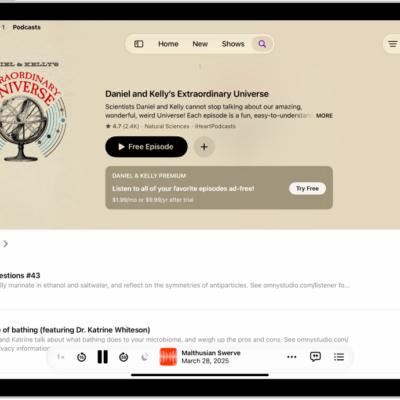
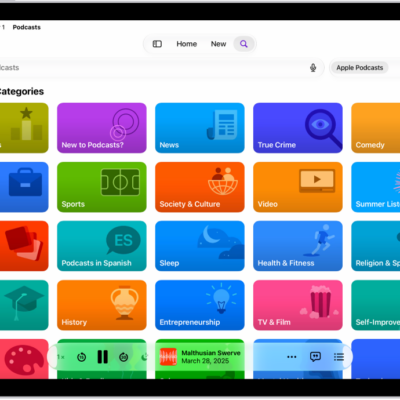
The Podcasts app offers millions of shows on a variety of topics such as news, true crime, comedy, and more. You can watch or listen online, or download episodes so you can play them even when you’re not connected to the internet, and when you find a show you like, you can follow it.
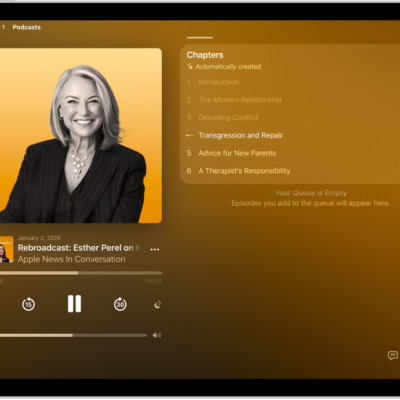
Video episodes open in the Now Playing screen, where you can navigate through chapters and view the transcript. You can also choose whether to automatically download new episodes from shows you follow.
Find podcasts
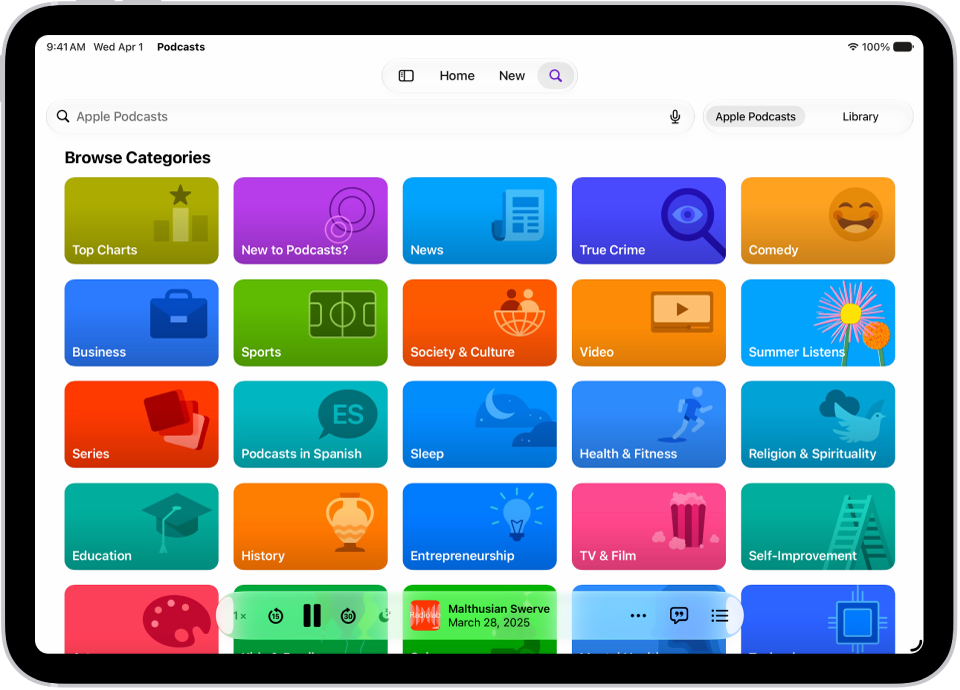
Tap Search to browse shows by category. To search for a specific show or episode, enter a word or phrase—for example, a show name, episode title, person, or category. To find episodes within a specific show, tap Episodes on the show page, then search.
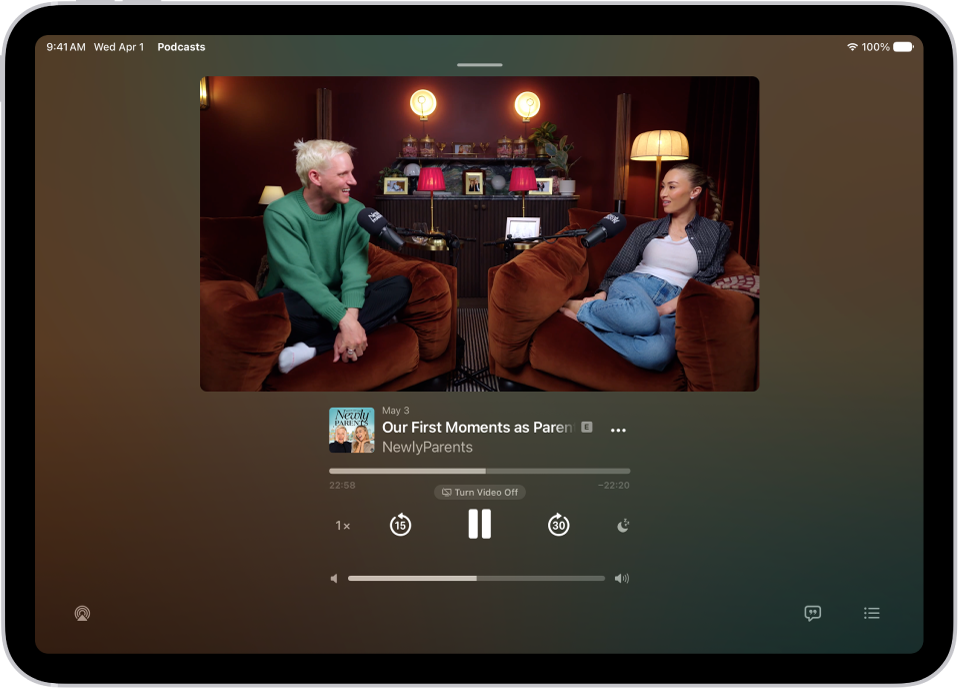
Play podcasts
Tap the play button to start playing a show or episode. Video episodes open directly in the Now Playing screen, where you can access playback controls, navigate through chapters, access links to other media, view the transcript, and more. For audio episodes, tap the MiniPlayer at the bottom of the screen to open Now Playing.
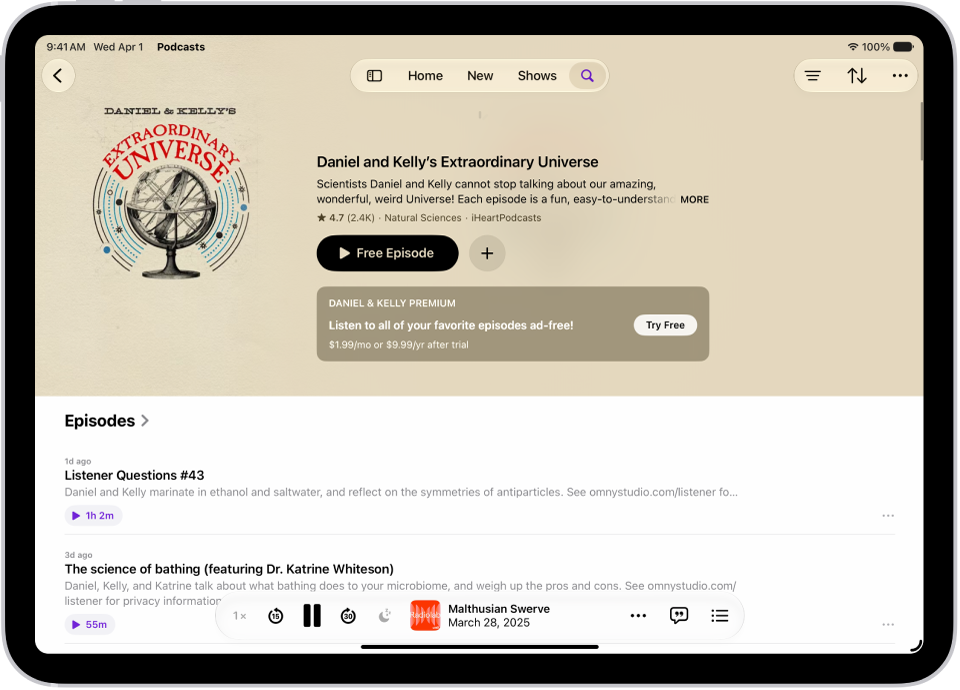
Follow a show
When you find a show you like, tap the Follow button to add it to your library. You can choose whether to automatically download new episodes and get notifications for them.
To get more out of your podcasts, try these guides:
- Find podcasts on iPad
- Play podcasts on iPad
- Follow your favorite podcasts on iPad
- Download, save, remove, and share podcast episodes on iPad
- Subscribe to a show or channel in Podcasts on iPad
- View podcast transcripts on iPad