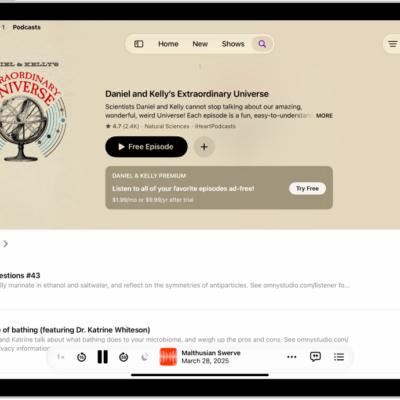
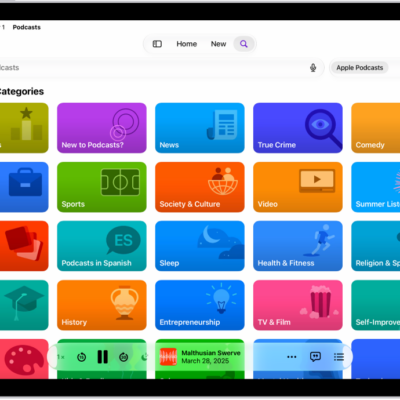
You can select your favorite categories and channels in the Podcasts app to get better show recommendations and access shows from your subscriptions. Favorite categories rank higher in search results, and favorite channels are easier to find in your library. You can remove them if you change your mind, too.
Select your favorite categories
Adding categories to your favorites gets you better show recommendations and easy access to category pages. Favorite categories also rank higher in search results, and they appear with a Favorite icon at the top of the Manage Categories screen.
- Start the Podcasts app on your iPad.
- In the sidebar, tap Categories.
- Do any of the following:
- Add a category to your favorites: Tap a category, then tap the Favorite button. To add a new category as a favorite, tap Manage. Then select one or more categories.
- Remove a category from your favorites: Tap a category, then tap the Remove Favorite button. You can also tap Manage. Then tap the Remove Favorite button next to a category.
Select your favorite channels
Favorite channels are easier to find in your library, though you can remove them from your favorites if you change your mind. In the Library, a Favorite icon marks them at the top of the Channels section.
Note: If you haven’t subscribed to any channels yet, followed any shows that a channel offers, or added a channel as a favorite, Channels won’t appear in the sidebar.
- Start the Podcasts app on your iPad.
-
In the sidebar, tap Channels.
You can also search or browse for a channel.
-
Do any of the following:
- Add a channel to your favorites: Tap the channel and tap the Favorite button.
- Remove a channel from your favorites: Tap the channel, then tap the Remove Favorite button.
See also