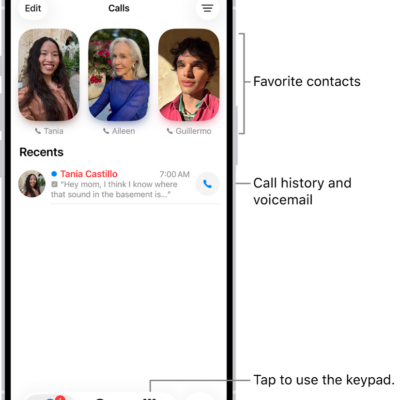
You can view your call history on your iPhone and delete all your recent calls or just specific calls.
You can filter by Calls, Missed, Unknown Callers, or Spam, and get more details about your call history.
Here’s how to view and delete your call history on iPhone.
Delete your call history
- Start the Phone app on your iPhone.
- Tap the Filter button and tap Calls, Missed, Unknown Callers, or Spam.
- Do one of the following:
- Delete calls one at a time: Swipe a call all the way to the left.
- Delete multiple calls: Tap Edit, tap Select, tap the calls you want to delete, and tap Delete.
To recover a deleted call history, restore your iPhone from a backup you made before the data was deleted.
Get more details about your call history
- Start the Phone app on your iPhone.
- Tap the Filter button, then tap Calls or Missed. If you’re in the Classic layout, you may also have the option to filter by Unknown Callers.
- Do one of the following, depending on which Phone app layout you’re using:
- Unified layout: Tap a call or contact.
- Classic layout: Tap the Info button next to a call.
Note: For more information about deleted calls or older call histories, check with your carrier.
Tag: Phone