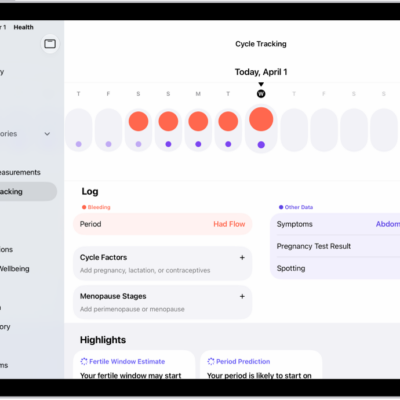
When you log your menstrual cycle, you can check the predicted date for your next period or fertile window, receive notifications about when your next period or fertile window is expected to be approaching, view details about your cycle history, and more.
Your cycle summary shows your last menstrual period, typical period length, and typical cycle length, and you can send or save a PDF of your cycle history. You can also turn off period, fertility, and cycle deviation notifications.
View your cycle timeline
Tap the Browse button, then tap Cycle Tracking.
At the top of the screen, a timeline shows the following icons.
| Icon | Description |
|---|---|
| A predicted period day. | |
| A predicted day of your fertile window. | |
| A day you likely ovulated (requires Apple Watch Series 8 or later or any Apple Watch Ultra model to be paired with your iPhone; not available in all regions). | |
| A day you logged a period. | |
| A day you added information (for example, noting a headache or cramping). |
To select different days, swipe the timeline.
Check the dates for your predicted next period and for your reported last period
- Go to the Health app on your iPad.
- Tap the Browse button and tap Cycle Tracking.
-
Scroll to Highlights to see when your next period is likely to start.
If you don’t see the estimate, tap Show All next to Highlights.
- Scroll to Summary to see the date of your last period and your typical cycle length.
If you don’t see a period prediction, make sure you have Period Predictions turned on in Options.
View your cycle history
- Open the Health app on your iPad.
- Tap the Browse button and tap Cycle Tracking.
- To see a summary of your last three cycles, scroll down to Cycle History.
-
To see summaries of all previous cycles, tap a cycle.
To send or save a PDF of your cycle history, tap Export PDF, tap the Share button, then choose an option.
-
To see details about a cycle, tap it.
To change any details for the cycle, tap Edit.
To send or save a PDF of the cycle details, tap Export PDF, tap the Share button, then choose an option.
If you receive a Cycle Deviation notification
If your logged cycle history shows a possible cycle deviation, you can receive a notification. Common cycle deviations include irregular periods, infrequent periods, prolonged periods, and persistent spotting, which may indicate an underlying condition or could be due to other factors.
When you receive a notification, do the following to review your logged cycle history:
- Open the Health app on your iPad.
- Tap Review Cycle History in the Possible Cycle Deviation notification.
- Follow the onscreen instructions to confirm, add, or edit the data in your cycle history.
If a cycle deviation is detected, a screen suggests what to do next.
View your cycle summary
A summary covers your last menstrual period, ongoing factors, typical period length, typical cycle length, and more.
- Open the Health app on your iPad.
- Tap the Browse button and tap Cycle Tracking.
- Scroll down then tap Summary.
- Scroll to view statistics of your last year of data.
Change cycle tracking notifications, cycle prediction displays, and other options
You can turn off period, fertility, and cycle deviation notifications and hide period and fertility predictions, among other things, and turn any of them on again at any time.
- Open the Health app on your iPad.
- Tap the Browse button and tap Cycle Tracking.
- Scroll down, tap Options, and then turn options on or off.
About your health data and privacy
Apple says the information you add about yourself in Health is yours to use and share. You can decide what information is stored in Health as well as who can access your data.
When your iPad is locked with Face ID, Touch ID, or a passcode, all of your health and fitness data in Health, other than your Medical ID, is encrypted. Any health data synced to iCloud is encrypted both in transit and on Apple servers. And if you have a version of iPadOS, iOS, and watchOS (if you’re using iPhone and Apple Watch for cycle tracking) with default two-factor authentication and a passcode, your health and activity data is stored in a way that Apple can’t read it.
This means that when you use the Cycle Tracking feature and two-factor authentication, your health data synced to iCloud is encrypted end to end, and Apple doesn’t have the key to decrypt the data and therefore cannot read it.
See also