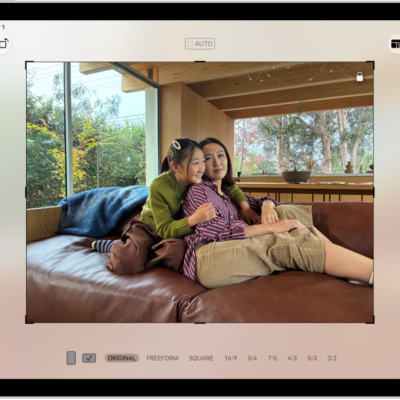
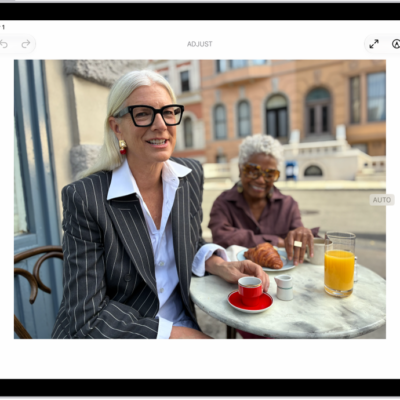
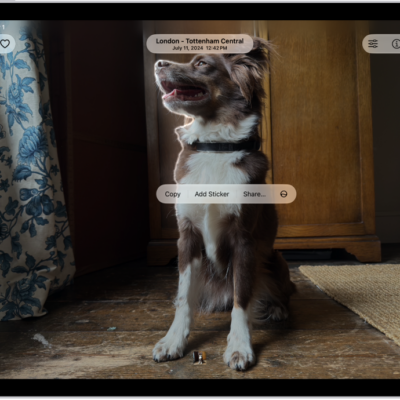
Use the Photos app to view photos and videos on your iPad. You can view a photo in full screen and keep browsing, or play videos and go forward or back in the video. On supported models, you can even view the photo with a 3D effect.
To focus on the photo you’re viewing, you can hide the controls onscreen. You can also search for photos and videos, and play memory movies in Photos on iPad.
View photos
- Open the Photos app on your iPad.
-
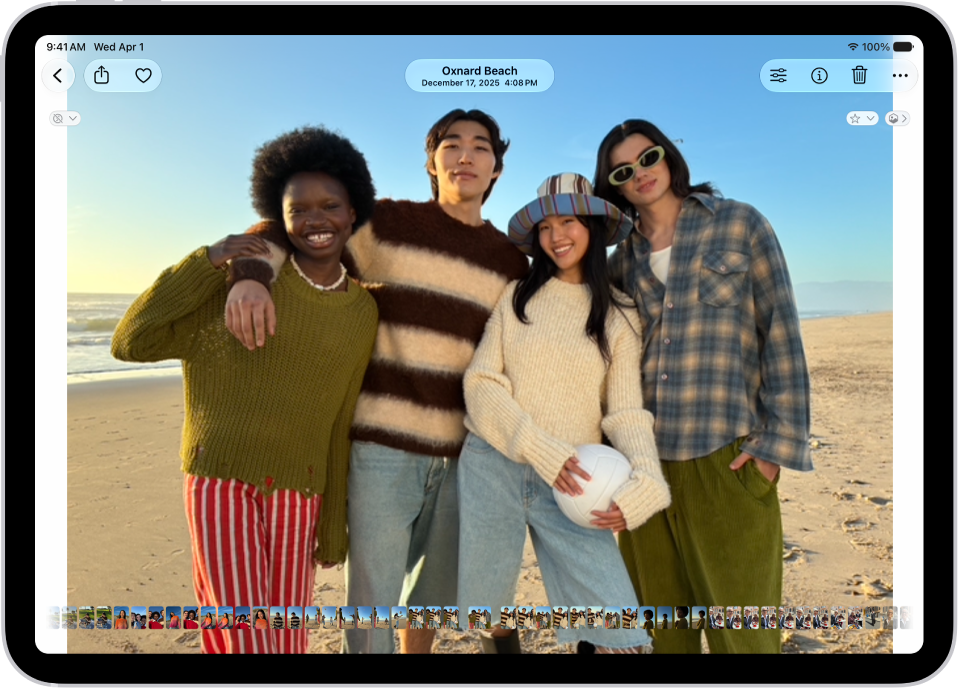
Tap a photo to view it in full screen.
Tip: Tap the Spatial Scene button, then move your iPad in your hand to view the photo with a 3D effect—available on iPad Pro (M4 and M5), iPad Pro 12.9-inch (5th generation and later), iPad Pro 11-inch (3rd generation and later), iPad Air (M2, M3, and M4), iPad Air (5th generation and later), iPad (A16), iPad mini (A17 Pro), and iPad mini (6th generation).
- Swipe left or right on the photo to keep browsing, or swipe the thumbnails below the photo to quickly jump forward or back.
- Tap the Back button to close the photo and return to the library or collection.
Quick tip: To focus on the photo in front of you, tap it to hide the controls onscreen, and tap it again to show the controls.
Play videos
- Open the Photos app on your iPad.
-
Tap a video to play it.
As the video plays, you can pause the video, or drag the gray bar to go forward or back in the video.
- Tap the Back button to close the video and return to the library or collection.
See also