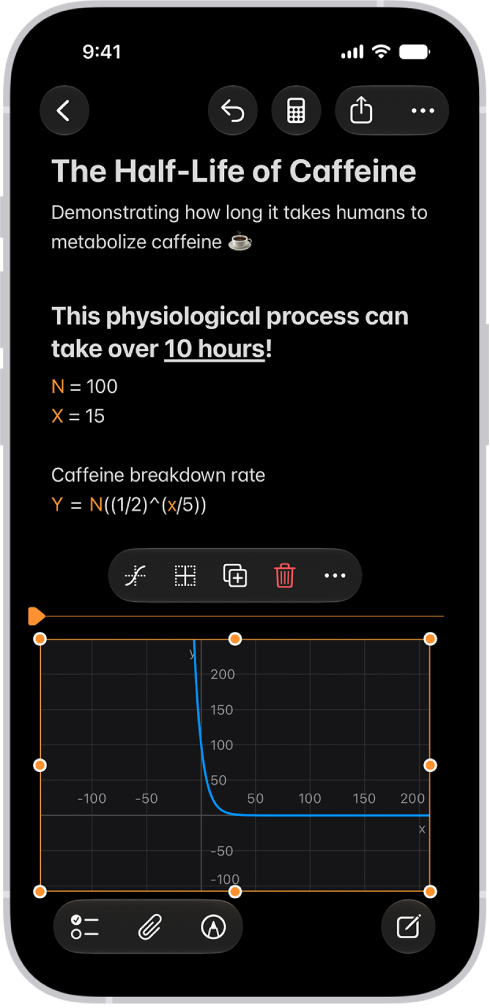
In Math Notes, you can insert a graph or overlay the graphs of multiple equations on the same two-dimensional grid or three-dimensional space to see how they relate.
You can graph in two dimensions or three, create a graph from an existing equation, modify a graph, and work with multiple graphs. It all starts in the Calculator app.
Here’s how to work with graphs in Math Notes in Calculator on iPhone.
Note: For written math and variable names, Math Notes relies on common mathematical symbols, select numeric systems, and the same operations as the scientific calculator.
Graph in two dimensions
- Start the Calculator app on your iPhone.
- Tap the Change Mode button and tap Math Notes.
- Tap to open a previous Math Note, or tap the New Note button to start a new one.
-
Type or write an equation with exactly two undefined variables, with one on each side of the equal sign.
You can include defined variables as well. For example, if you know a = 3, you can graph velocity = 0.5at^2. The graph’s y-axis shows velocity, and the x-axis shows t.
- Tap Insert Graph in the menu that appears, then, if asked, tap to assign a variable to the x-axis.
-
Tap to select the graph and then do any of the following:
- Reframe the graph: Swipe with two fingers to pan.
- Zoom in or out: Pinch open and closed.
- See coordinates: Touch and hold the graphed function. Move your finger along the line to see each point’s x- and y-value.
- Move the graph in the note: Drag from the middle or an edge (not a handle) of the graph.
Every graph treats the equations you enter as y = f(x). That means the variable to the left of the equal sign goes on the y-axis, and the other variable goes on the x-axis.
Graph in three dimensions
- Start the Calculator app on your iPhone.
- Tap the Change Mode button and tap Math Notes.
- Tap to open a previous Math Note, or tap the New Note button to start a new one.
-
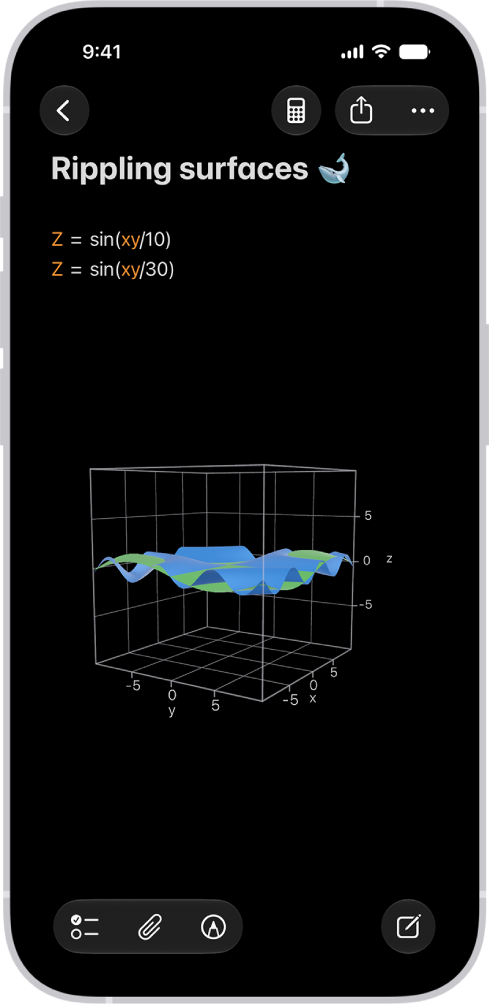
Type or write an equation with a “z” on the left side of the equal sign and “x” and “y” on the right.
For example, z = (x^3+y^3)/2.
- Tap Insert 3D Graph in the menu that appears, then, if asked, tap to assign variables to axes.
-
Tap to select the graph and then do any of the following:
- Inspect the graph from other angles: Drag from the middle of the graph.
- Move the graph in the note: Drag the edge (not a handle) of the graph.
Create a graph from an existing equation
- Start the Calculator app on your iPhone.
- Tap the Change Mode button, tap Math Notes, and then open a Math Note with an equation.
- Tap to place a cursor in the equation (without selecting text).
- Tap the equation again to reveal a menu above or below the equation, tap the Forward button, and then do one of the following:
- Make a new graph: Tap Insert Graph.
- Add an additional graph: Tap Graphs, then tap Insert Graph.
Modify a graph
- Start the Calculator app on your iPhone.
- Tap the Change Mode button, tap Math Notes, and open a Math Note with a graph.
- Do any of the following:
- Change the shape of the function: Edit your equation. The graph updates automatically.
- Resize the graph: Tap the graph and drag an edge or corner handle.
- Adjust the axes: Tap the graph, tap the Graph Viewport button, and then swipe left or right on the numbers to make them larger or smaller, or tap Equalize Axes.
- Zoom to the best view of the graph: Tap the graph and then tap Recenter.
- Center the origin: Tap the Graph Viewport button and tap Center Origin.
- Duplicate the graph: Tap the graph and tap the Duplicate button.
- Recolor the graph: Tap the line or surface of the graph and tap the color picker to the right of the equation.
Work with multiple graphs
- Start the Calculator app on your iPhone.
- Tap the Change Mode button and tap Math Notes.
- Create a graph in two or three dimensions, as above.
-
Type or write another equation and then tap Insert Graph or Add to Existing Graph.
You can also tap an equal sign of any equation you already wrote to add it to an existing graph.
-
Do any of the following:
- Combine graphs in one grid or space: Tap a graph, tap the 2D Graph Settings button or the 3D Graph Settings button, and then tap the equation in the list that you want to add to the graph. A the Visibility button appears.
- Hide a graph: Tap the graph, tap the 2D Graph Settings button or the 3D Graph Settings button, and tap the Visibility button to uncheck it.