In the Reminders app, you can save a list as a template to reuse it for routines, packing lists, and more. You can create a link to publish and share a template with others, or download templates that others have shared.
After you make a template from a list, changes to that list don’t affect the template, and changes to a template don’t affect lists you already created from it. You can make a new list from a template, and edit or delete a template, too.
Save a list as a template
- Start the Reminders app on your iPad.
- Above a list, tap the More button and tap Save as Template.
- Enter a name for the template.
- Turn on or off Include Completed Reminders and tap the Done button.
Changes you make to a list after turning it into a template don’t affect the template.
Make a new list from a template
- Start the Reminders app on your iPad.
- Above your lists, tap the More button and tap Templates. Tap the name of a template.
- Enter a name for the list and then tap Create.
Edit or delete a template
Any changes you make to a template don’t affect lists previously created from the template.
- Start the Reminders app on your iPad.
- Above your lists, tap the More button and tap Templates. Tap the Edit button.
- Choose one of the following:
- Edit Template: Add, edit, or delete any items in the template. You can also change the name, color, and icon for the template.
- Delete Template: Remove the template.
Share a template
Apple servers have access to a template you share, which lets anyone with the link download a copy on a device running iPadOS 16, iOS 16, macOS 13, or later. Images are removed, but you can choose whether the shared template keeps any dates, tags, or locations.
- Start the Reminders app on your iPad.
- Above your lists, tap the More button, tap Templates and tap the Edit button next to the template you want to share.
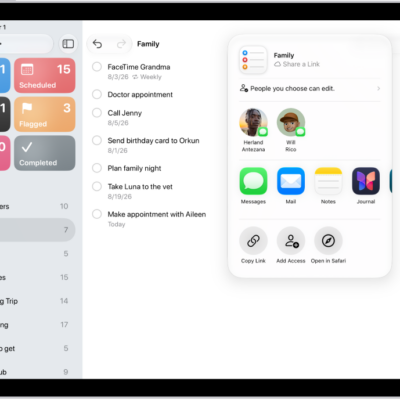
- Tap Share Template and choose a method for sharing.
To manage a shared template, tap the More button, tap Templates, tap the Edit button, then tap Manage Link.
Changes you make to the template after sharing can go into an update of the shared version, but people who downloaded the previous version have to download the template again to get the updates.
Anyone who has already downloaded a template isn’t affected if you stop sharing it.
See also