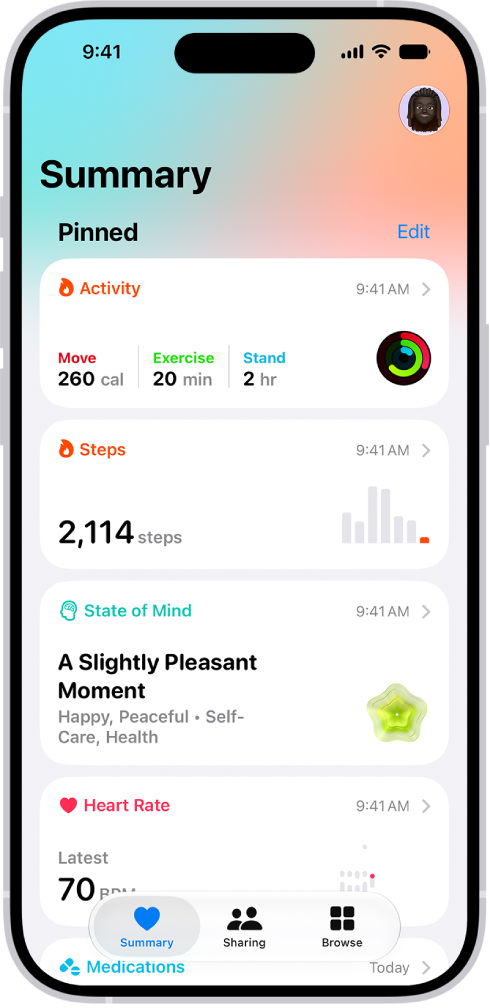
The Health app securely stores your health information from iPhone, iPad, and Apple Watch, as well as from compatible third-party apps and connected devices. You can also manually enter data for body measurements, symptoms, menstrual cycle information, and more.
iPhone does a lot of the work on its own. It automatically stores and analyzes valuable health data, including steps, flights of stairs, walking speed, and mobility data. Apple Watch and other apps and devices can add more.
Health data from iPhone
Your iPhone stores and analyzes valuable health data automatically, including the following:
- Steps, flights of stairs, and other walking data: Built-in sensors on your iPhone capture the number of steps you take, the number of flights of stairs you climb, your walking speed, and more. You can browse highlights, trends, and details about this data in the Activity category in Health.
- Mobility data: iPhone stores important mobility metrics such as walking asymmetry, double support time, and more. Over time, as you walk with iPhone in your pocket or wear it near your waist, these metrics are used to calculate and record your walking steadiness. You can browse this data in the Mobility category. You can also receive a notification and share your notification with others if your steadiness becomes low enough to put you at increased risk of falling in the next 12 months.
- Headphone audio levels: Audio level measurements from connected AirPods, EarPods, or other compatible headphones are automatically stored in Health. You can review this data in the Hearing category to help you understand your headphone listening habits.
- Sleep history: If you set up a sleep schedule in Health, iPhone estimates the periods you’re lying in bed with the intention to sleep. You can review this data in the Sleep category to help you meet your sleep goals.
- Health records from your healthcare providers: You can set up automatic downloads of health records of your allergies, medical conditions, medications, and more from supported healthcare organizations (not available in all countries or regions). You can browse these records in Health.
Health data from Apple Watch
After you pair iPhone with Apple Watch, periodic heart rate and blood oxygen measurements are automatically sent from Apple Watch to Health, where you can browse highlights, trends, and details in the Heart and Respiratory categories. You can also set up Apple Watch to send additional information to Health, including the following:
- Exercise minutes and other activity metrics: You can view these metrics in the Activity category in Health on iPhone.
- A history of time in daylight (Apple Watch SE 2nd generation, Apple Watch Series 6 or later, and all Apple Watch Ultra models): The ambient light sensor in Apple Watch estimates how much time you’ve spent in daylight. You can view details in the Other Data category in Health on iPhone.
- Notifications about high or low heart rates, low cardio fitness (watchOS 7.2 or later), and irregular heart rhythms (not available in all countries or regions): You can view the details about these notifications in the Heart category.
- Environmental noise levels and notifications about loud sounds: You can view the details about noise in your environment in the Hearing category.
- Overnight health metrics in the Vitals app: You can view overnight health metrics—heart rate, respiratory rate, wrist temperature, blood oxygen, and sleep duration—to get a better understanding of your daily health status. If you wear your Apple Watch to sleep for multiple nights, the Vitals app establishes a typical range for each of your health metrics. If multiple metrics are outside your typical range, you’ll receive a notification along with context for factors that may be involved—like medications or illness, for example. You can view the details about your overnight vitals in the Vitals category.
- A history of hard falls (Apple Watch SE and Apple Watch Series 4 and later): In the Other Data category, you can view details about the number of times fallen.
- Sleep score in the Sleep app: You can view a sleep score—a score based on estimates of how long you slept, the consistency of when you fell asleep relative to your recent history, and the amount and duration of awake periods during sleep. Your sleep score appears around 15 minutes after you wake up. You can also view the amount of sleep you had the night before, the time spent in each sleep stage, and your sleep average over the last 14 days. You can view details about your sleep score in the Sleep category.
- Notifications of possible hypertension (Apple Watch Series 9, Apple Watch Ultra 2 and later): You can wear Apple Watch to analyze your heart data, which can be used to detect signs of possible hypertension. If your Apple Watch detects patterns of hypertension, you receive a notification to discuss them with your healthcare provider. You are also prompted to use a third-party blood pressure cuff to take measurements over a 7-day period. You can view details about hypertension notifications in the Heart category.
Health data from other apps and devices
To let health and fitness apps from the App Store share data with Health, follow their onscreen instructions as you’re setting them up.
Follow the setup instructions for devices like blood pressure monitors and weight scales to store their data. Bluetooth® devices have to be paired with iPhone.
Note: At any time, you can change the health data permissions you’ve given apps and devices.
Data that you add manually
You can enter data about your medications, body measurements, menstrual cycles, and more manually.
- Add information about your menstrual cycles: By logging menstrual cycle information, you can get period and fertile window predictions.
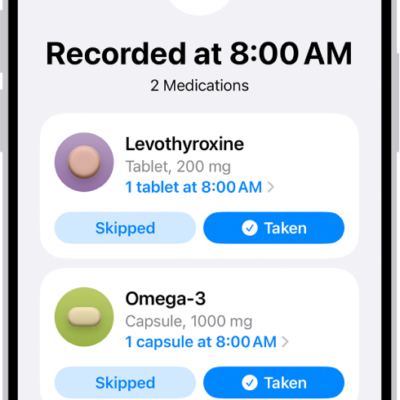
- Add your medications, vitamins, and supplements: By adding these items, you can get reminders to take them and learn more about them.
- Set up a sleep schedule: Scheduling regular times for getting to bed and waking up can help you meet your sleep goals.
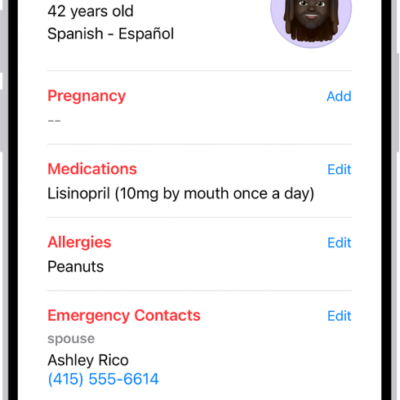
- Add information to a Medical ID: You can provide information about your medical conditions, medications, emergency contacts, and more in an emergency Medical ID. First responders and others can view this critical information directly on your iPhone, even while it’s locked.
- Add information to other Health categories: Tap Browse, tap a category, tap the Details button for the data you want to update, then tap Add Data at the top right.
Important: iPhone, iPad, and Apple Watch aren’t medical devices.