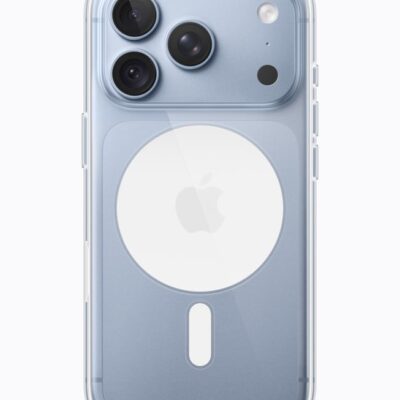









Your iPhone 18 Pro Max is essentially a pocket-sized device. But unlike a Mac or other laptops, it doesn’t have a fan to regulate the temperature and keep everything cool. When you put it under stress, it will generate heat.
But there’s a difference between a device that’s warm to touch and one that’s overheating. We’ll find out the reasons and discuss why your iPhone gets hot, along with how to diagnose and fix the problem.
Why Your iPhone Gets Hot
When you use your devices for any length of time, it’ll get warm. That’s perfectly normal and shouldn’t concern you. However, there are some activities that, when carried out for an extended period, may cause your iPhone 18 Pro Max to overheat. They include:
- Charging and using your device at the same time.
- Streaming a high-quality video.
- Using GPS and real-time navigation controls.
- Setting up your device for the first time or restoring it from a backup.
- Using graphically demanding or processor-intensive apps.
- Leaving the device in a car on a hot day or exposing it to direct sunlight.
When your iPhone is overheating, you’ll also likely experience other issues such as:
- Display dimming or going black intermittently.
- Poor call quality.
- Unusable camera flash.
- Graphic-intensive apps stop working properly or, worse, crash on launch.
- Temperature warning messages stating “iPhone needs to cool down before you can use it” or “Charging On Hold.”
Solutions When Your iPhone Is Overheating
First, it’s important to point out that no method can magically cool down an overheating iPhone immediately.
The suggested fixes below are mostly about adjusting how you use and care for your device, as well as tweaking some settings to prevent your device from overheating quickly during everyday use.
1. Pause Device Usage for the Heat to Dissipate
The first step is to temporarily stop using your iPhone so that your device can cool off properly. So, exit the app you’re using, press the Side button to put your iPhone to sleep, and leave it alone for 10 to 15 minutes to cool down completely.
To help speed up the process, you can also remove your iPhone case and turn off the device altogether.
To quickly reduce overheating, some people try putting their iPhones in the fridge or directly in front of an air conditioner. You should never do this because sudden changes in the temperature can cause condensation and damage your iPhone’s internal components.
2. Don’t Charge and Use Your Device at the Same Time
When the low battery notification pops up while you’re using your iPhone, you probably just proceed to charge your device to continue using it. However, charging your iPhone while using the device simultaneously will cause it to overheat quickly, especially if you’re playing a graphic-intensive game or using it for activities like video calls.
Unless it’s an emergency, leave your iPhone to cool down, as mentioned earlier, and plug in only to charge your device afterward. In the future, it’s best to maintain your iPhone’s battery by planning ahead a little and ensuring that your device is fully charged beforehand.
3. Keep Your iPhone Away From Heat
Nowadays, our iPhones accompany us almost everywhere we go. However, when you’re going somewhere without it, make sure you’re not accidentally leaving your device in a place that’s exposed to direct sunlight (like a desk next to the window) or in a car.
In the latter case, temperatures in parked cars can exceed the optimum temperature range and thus cause your iPhone to overheat. Remember to keep your iPhone 18 Pro or iPhone 18 Pro Max in a shaded area so that it does not get hot due to external environmental factors.
4. Use Official or MFi-Certified Chargers for Your iPhone
Cheap third-party chargers purchased from non-certified sources can also cause your iPhone to get abnormally hot during charging.
It’s best to use an official charger made by Apple or a high-quality third-party USB-C cable that comes with the Made for iPhone (MFi) certification. Uncertified and fraying chargers can damage your device and create other problems.
5. Turn Off Background App Refresh
Background App Refresh allows your apps to look for new information all the time. It happens automatically in the background, unknowingly consuming battery and CPU, which may result in your iPhone getting hot frequently.
If you’re not a fan of this feature, you can turn off Background App Refresh by going to Settings > General > Background App Refresh > Background App Refresh > Off.
But if you think turning off this feature completely is overkill, you can try to catch the culprit app that’s using the most power. Go to Settings > Battery, tap View All Battery Usage, then tap a day. The App and System Activity section helps you understand what’s using your battery by listing the percentage of battery used by each app and system task.
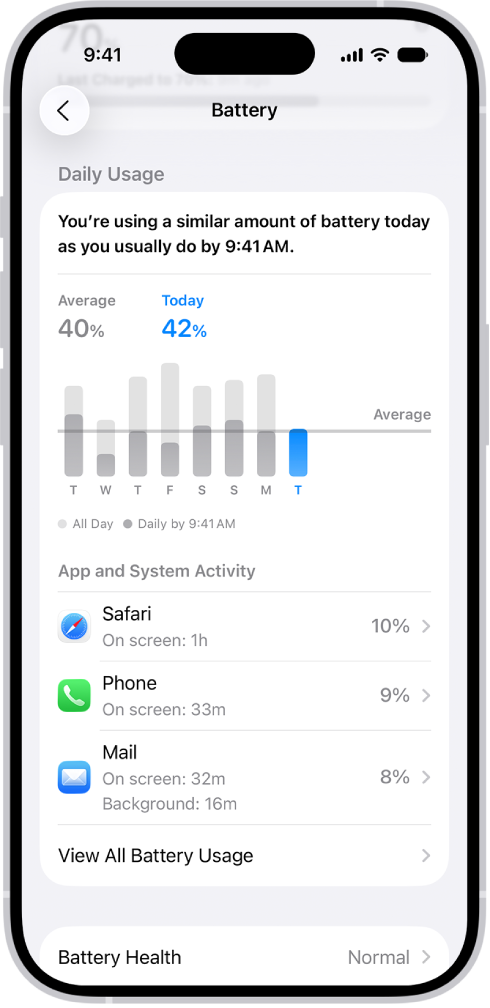
Then, go back to Settings > General > Background App Refresh. Toggle off the feature for apps that consume significant resources in the background.
6. Reduce Screen Brightness
If your screen brightness is above 50% or more, your iPhone will tend to stay warm at all times and will be more prone to overheating. Therefore, decreasing the brightness can help prevent your iPhone from getting hot quickly.
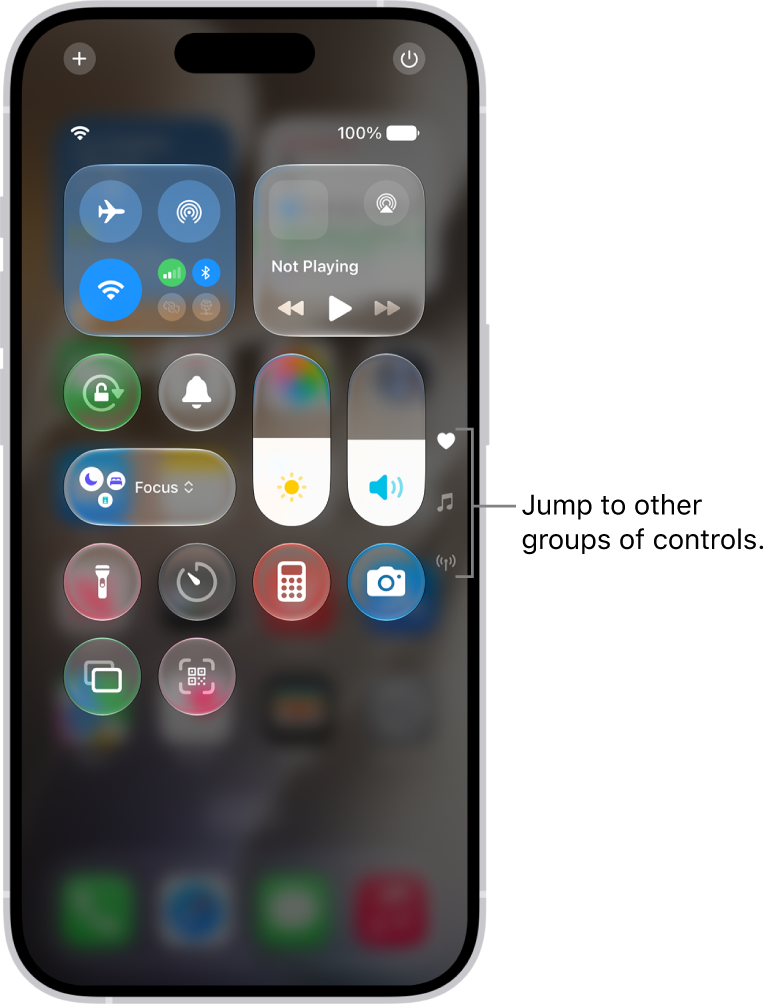
Swipe down from the top-right corner of the screen to bring up the Control Center. Then, drag the brightness slider downwards as you see fit.
7. Update Your Device and Its Apps
Updates often carry bug fixes and performance improvements that can help resolve the issue when your iPhone keeps getting hot. Go to Settings > General > Software Update to check if an iOS update is available. The same applies to third-party apps. It’s best to head to the App Store to update your iPhone apps.
8. Uninstall and Reinstall Problematic Apps
In some cases, updating an app isn’t sufficient to stop the overheating problem. You might need to uninstall and reinstall it again on your iPhone.
To uninstall an app, go to your Home Screen, long-tap it, and choose Remove App. Then, tap Delete App when you get a confirmation pop-up.
After uninstallation, you can reinstall the app on your iPhone. If this still doesn’t work, you may also want to send an email to the developer for further investigation.
9. Restart Your iPhone 18 Pro Max and Reset All Settings
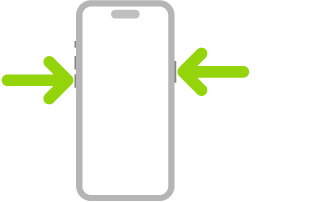
The last two methods here are generic but effective fixes that may help resolve a tech issue when all else fails. You can first restart your iPhone, which is simply turning off your device and turning it on again. Simultaneously press and hold the side button and either volume button until the sliders appear, then drag the Power Off slider. Press and hold the side button until the Apple logo appears.
The other method involves resetting all settings on your device. This returns all settings on your iPhone to its default state. No data will be deleted, so you don’t need to worry about losing your photos, videos, or messages.
To reset your device, go to Settings > General > Transfer or Reset iPhone > Reset > Reset All Settings. The resetting process can take a while, so it’s best to attempt this when you don’t need to use your iPhone urgently.
Prevent Your iPhone From Getting Hot
Your iPhone will feel warm to the touch after prolonged use, which is normal. If your iPhone 18 Pro Max is getting excessively hot, stop using it temporarily and give it time to cool down. At the same time, apply some of the tips discussed above to keep your iPhone at an acceptable temperature and ensure it doesn’t overheat so frequently.