









Is your iPhone 18 Pro Max asking for your Apple Account password over and over and over again? You aren’t alone. It’s a known bug that pops up from time to time, sometimes following an iOS update, sometimes due to issues with iCloud, or due to one of the other reasons we’ll discuss in this article. Luckily it’s pretty easy to fix the problem and stop your iPhone repetitively asking for your password – read on to find out how.
If your iPhone is in a loop of continuously asking for your iCloud login details and password, even after you have entered your password, we have the fix.
Having an iPhone that is stuck in this weird iCloud login loop can be extremely frustrating. Fortunately, help is at hand.
You can try the following tips to see if they help:
Fix 1: Turn it off and on again
No tutorial would be complete without the stalwart advice “turn it off and on again”. It is often the fix all solution so it’s the best place to start.
-
You need to press and hold one of the volume buttons at the same time as the Side button. Eventually the power-off slider will appear. Just drag that from left to right and wait for your iPhone 18 Pro or iPhone 18 Pro Max to shut down. To turn it back on press the side button again.

Once your iPhone has started up again you may need to enter your iCloud password once, but hopefully that will fix the problem.
What if that doesn’t fix it? Read on…
Fix 2: Update your software
This is a bug that often comes up after major software updates, but those kinds of issues are often quickly addressed by Apple, so the next thing to check is that you are running the latest version of iOS.
- Go to Settings.
- General.
- Software Update.
- Your iPhone will check for updates and if one is available you will see it here. Tap Update Now. You need an internet connection to update your device.
Fix 3: Check your apps and update
It’s also possible that it’s an app that is causing the problem. Perhaps one of your apps has been trying to update but needs your iCloud log in before it can do so.
- In this case open App Store.
- Tap on the icon at the top right. This will take you to your Account information where you will find details of your apps.
- You will see how many apps need to be updated. It’s wise to update them just in case it’s an out of date app that is causing the repetitive login issue. Tap App Updates, then tap Update All.
If you don’t want to install updates to all your apps consider deleting some of them. You can swipe from right to left on any app in the list that appears to Delete them.
Fix 4: Turn FaceTime and iMessage off and on again
FaceTime and iMessage run via your Apple Account so it could help fix the problem if you sign out of them and then sign back in.
- Go to Settings.
- Tap Apps, then tap Messages.
-
Tap on the slider beside iMessage so it goes from on to off.
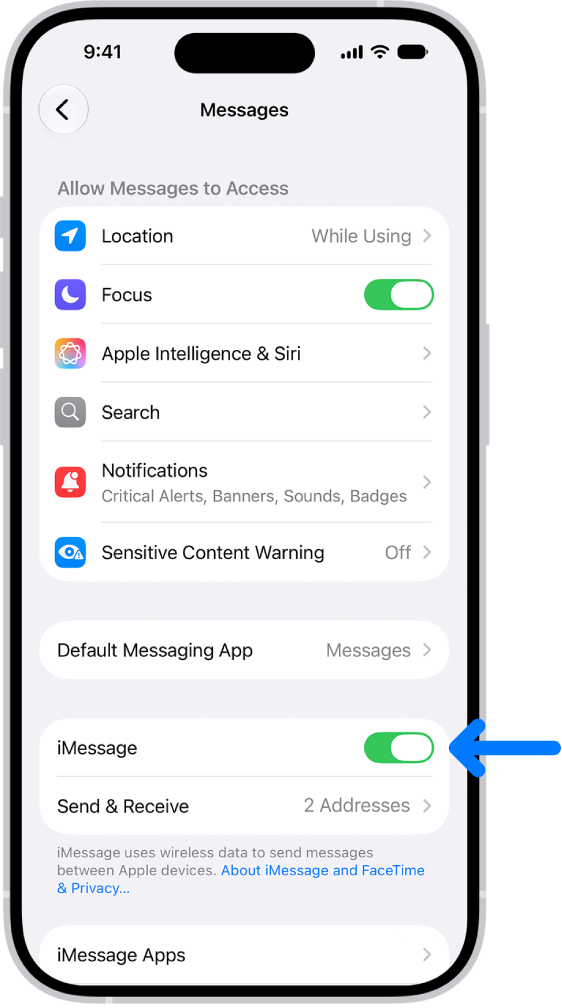
- Tap again to turn it on (so it’s green).
Follow the same steps with FaceTime.
Fix 5: Sign out of iCloud
If none of the above fixed the problem with your iPhone 18 Pro Max we advise that you try signing out of iCloud and then back in again. Follow these steps:
- Open Settings
-
Tap on the area at the top with your name – this will take you to your Apple Account settings.
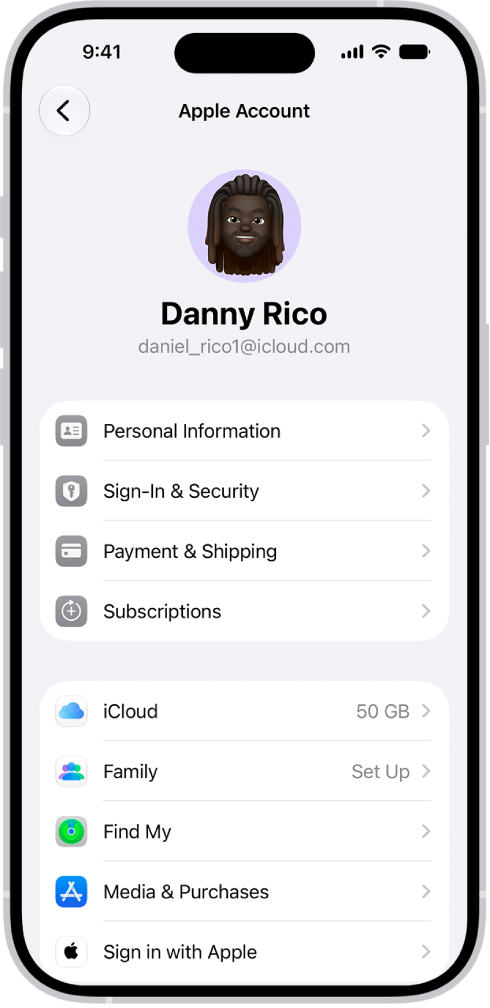
- Scroll down and tap Sign Out.
- Enter your Apple Account password to turn off Find My iPhone.
- Tap Turn Off.
- Now sign in again.
- We recommend restarting the iPhone again at this point following the steps in the first suggestion above.
Resetting iCloud may fix the problem, but if that doesn’t work then, move on to our next suggestion.
Fix 6: Check iCloud is working
Before going any further, we suggest that you check that iCloud is working correctly at Apple’s end. It’s possible that the iCloud server has gone down, for example. Go to Apple System Status on your Mac or iPhone and check that all the services are lit up green.
If there is a problem with iCloud at Apple’s end, then it’s best to give Apple a couple of hours to fix it.
Fix 7: Reset your password
If none of the earlier steps have worked, and you’ve checked Apple System Status, then the next thing is to change your Apple Account password. It’s a hassle, but often it fixes the problem. The easiest and most secure way to change your Apple Account password is to use your iPhone or another trusted device.
- Go to the Settings app on your iPhone.
- Tap your name, then tap Sign-In & Security.
- Tap Change Password, then follow the onscreen instructions.
Now try entering the new password on your iPhone when it asks. This should be accepted by the iPhone and fix the problem.
Fix 8: Back up and restore
If your iPhone 18 Pro Max is still constantly asking for the iCloud password, and you’ve tried power cycling the iPhone and changing your password, then the next thing to try is to back up and restore your iPhone.
Normally we would recommend backing up using iCloud, but because you can’t rely on iCloud at the moment you will need to back up to a Mac (or PC).
You will need a USB cable to connect your iPhone to your Mac – this could be a problem if your Mac has USB-C and your cable is USB-A. In that case you will need an adapter.
How you back up will depend on the operating system on your computer.
Back up iPhone in Catalina or later
- Connect your iPhone to the Mac using the cable.
- You may see a Trust This Computer message on your iPhone, enter your passcode.
- Open the Finder.
- Under Locations find your iPhone and click on it.
- Wait for the information to load. The General tab should be selected. Scroll to the Backups section.
- Select the Back up all of the data on your iPhone to this Mac option. (Note that you will need enough space on your Mac).
- Click Back Up Now.
Back up iPhone in Mojave or older (or on a PC)
- Connect your iPhone to the Mac using the cable.
- Open iTunes.
- Click the iPhone button near the top left of the iTunes window.
- Select Summary.
- Choose This Computer under Backups.
- Click Back Up Now.
Wait for the backup process to take place. When it’s finished you can begin the process of restoring your iPhone.
Restore iPhone in Catalina
You will also need to use the Finder to restore your iPhone in Catalina.
- Open the Finder and go to the General tab.
- Click on Restore iPhone.
- You’ll be asked if you need to back up first (you just have).
- Confirm that everything on your iPhone should be erased (as long as you have a backup!)
Now your iPhone will begin the process of restoring.
Restore iPhone in Mojave or older (or on a PC)
- Keep your iPhone connected to the Mac.
- On your iPhone, go to Settings, tap your name, then tap Find My.
- Tap Find My iPhone.
- Set Find My iPhone to Off.
- Enter your Apple Account Password and tap Turn Off.
- Back in iTunes on your Mac, click Restore iPhone.
Follow the restore process and use the backup you just created.
You will download the latest version of iOS from Apple, and restore your iPhone using the backup. After the phone has been restored it should be just as it was before, but this will hopefully have fixed the problem.
Fix 9: Reset and restore as new
This is our last and most drastic solution. You could reset your phone to factory settings. This will mean you lose all your data (although you may find that this isn’t a problem if you are using iCloud to sync photos, your music is synced via iTunes Match, you sync all your documents and data over the cloud, and all the apps you own can be easily downloaded again from the App Store.)
- Go to Settings.
- General.
- Transfer or Reset iPhone.
- Choose Erase All Content and Settings.
This will return your iPhone to factory settings.


